I made my Pixel home screen so much cleaner by changing one Android 17 setting
I made my Pixel home screen so much cleaner by changing one Android 17 setting
Publish Date: 2026-06-21 14:44:00
Source Domain: www.androidcentral.com
Google Pixel phones offer many customization tools, but up until recently, the Pixel UI home screen was more restrictive. Google only recently made it possible to remove the At a Glance widget from your home screen, for instance. While past Pixel Drops brought fresh theme packs and style choices, the latest Android 17 update adds a hidden home screen customization option that can seriously simplify your setup.
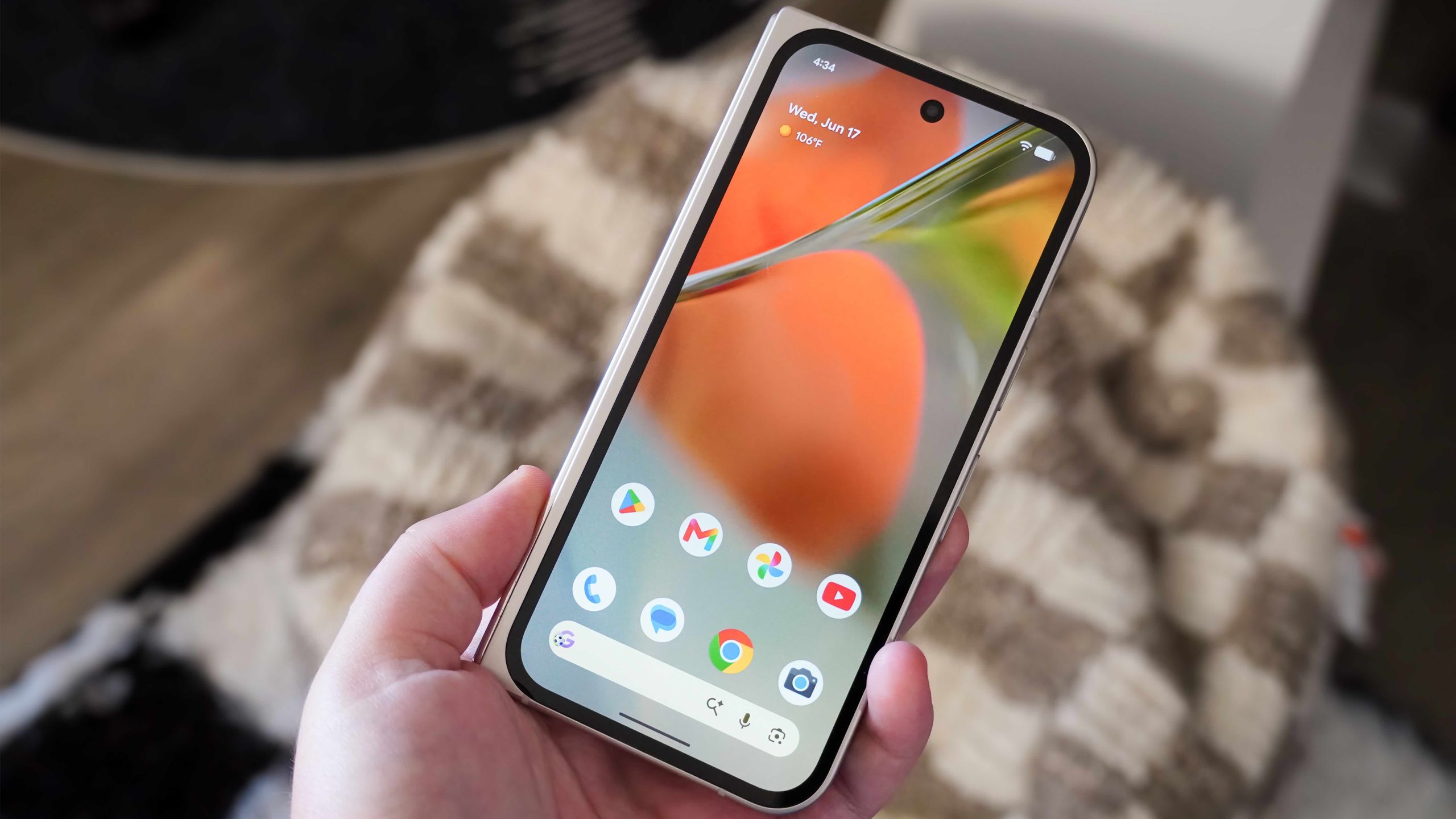
I keep my home screen basic, only including a few home screen widgets and the most important apps. For everything else, I use the app launcher or search bar. That means I know exactly which apps and icons are on my home screen without needing to look at their names. Finally, Android 17 lets me remove the redundant app names from my home screen for a cleaner look.
Today’s best Google Pixel 10 series deals
Pixel home screen customization just leveled up
(Image credit: Brady Snyder / Android Central)
The easiest way to change your Pixel home screen is to hold down anywhere on it that isn’t covered by an app or widget. This brings up a small menu with the Wallpaper & style, Widgets, Apps list, and Home settings buttons. You can even switch between default wallpapers straight from this tiny menu on the home screen. To customize your phone’s look, tap Wallpaper & style.
Latest Videos From
Here, you’ll be able to pick a Theme pack, change your phone’s Colors, set a Color contrast settings, manage your Icons, and choose a Layout. This isn’t new, but Android 17 adds a setting on the Icons page. Previously, you could choose an app icon Style or change the app icon Shape.
There are five shapes to choose from, and the styles are abundant. You can pick Default or Minimal — the latter forces all your app icons to match your selected color palette, creating a consistent look I almost always prefer. There’s also the Create option, which lets you build custom app icon designs by starting with one of six styles: Disco, Scribbles, Cookies, Easel, Treasure, and Stardust.
…
Source