How to Find Your WiFi Password on Android (No Apps Needed)

How to Find Your WiFi Password on Android (No Apps Needed)
https://www.online-tech-tips.com/how-to-find-your-wifi-password-on-android-no-apps-needed/
Publish Date: 2026-06-21 13:47:00
Source Domain: www.online-tech-tips.com
Ever tried to connect a friend’s device to your WiFi, only to realize you have absolutely no idea what your password is? You’re definitely not alone. Most of us enter that password once and never think about it again, until we need it.
The good news? Your Android phone has been quietly saving all those WiFi passwords for you. Whether you’ve got the latest Pixel or an older Samsung Galaxy, there’s a way to dig up that password without downloading questionable apps or doing anything too technical.
What Are Saved WiFi Passwords?
When you connect to a WiFi network, Android automatically stores the network name and password so you don’t have to re-enter it every time. Think of it like your browser remembering website passwords, but for WiFi networks.
Key Features:
- Automatic saving: Every network you connect to gets stored
- Cross-device sync: If you have Google backup enabled and are signed into the same Google account on multiple devices, WiFi passwords can sync between your Android devices
- Security protection: Passwords are encrypted and require authentication to view
- QR code sharing: Modern Android versions can generate QR codes for easy sharing
How to Find WiFi Passwords on Modern Android (Android 10+)
If you’re running Android 10 or later (which covers most phones from 2019 onward), this is surprisingly easy. The exact steps vary slightly depending on your phone manufacturer, but the general process is the same.
On Google Pixel and Stock Android
Google Pixel phones and devices running stock Android make this the most straightforward:
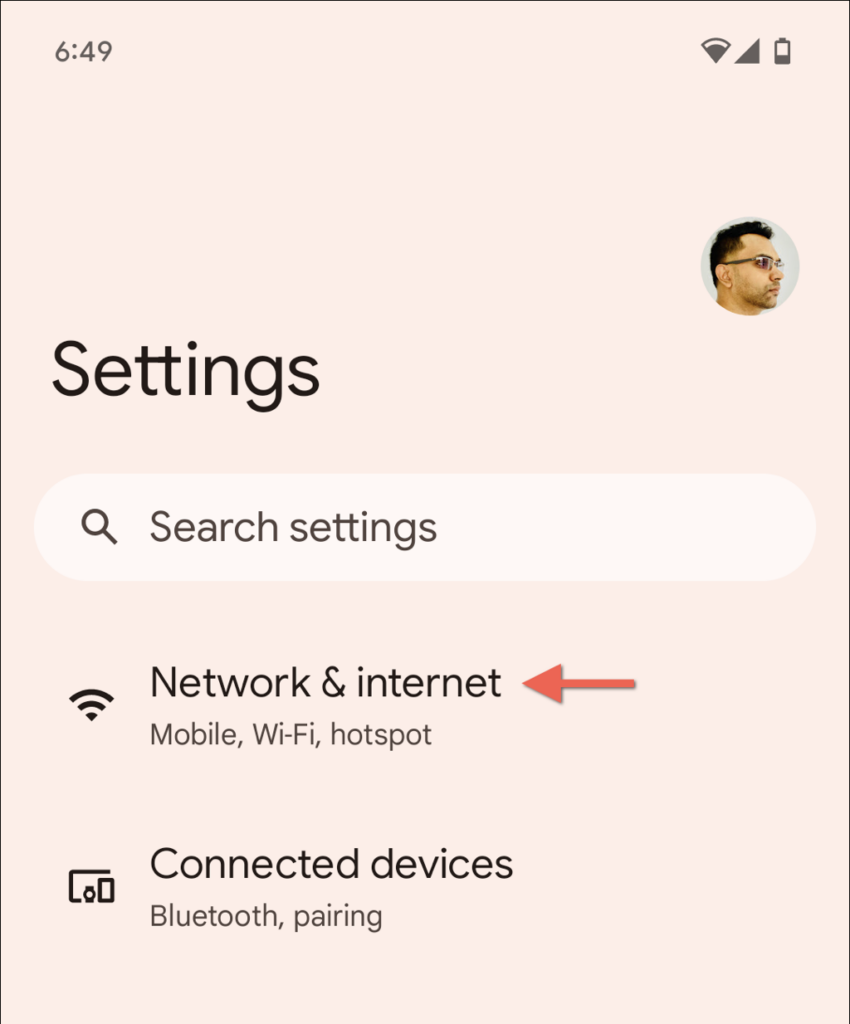
- Open Settings and tap Network & internet.
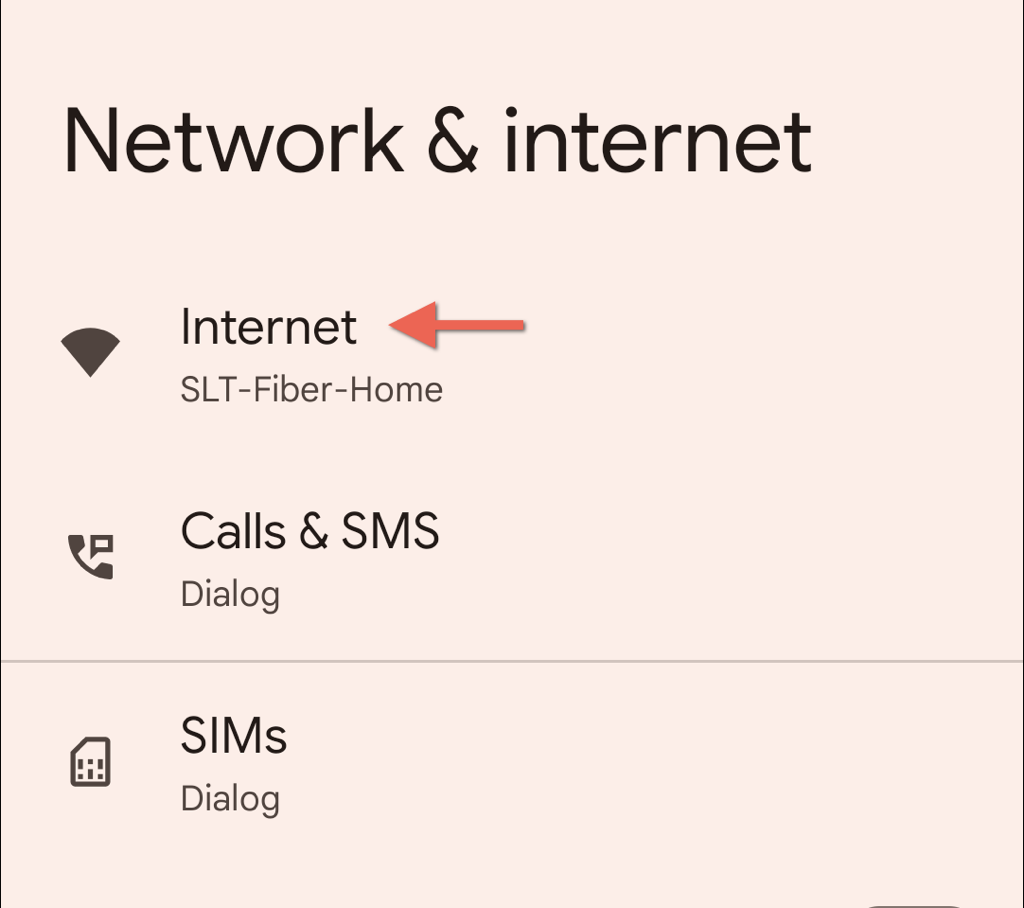
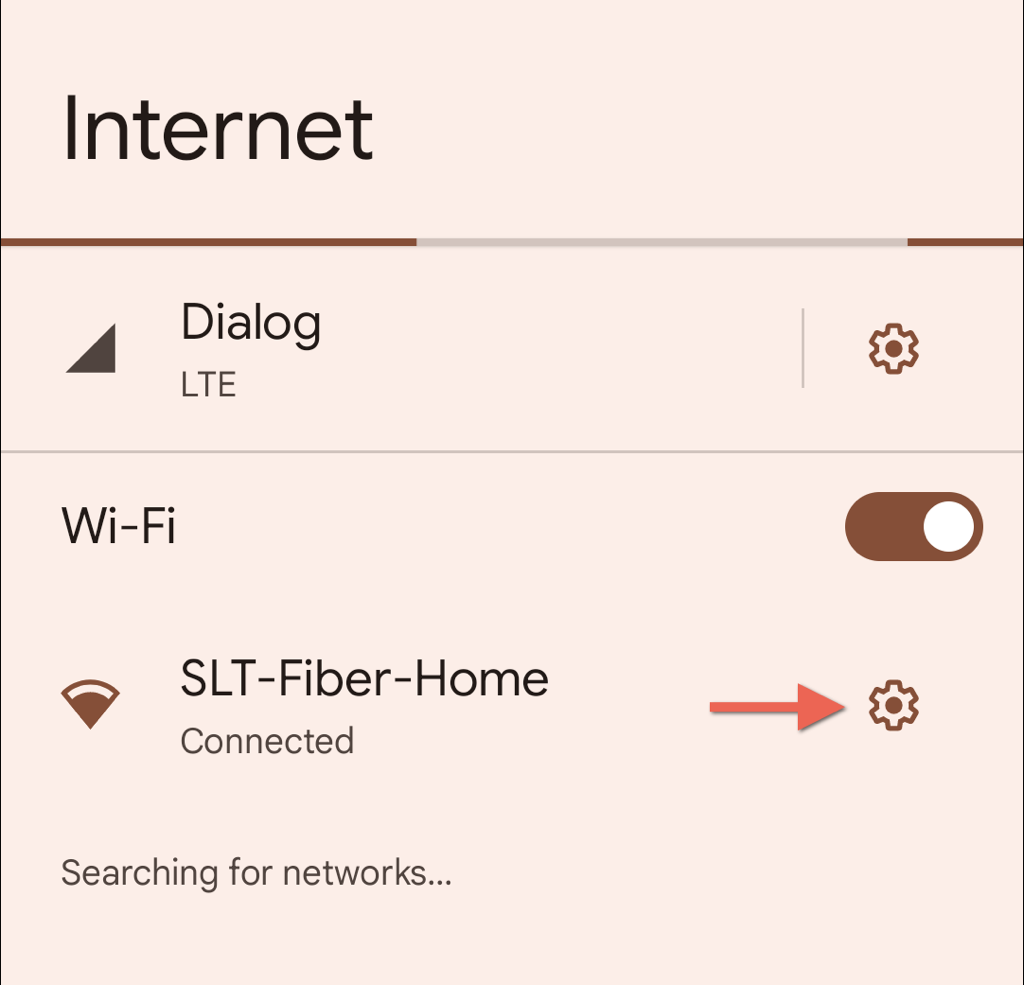
- Tap Internet.
- Find the WiFi network you want the password for and tap the gear icon next to it.
- Tap the Share button. Your phone will ask you to verify your identity with a fingerprint, PIN, or pattern.
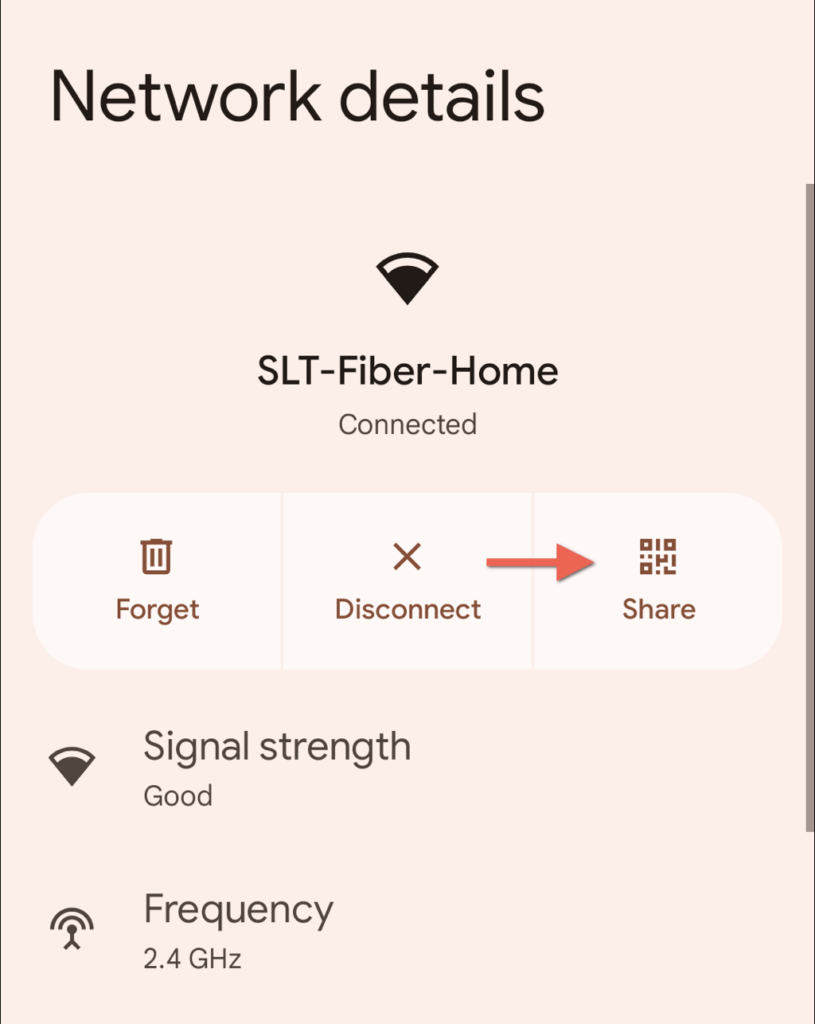
- Boom! Your phone displays a QR code with the password written in plain text right below it. On many…