This iPhone feature stopped my eye strain — here’s how to enable it
This iPhone feature stopped my eye strain — here’s how to enable it
Publish Date: 2026-03-07 03:00:00
Source Domain: www.tomsguide.com
Hidden iPhone tips
(Image credit: Future)
Hi, I’m Kaycee. Welcome to Hidden iPhone Tips, a weekly column where I dig into the best iOS features Apple doesn’t tell you about.
I spend an embarrassing amount of hours on my iPhone according to Screen Time. While this is bad enough, what’s worse is how close I hold it to my face — especially at night when I’m scrolling in bed with the lights off. My eyes feel strained constantly, like there’s something irritating them that won’t go away.
Why this feature is a game-changer
Screen Distance monitors how far your iPhone is from your face using the TrueDepth camera. When you hold it closer than about 12 inches for an extended period, your screen gets blocked by a warning: “iPhone May Be Too Close.” Your phone stays blocked until you physically move it farther away.
You may like
This forced intervention works far better than Night Shift’s passive color adjustment. Night Shift lets you keep scrolling with your phone inches from your nose, just with warmer colors. Screen Distance makes you stop and correct the behavior causing eye strain in the first place.
I was skeptical at first — another annoying iPhone interruption seemed like the last thing I needed. But after a few days of forced distance corrections, I started holding my phone farther away automatically. The warnings became less frequent as my habits improved, and my eyes felt noticeably less strained by the end of each day.
How to enable Screen Distance on your iPhone
1. Open Screen Time settings
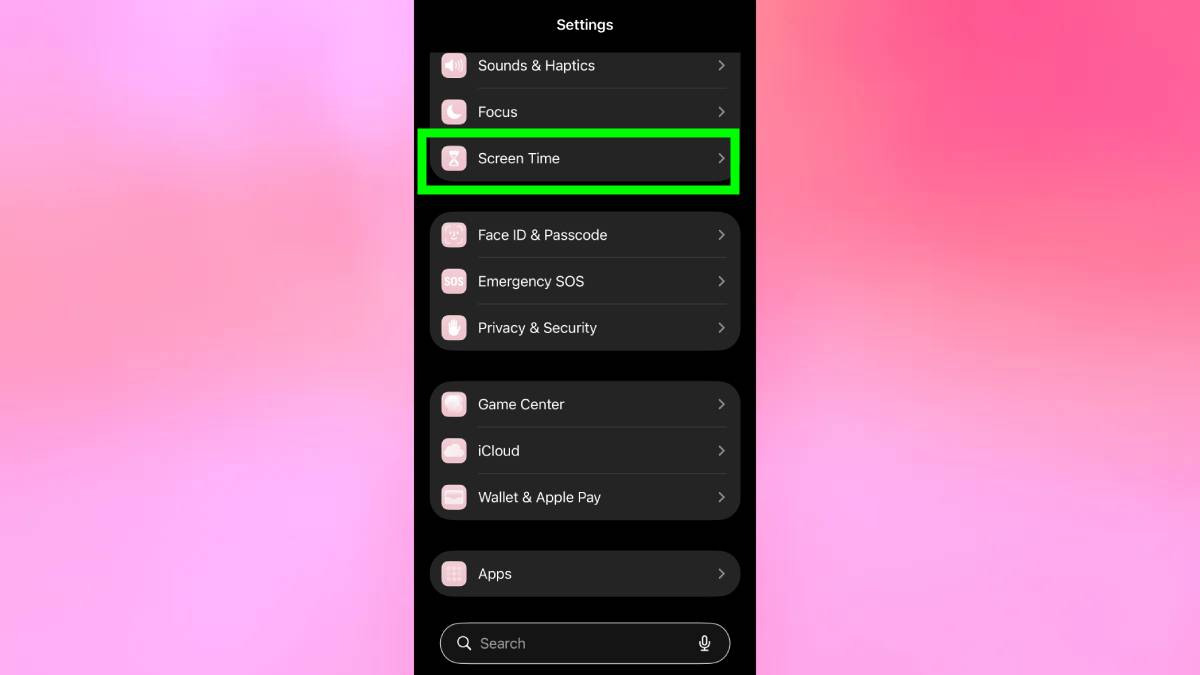
Go to Settings and scroll down to Screen Time. Then tap Screen Time to open the menu.
Screen Distance…