Android Speed Hack: 5 Hidden Settings to Double Your Phone’s Speed Instantly
Android Speed Hack: 5 Hidden Settings to Double Your Phone’s Speed Instantly
Publish Date: 2026-03-29 03:13:00
Source Domain: nokiapoweruser.com
Is your Android smartphone starting to feel sluggish? You don’t need a new device. Hidden deep inside your Android settings is a “Developer Mode” that unlocks professional-grade performance tweaks. Here are the 5 settings on any Android smartphone including Android 17, you need to change right now to make your phone feel brand new.
Whether you’re rocking the latest Pixel 10 or an older Samsung Galaxy, Android’s default settings are designed for “smoothness,” not raw speed. This often results in slow animations and background lag. By flipping these five switches, you can cut out the “fluff” and make your UI lightning-fast.
Step 0: How to Unlock the “Secret” Menu
Before you can find these settings, you need to enable Developer Options:
-
Open Settings About Phone.
-
Scroll down to Build Number.
-
Tap it 7 times until a toast message says, “You are now a developer!”
-
Go back to Settings System Developer Options.
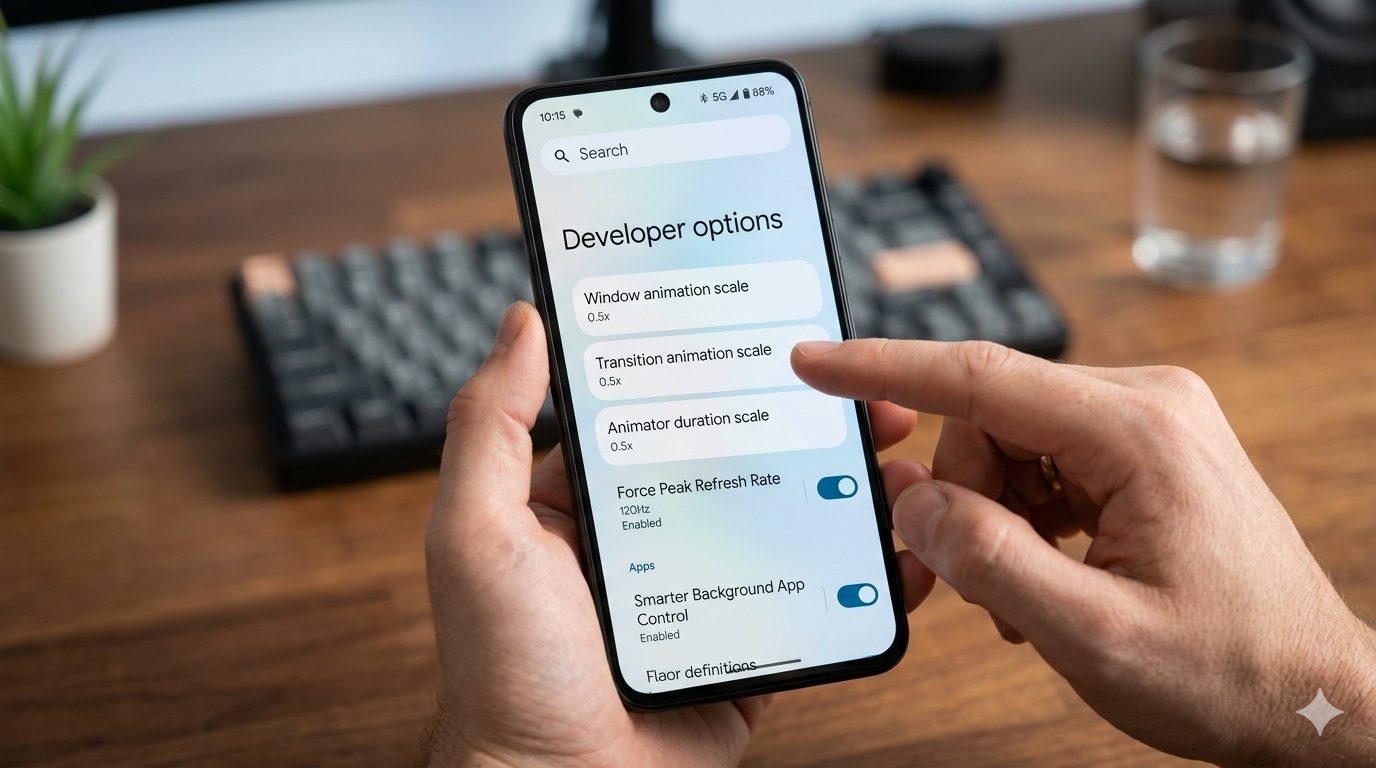
1. The “Half-Speed” Animation Trick
This is the single most effective way to make your phone feel faster. Android defaults to 1.0x animation speeds, which are intentionally slow to look “fluid.”

-
Find: Window animation scale, Transition animation scale, and Animator duration scale.
-
Action: Change all three from 1.0x to 0.5x.
-
The Result: Every menu, app opening, and swipe will happen twice as fast.
2. Force Peak Refresh Rate
If you have a modern phone with a 120Hz or 144Hz screen, Android often lowers it to 60Hz to save battery. This makes scrolling look choppy.
-
Find: Force Peak Refresh Rate.
-
Action: Toggle ON.
-
The Result: Your phone will stay locked at its highest refresh rate, making every scroll buttery smooth regardless of battery level.
3. Background Process Limit
By default, Android lets dozens of apps “sleep” in the background, hogging your RAM.
-
Find: Background process limit.
-
Action: Change from “Standard limit” to “At most 2 processes.”
-
The Result: Your phone will prioritize the app you are actually using, ending the “stutter”…