4 simple ways I optimize Android Auto for long, distraction-free drives
4 simple ways I optimize Android Auto for long, distraction-free drives
https://www.xda-developers.com/simple-ways-i-optimize-android-auto-for-long-distraction-free-drives/
Publish Date: 2026-06-06 16:00:00
Source Domain: www.xda-developers.com
When I find myself stuck on a lengthy drive, the last thing I want to do is mess around with my in-car infotainment system.
While that usually means I end up using Apple’s CarPlay, more recently I’ve been spending time with Android Auto and the wild world of sideloading apps. With that in mind, there are a few things I’ve done, either on my phone or in Android Auto’s settings, to make sure I’m focused on the road ahead rather than hunting down a specific app or fiddling with Spotify playlists. I’m the type of person who almost always wants a streamlined experience with their tech devices, and when it comes to Android Auto, I find that it’s even more important.
Most of these suggestions are pretty straightforward, but they’re also the kind of things some people might overlook, especially if they’re not familiar with Google’s in-car infotainment system platform.
Reorganizing Android Auto’s launcher is key
Move apps you use to the top and remove any you don’t need
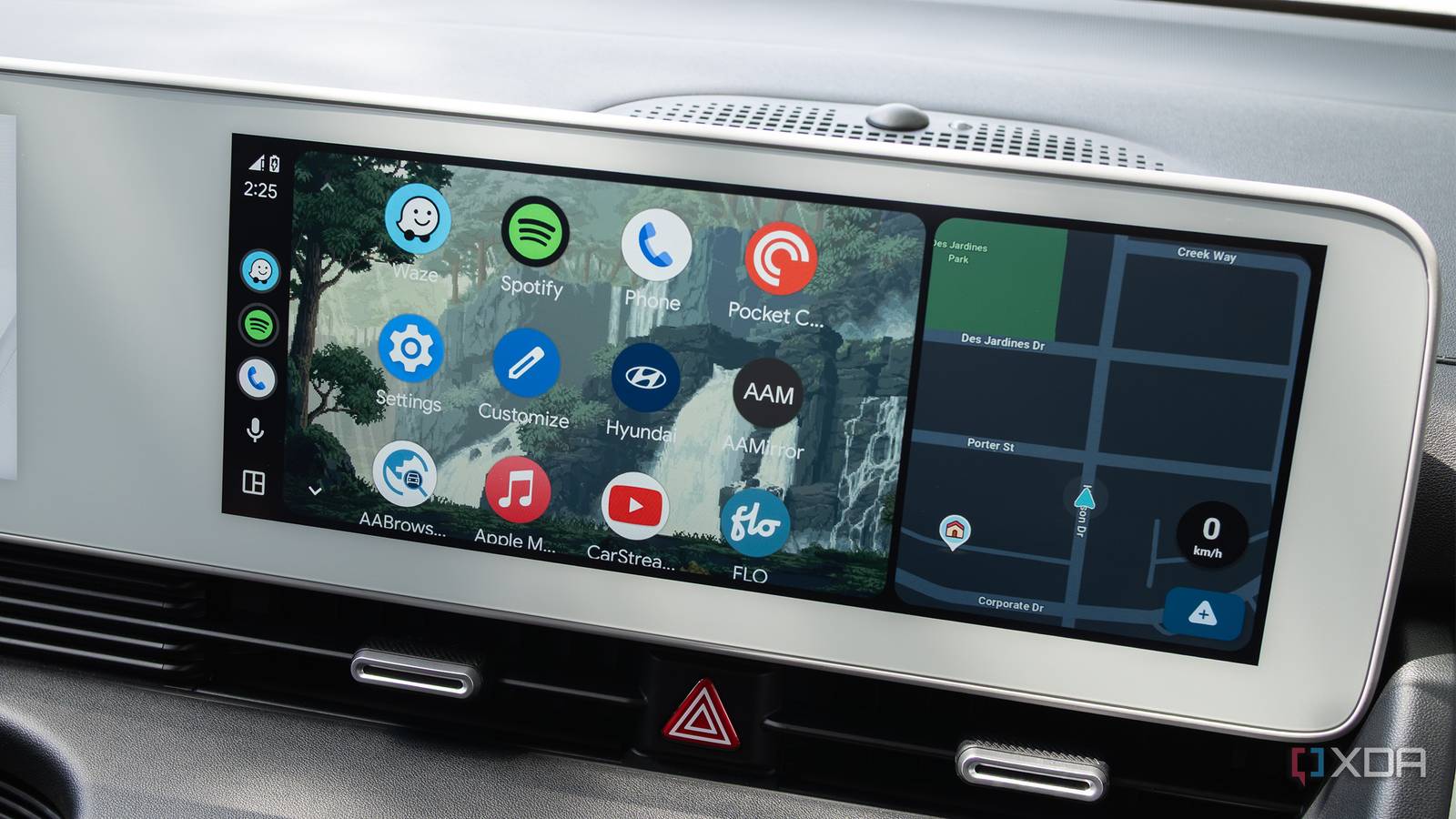
One of the first things I did with my Android device was reorganize my Android Auto launcher to make it easier to find the apps I actually use quickly. This meant moving apps like Waze, Spotify, Google Maps, PocketCasts, Settings, and a few others to the top, as well as removing apps that have no purpose being on my dashboard, like Teams, Google News, Facebook Messenger, Discord, and more. Sometimes I wonder why the Android Auto version of some of these apps even exists? Is anyone actually sending Discord messages through Android Auto?
To do this on my Pixel 10 Pro, I head to Settings Connected Devices Connection Preferences Android Auto Customize Launcher. I then…