How to set up your Galaxy S26 Ultra privacy display
How to set up your Galaxy S26 Ultra privacy display
Publish Date: 2026-03-29 04:00:00
Source Domain: www.tomsguide.com
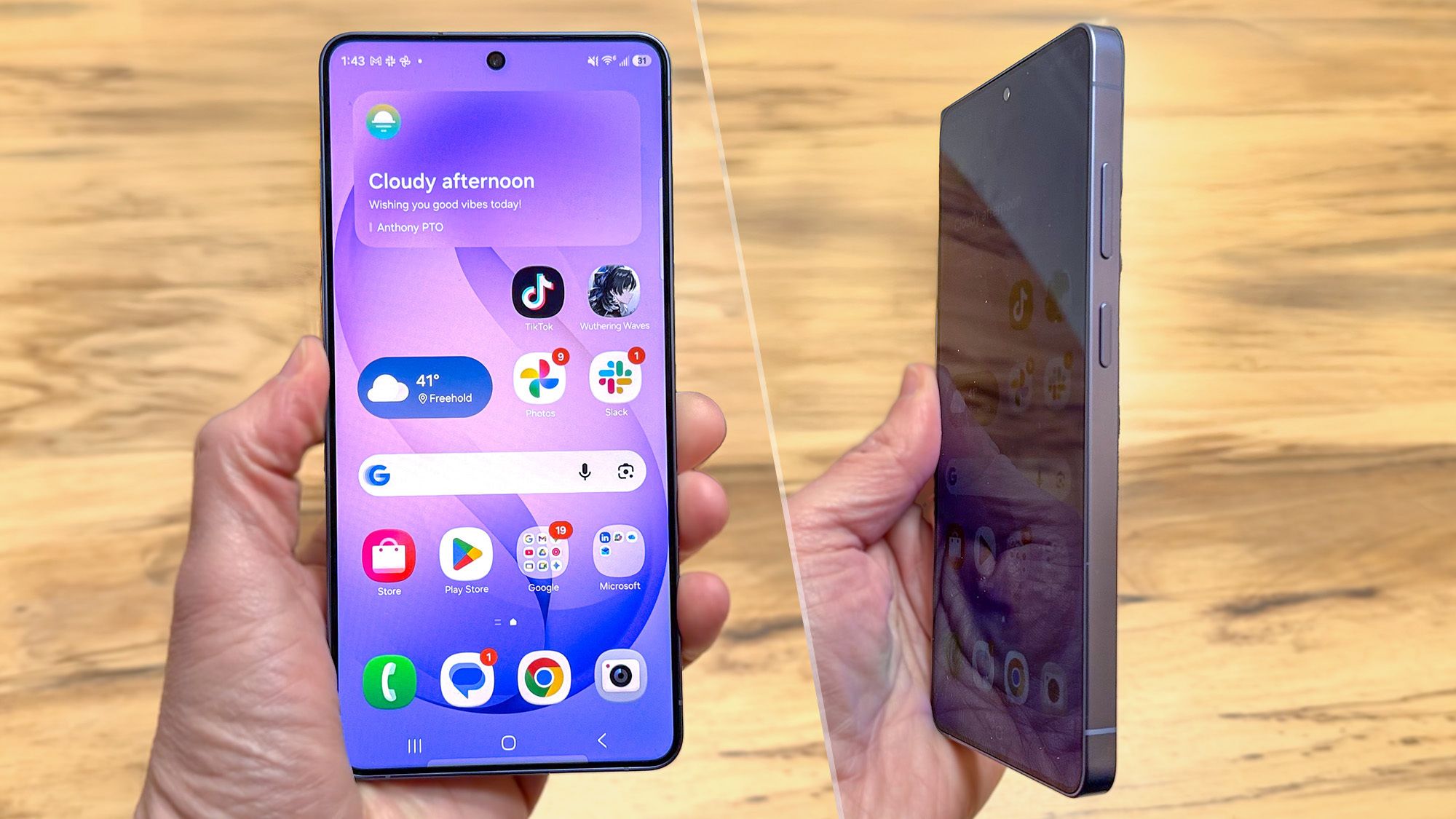
The new Privacy Display feature on Samsung Galaxy S26 Ultra makes it significantly harder for people to sneak a look at your phone. In fact, from some angles, all those prying eyes will be able to see is a blank screen. More impressively, Samsung has set up Privacy Display in a way to block certain parts of your screen but not others. That means it can black out notifications from side angles, without blacking out the entire screen.
That being said, there have been a number of complaints from S26 Ultra owners that the Privacy Display feature is causing headaches and eye strain. Still, I’ve found it to be one of the best features of Samsung’s new phone.
Article continues below
You may like
How to set up Privacy Display on Samsung Galaxy S26 Ultra
1. Open the Display menu
Open the Settings menu on your Galaxy S26 Ultra, then tap the Display section
2. Turn on Privacy Display
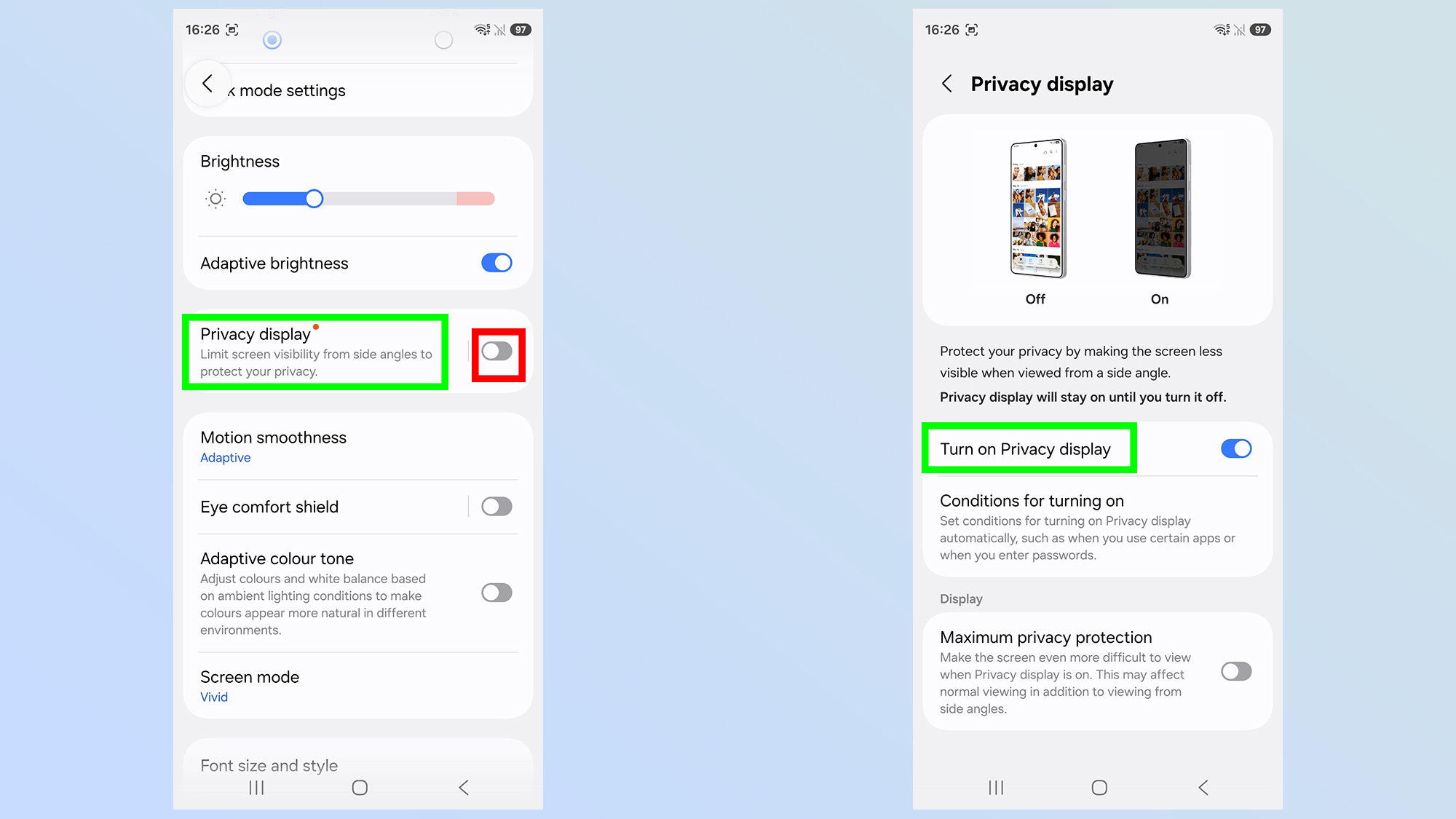
Tap the Privacy Display section, and then Turn on Privacy Display
Alternatively you can turn on Privacy Display by tapping the toggle on the right-side of the screen. However this is best utilized if you’ve already configured the settings to your liking.
3. (Optional) Toggle on Maximum Privacy Protection
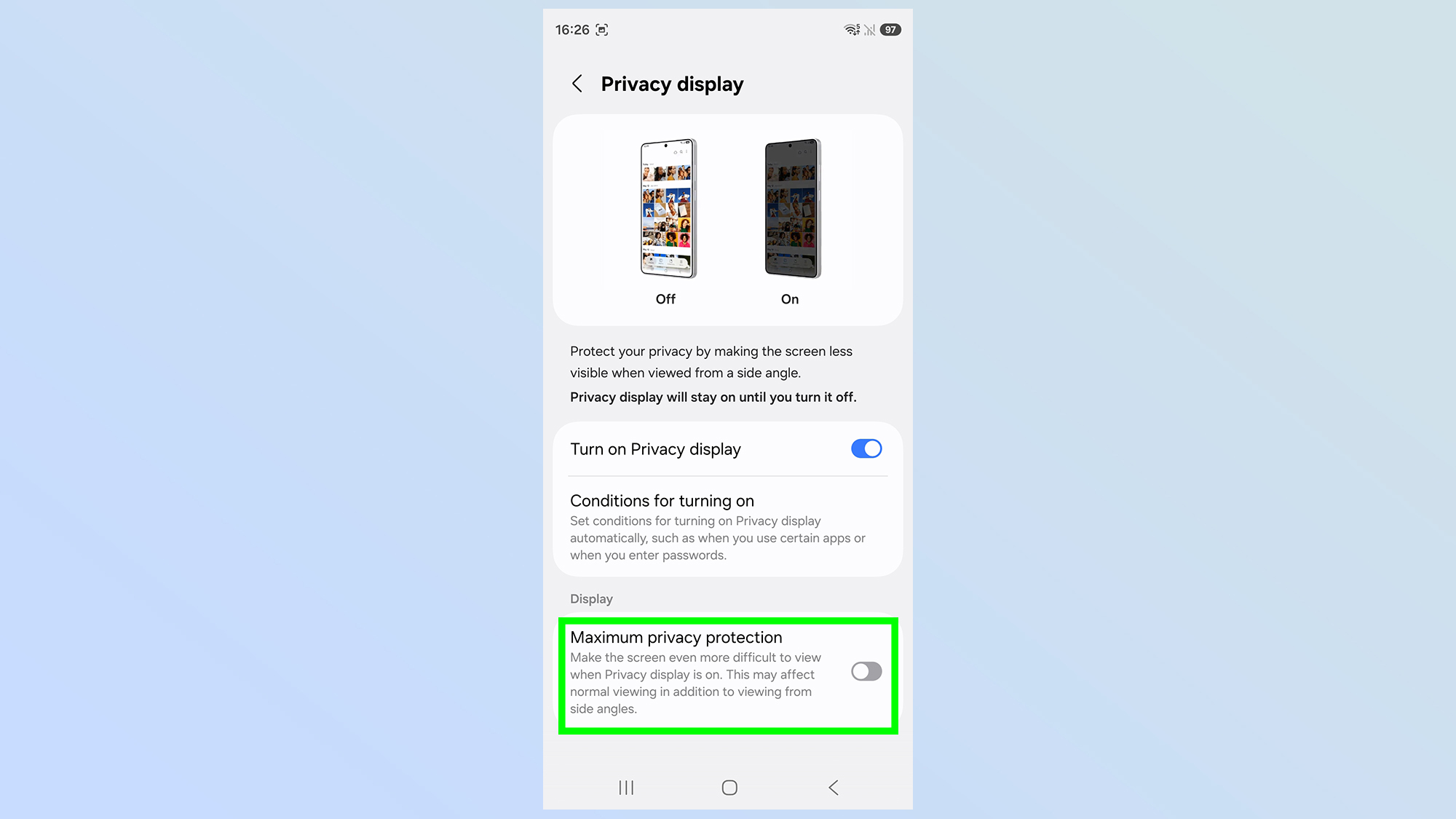
There’s also an additional option called Maximum privacy protection, which can be switched on by tapping the relevant toggle.
This screen also gives you the option to increase the level of privacy afforded by the Privacy Display. The default privacy doesn’t black out everything from side angles, and some general details might still be visible. Maximum privacy protection ramps everything up to 11, and ensures no detail is visible to potential snoops.
4. (Optional) Set Conditions for turning on Privacy Display
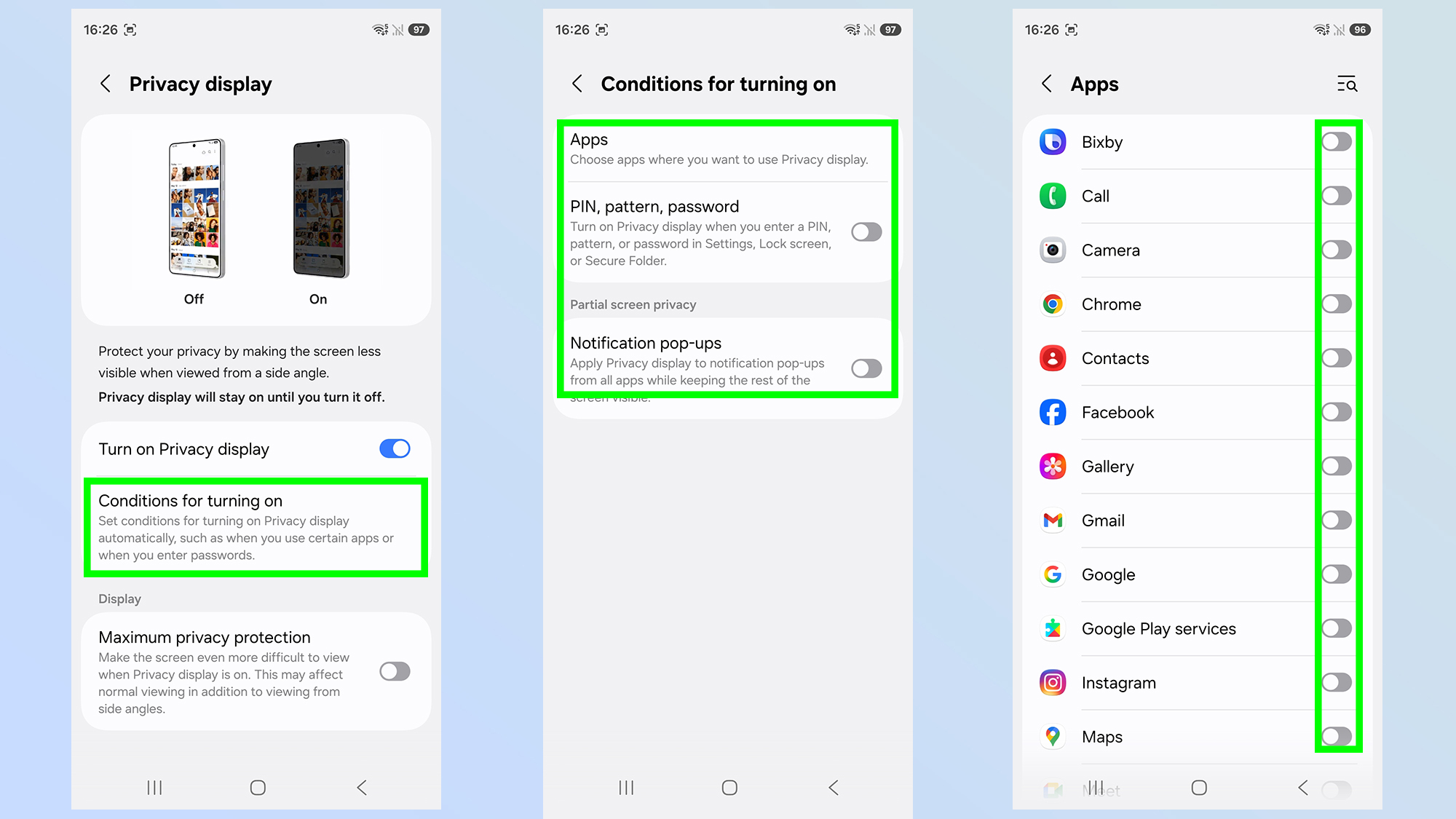
You don’t have to keep Privacy Display switched on all the time. Using the…