Remapping the Useless AI Slop Copilot Key in Linux

Remapping the Useless AI Slop Copilot Key in Linux
https://itsfoss.com/remap-copilot-key-linux/
Publish Date: 2026-07-16 05:48:00
Source Domain: itsfoss.com
I recently bought an external Dell keyboard that came with a dedicated Copilot key. Since I don’t use Microsoft’s Copilot, the key was doing nothing useful.
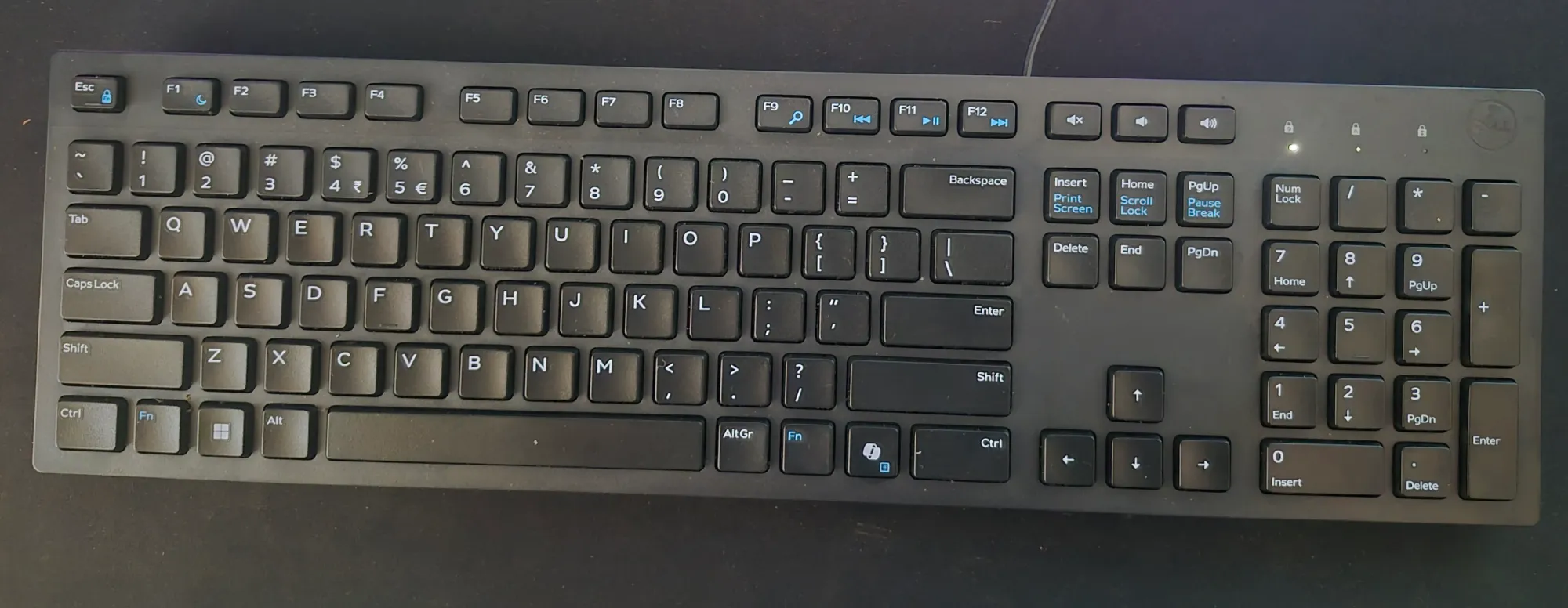 My new Dell Keyboard comes with a CoPilot key
So, I decided to map it to the YouTube Music web app. There is no such app, but I created it as a PWA using Vivaldi.
In theory, it seems like a trivial thing, but making the Copilot key launch that web app came up as a decent challenge. And hence this tutorial.
My first attempt was using KDE’s System Settings → Keyboard → Shortcuts. I created a shortcut for the YouTube Music PWA and tried assigning the Copilot key to it.
Unfortunately, KDE only detected the key as Meta+Shift and completely ignored the function key that was part of the key combination.
After a bit of searching, I came across a Reddit post that suggested using the keyd utility to remap the key at a lower level. That turned out to be exactly what I needed.
Instead of trying to use the original key combination, I remapped the Copilot key to Ctrl+Alt+Shift+F12. It is a key combination that is rarely used, making shortcut conflicts highly unlikely.
Why KDE Can’t Detect the Copilot Key
On my keyboard, pressing the Copilot key actually sends Meta+Shift+F23.
The problem is that KDE’s shortcut recorder only captures the Meta+Shift modifiers and ignores the F23 key entirely. As a result, it is impossible to assign the Copilot key directly through the graphical settings.
The solution is to intercept the key before KDE receives it and translate it into another shortcut that KDE can recognize normally. This is exactly what keyd does.
Install keyd
On Arch Linux, install keyd using:
sudo pacman -S keyd
It is also available in the official repositories of Ubuntu 26.04 and above.
Enable and start the service:
sudo systemctl enable –now keyd
Verify that it is running:
sudo systemctl status keyd
Identify Your Keyboard
First, identify the vendor and product ID of your external…
Source