How to transfer data from iPhone to Android: step-by-step guide
How to transfer data from iPhone to Android: step-by-step guide
https://unn.ua/en/news/how-to-transfer-data-from-iphone-to-android-step-by-step-instructions
Publish Date: 2026-07-13 09:43:00
Source Domain: unn.ua
Mobile users store contacts, photos, videos, documents, and audio files on their mobile devices. However, when upgrading a smartphone, the question arises of how to quickly, conveniently, and securely transfer their data to another smartphone, as they do not want to part with their materials when switching to a new model. UNN explains ways to transfer data from iPhone to Android.
Ways to transfer data from iPhone to Android
The difference between the iOS and Android operating systems lies not only in the interface but also in the data structure. Therefore, directly copying files from one device to another may not work. However, there are several effective ways to accomplish this task.
The main method for transferring data from iPhone to Android is using Google cloud storage. This is the fastest and easiest way, which will allow you to comfortably transfer photos, videos, contacts, calendar events, and messenger chats.
First, connect your iPhone and Android smartphone to a Wi-Fi network. Make sure you have a Google account.
Install the Google Drive app on your phones. On Android, the app may already be installed by default, but on iOS you will have to perform a manual installation. To do this, go to the App Store and download Google Drive from there.
Before starting the procedure, be sure to create a backup of your iPhone and transfer it to a safe place, such as a computer. In this case, it is better to use a PC and the iTunes program. If you do not want to use a computer, backing up via iCloud will suffice.
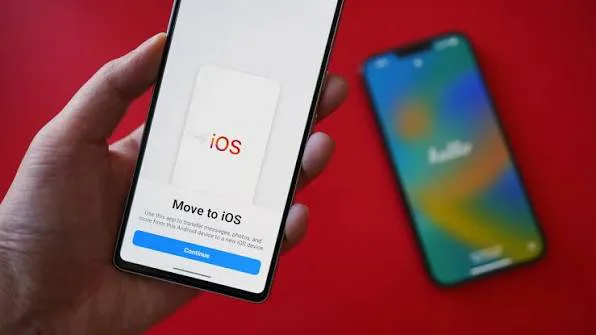
Install a special app from Google called “Switch To Android” on your iPhone. This will allow you to quickly and efficiently transfer all important data to your new Android phone.
Optimize the quality of photos and videos in Google backup settings. This step cannot be skipped if you want to transfer your images and photos in their original high quality. To do this, go to Google Drive, select “Backup”, and then choose the section with photos and videos. In the…