Microsoft’s Link to Windows removes ghost PCs from your Android phone ahead of its next big update
Microsoft’s Link to Windows removes ghost PCs from your Android phone ahead of its next big update
Publish Date: 2026-07-05 14:40:00
Source Domain: www.windowslatest.com
Link to Windows gets ability to remove PCs
I test Windows Insider builds on more Virtual Machines than I’d like to admit, and many of them used to leave ghost PCs behind in my Link to Windows app. Even after deleting the VM and sometimes after removing it from my Microsoft Account also, the PC name would still be there in the Linked PCs list, appearing disconnected and impossible to get rid of from the app. To my relief (and many others I presume), that’s finally changing.
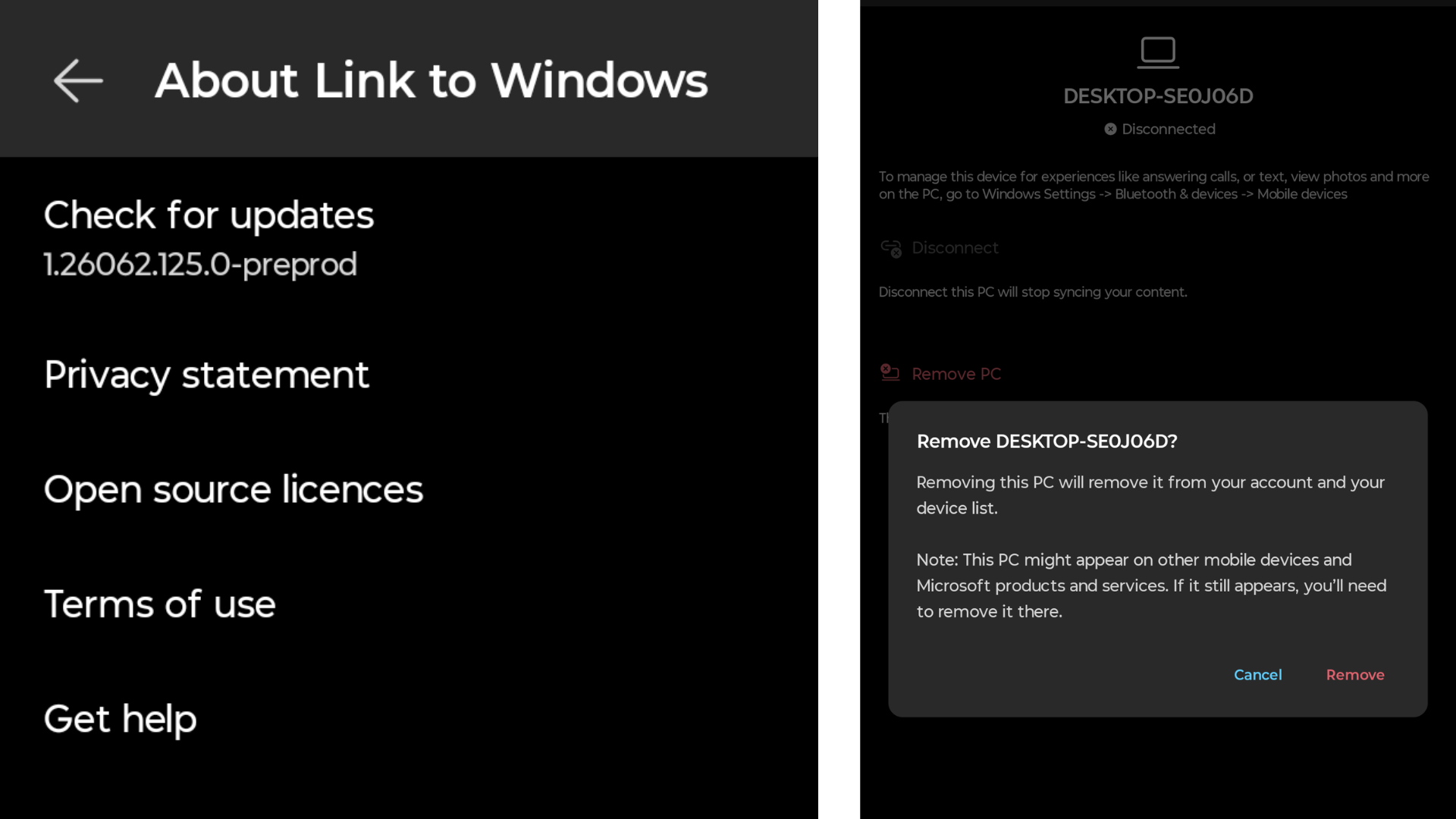
The Link to Windows Android app is rolling out a new Remove PC option that lets you delete a linked computer straight from your phone, no PC required. I’m running the beta version 1.26062.125.0-preprod, and the option showed up in Settings without much fanfare.
I hadn’t even gone looking for it until I saw Zac Bowden talk about it online, and once I checked my own device, I could confirm it’s live for at least some beta testers too.
How to remove a PC from Link to Windows on Android
Open Link to Windows, tap your profile picture in the top left corner, and go to Settings.
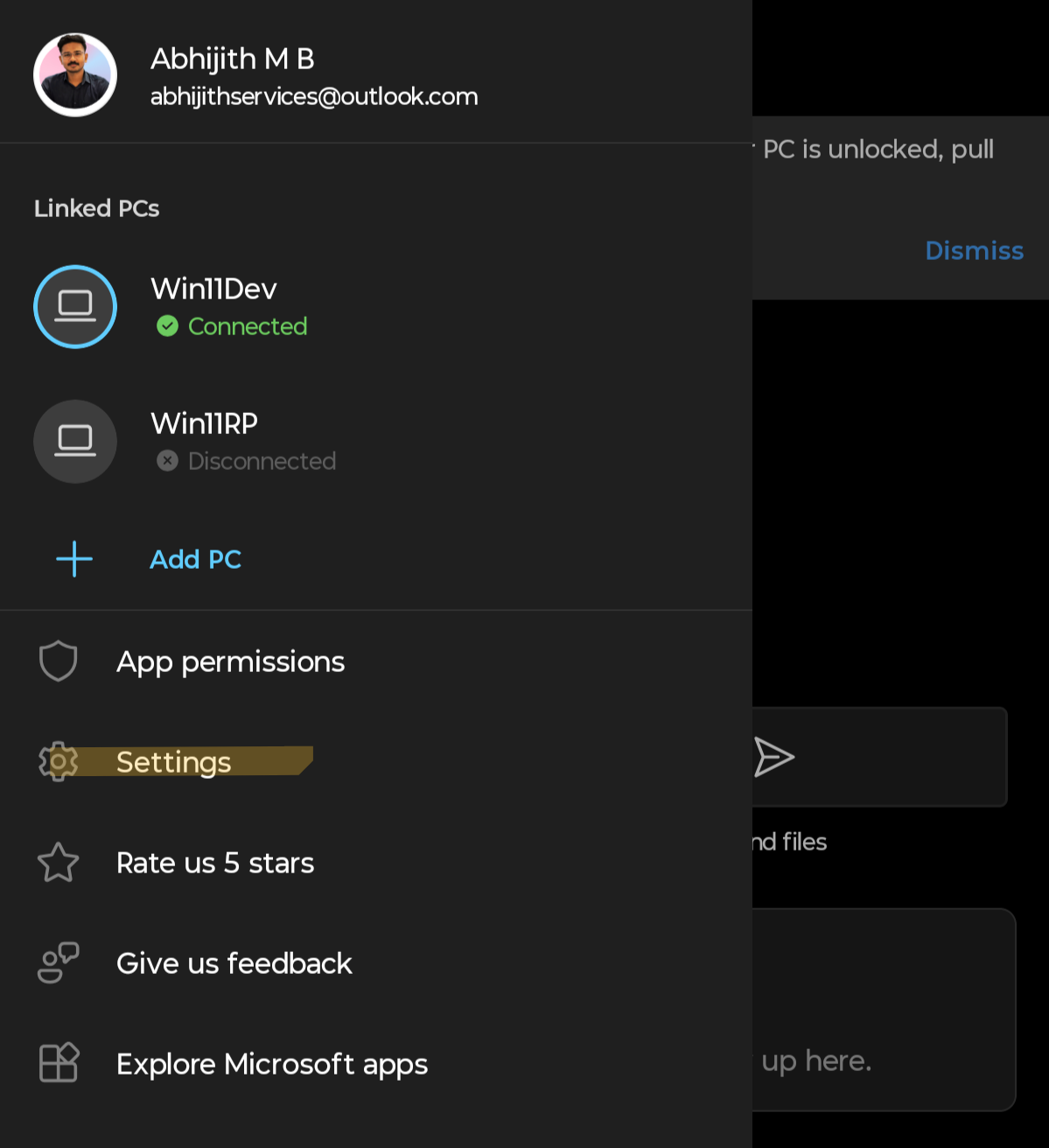
Under Linked PCs, you’ll see every PC that has been paired with your Microsoft account through Phone Link. Next to each PC’s name is a small gear icon, and tapping it opens a dedicated screen for that device with its connection status at the top.
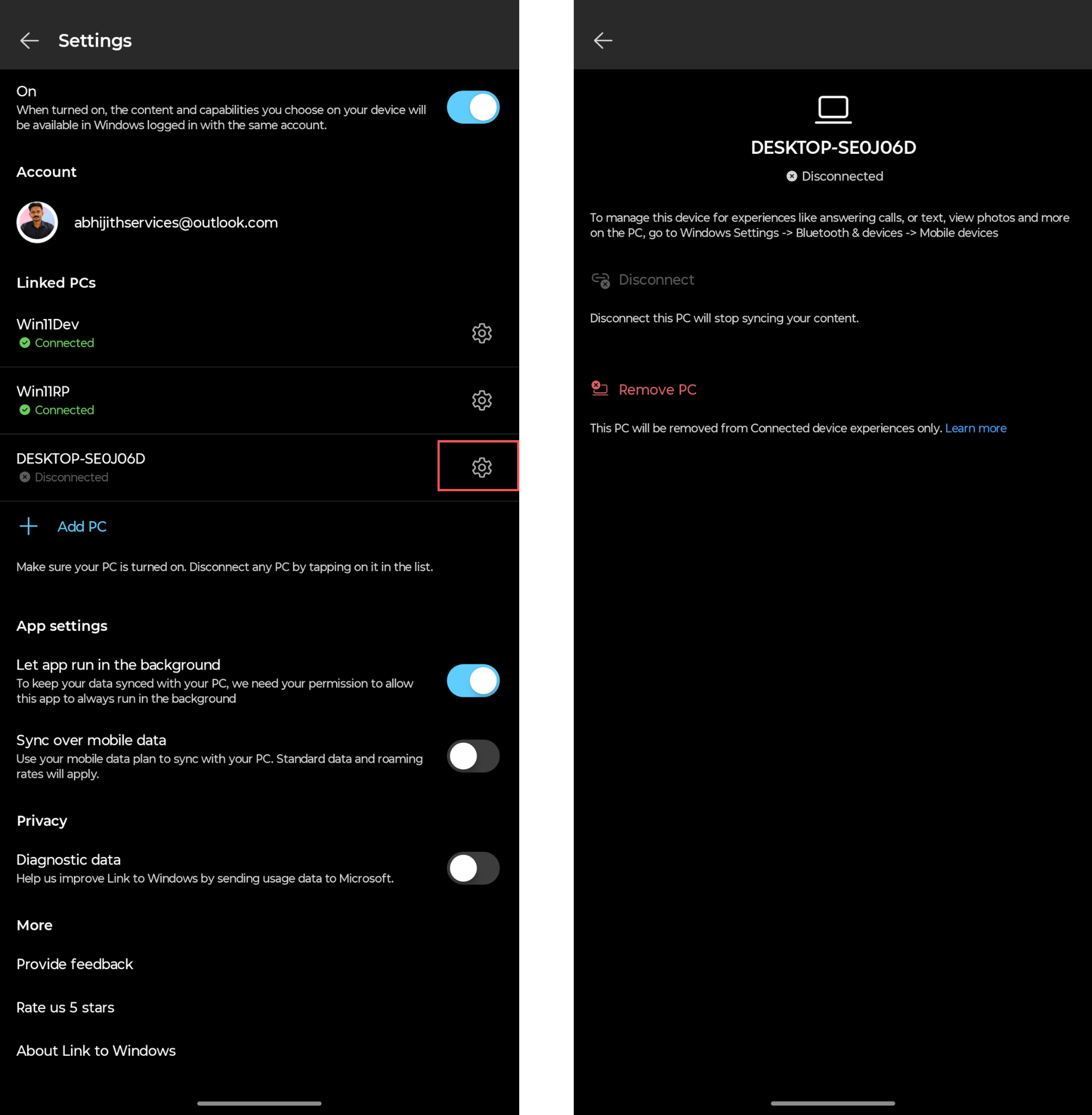
The device screen has two options. Disconnect pauses the sync, and it’s reversible. Below it is Remove PC, and this deletes the entry for good.
Tap it, and a confirmation dialog reads “Remove [PC name]?” with a warning that removing the PC takes it off your account and your device list. There’s also a note that the PC might still show up on other mobile devices and Microsoft products, and if it does, you’ll need to remove it there too. Confirm, and the entry disappears from the Linked PCs list right away.
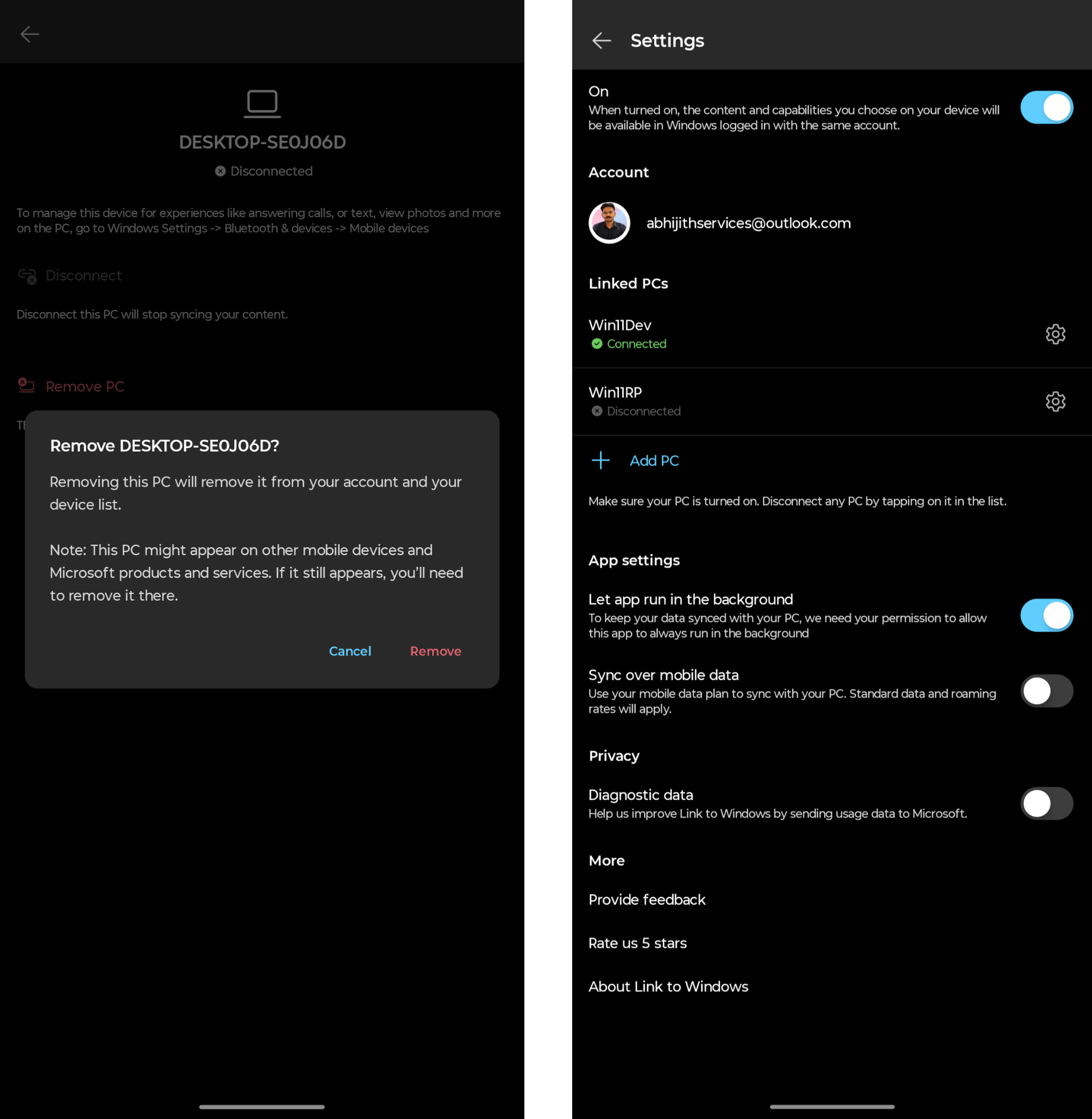
And in my testing, after removing the PC shown in the screenshot, I opened Devices on my Microsoft account and, sure enough,…

