How to Get iPhone Out of Recovery Mode Without Losing Data (2026 Guide)
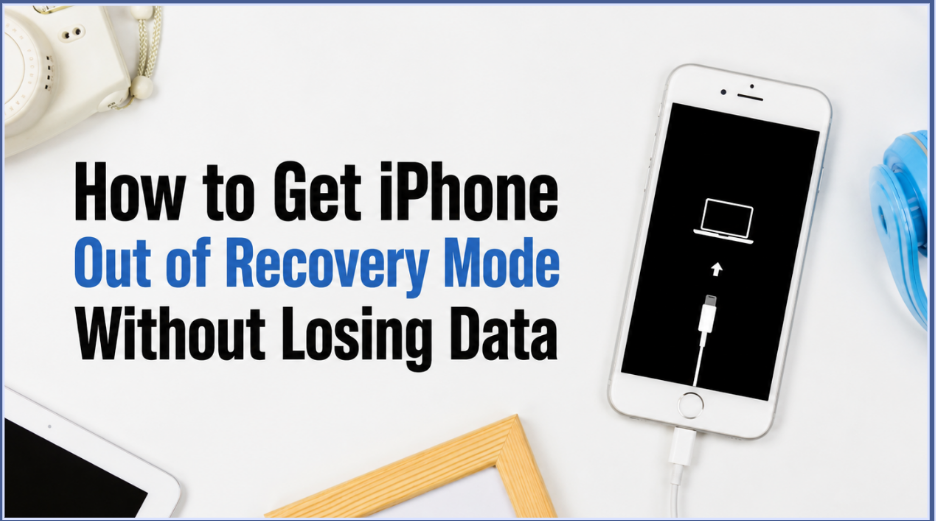
How to Get iPhone Out of Recovery Mode Without Losing Data (2026 Guide)
Publish Date: 2026-06-27 06:08:00
Source Domain: nerdbot.com
Recovery Mode is a useful troubleshooting feature that helps restore or update an iPhone when something goes wrong. However, many users find their iPhone stuck on the Recovery Mode screen and cannot return to normal operation.
The good news is that in most cases, you can get an iPhone out of Recovery Mode without losing data. In this guide, we’ll explain why this happens and walk you through several effective solutions, from quick fixes to professional iOS system recovery method.
Common Reasons Why an iPhone Gets Stuck in Recovery Mode
An iPhone may become stuck in Recovery Mode for several reasons, including:
- An interrupted iOS update
- A failed iPhone restore process
- Software bugs or system corruption
- Insufficient storage during an update
- Jailbreaking issues
- Hardware-related problems
Understanding the cause of the issue can help you avoid encountering the same problem again in the future.
How to Fix an iPhone Stuck in Recovery Mode Without Losing Data
Fix 1: Exit Recovery Mode with One Click
The easiest way to get an iPhone out of Recovery Mode is by using a dedicated iOS repair tool. TunesKit iOS System Recovery provides a one-click Exit Recovery Mode feature that allows you to leave Recovery Mode without erasing data.
Simply connect your iPhone to a computer, launch the program, and select the Exit Recovery Mode option. In many cases, your device will restart normally within seconds. This method is ideal for users who want a quick and beginner-friendly solution.
Method 2: Force Restart Your iPhone
A force restart can sometimes resolve temporary system glitches causing the device to remain in Recovery Mode.
For iPhone 8 and later: Quickly press and release the Volume Up button, then the Volume Down button, and hold the Side button until the Apple logo appears.
For iPhone 7 and 7 Plus: Press and hold the Side button and Volume Down button together until the Apple logo appears.
For iPhone…