Check out a demo of how Android 17 OS verification will work
Check out a demo of how Android 17 OS verification will work
https://www.androidauthority.com/android-17-os-verification-demo-3681599/
Publish Date: 2026-06-25 16:24:00
Source Domain: www.androidauthority.com
TL;DR
- Google is getting ready to introduce a new OS verification tool in Android 17.
- You’ll need both the phone you’re trying to verify, and a second device whose software you already trust.
- After scanning a couple QR codes, you’ll get a security summary and some boot hashes to cross check.
As of last week, Android 17 has finally hit stable, and Pixel users everywhere are upgrading to Google’s latest platform release. But just because Android 17 itself has arrived doesn’t mean that all of its features are rolling out, all at once. Last month, Google told us to look forward to a new OS verification utiltiy, helping users ensure that they’re running software they can trust. And while that still isn’t quite ready for prime time, we’ve got a new preview to share with you of how this tool is going to work.
You’re reading an Authority Insights story. Authority Insights brings you all the latest exclusive reports, app teardowns, leaks, and in-depth tech coverage from the Android Authority team that you won’t find anywhere else.
We got our first look at OS verification in action in late May, checking out some text strings related to the feature and a little bit of documentation Google had prepared. Now with Android 17 QPR1 Beta 5, we’re able to bring you a much more detailed preview of what to expect when you attempt to verify a device.
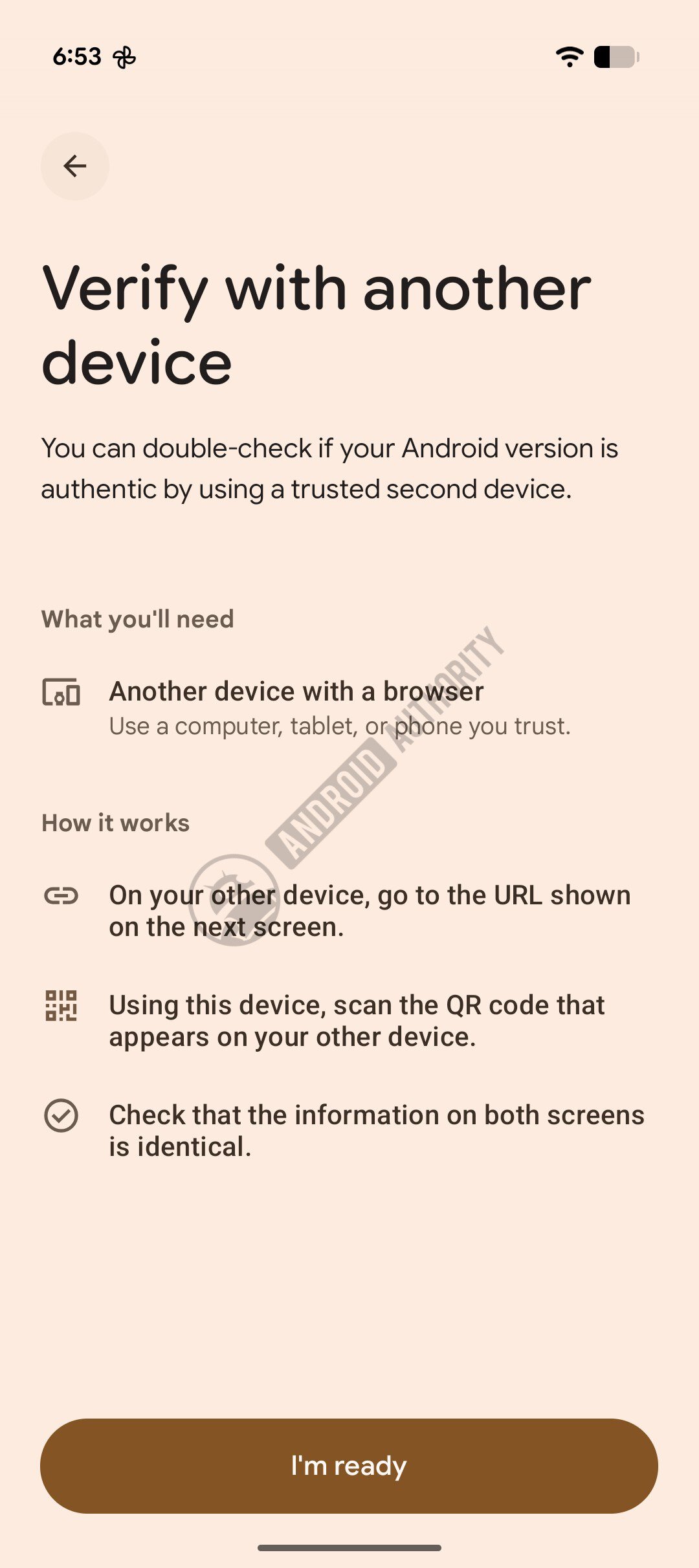
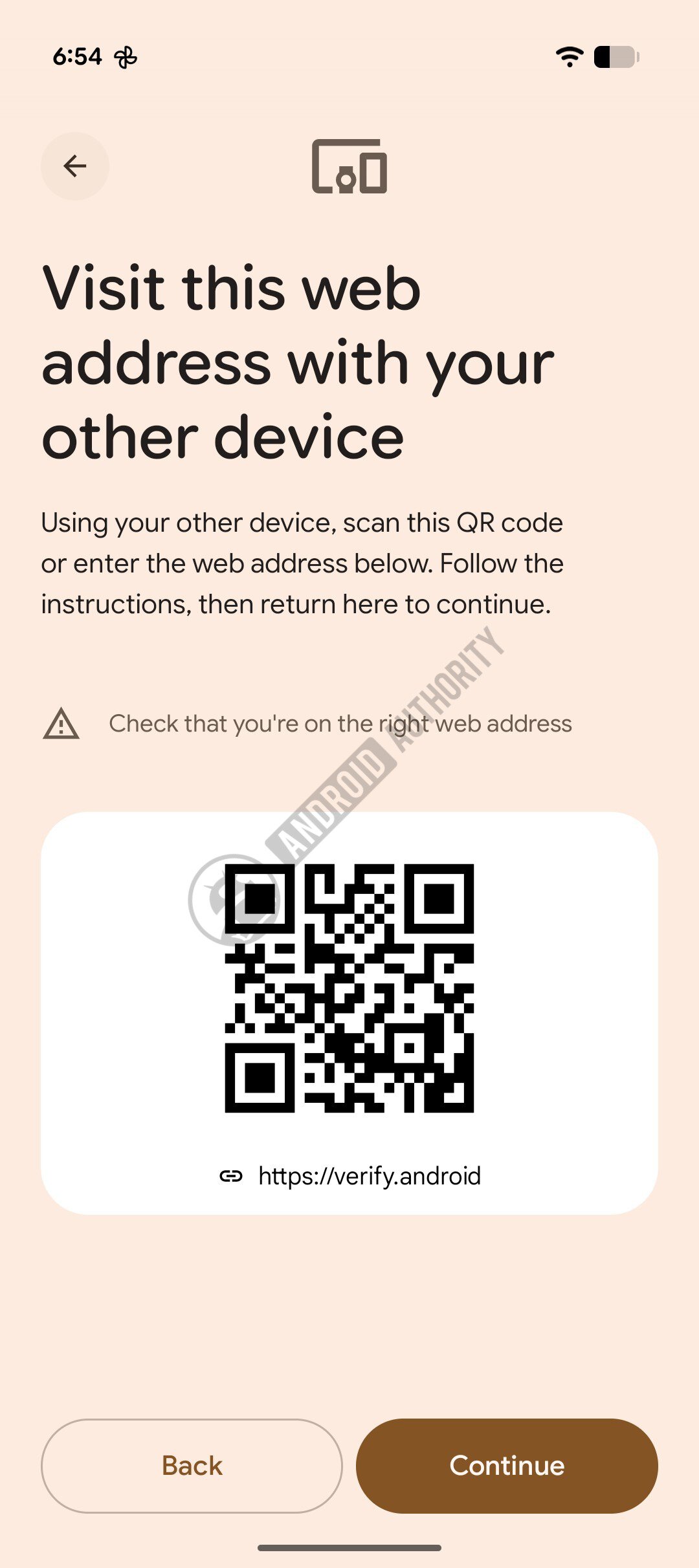
As you might remember, this process involves the use of two devices: the Android unit you’re attempting to verify, and a secondary device you already trust. The only real requirement there is that it has to be able to get online to access a webpage. Once you hit that “I’m ready” button to get started, you’ll be presented with a QR code you can scan on your secondary device — or you can always just visit https://verify.android/ manually in your browser.
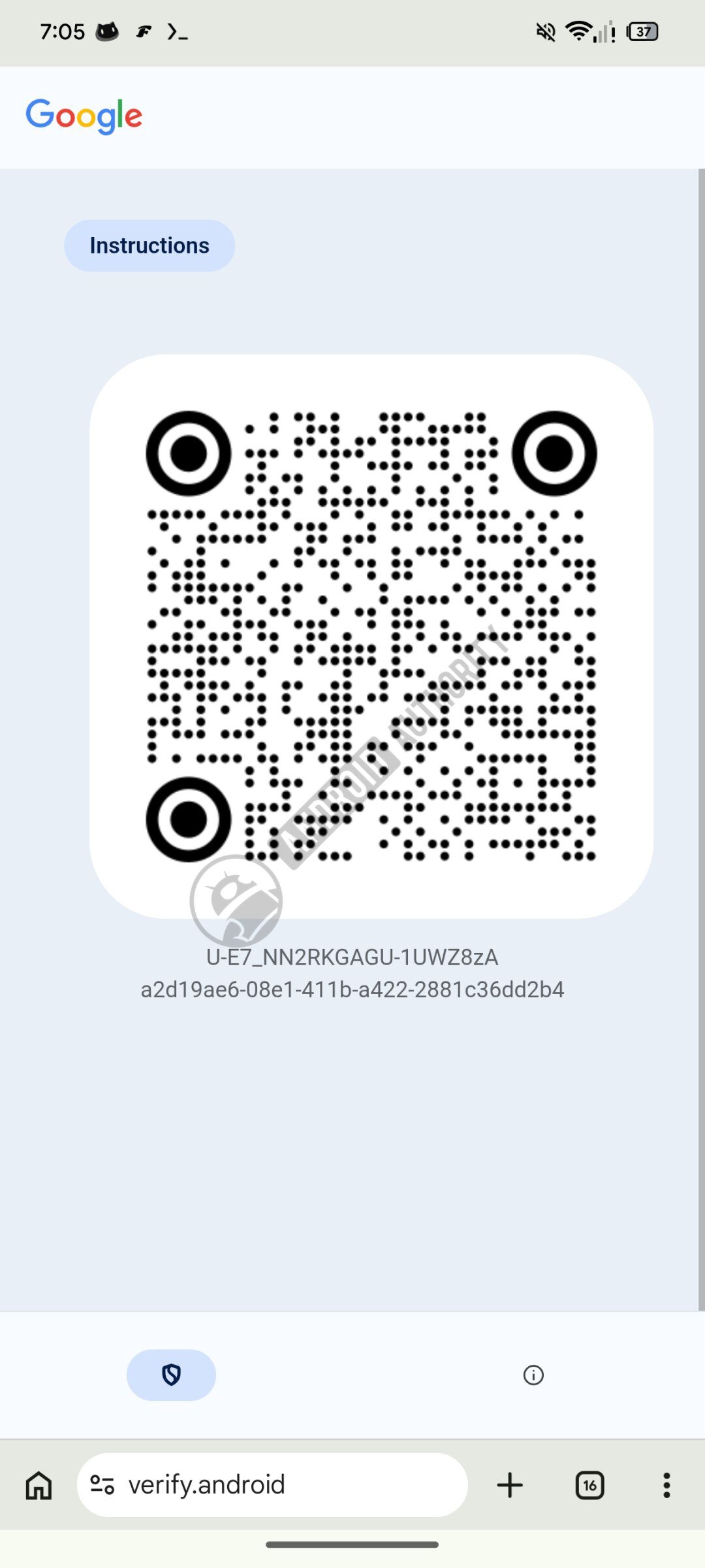
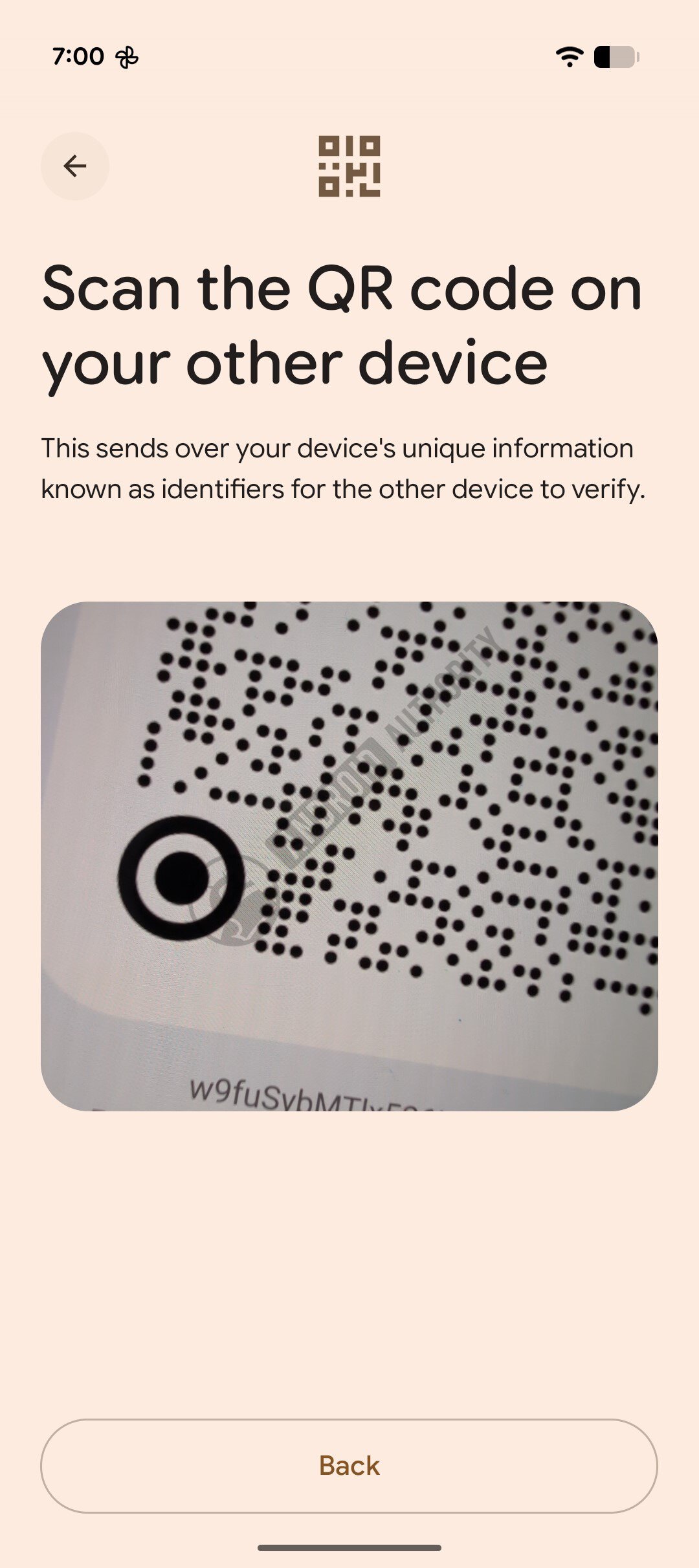
On that page, you’ll find this big QR code you see on the left. Then you’re going to go back to the Android handset you’re trying to verify,…