How to Enable Disappearing Messages on WhatsApp (iPhone, Android & Web)

How to Enable Disappearing Messages on WhatsApp (iPhone, Android & Web)
https://www.online-tech-tips.com/enable-whatsapp-disappearing-messages/
Publish Date: 2026-06-20 14:24:00
Source Domain: www.online-tech-tips.com
Been struggling with sensitive WhatsApp messages cluttering your phone or worried about privacy? WhatsApp’s disappearing messages feature solves both problems by automatically deleting your chats after a set time. You can choose from three timer durations — 24 hours, 7 days, or 90 days — giving you flexible control over how long messages stick around.
Think of disappearing messages like putting an expiration date on your texts. Once the timer runs out, messages vanish from both your device and the recipient’s phone. It’s perfect for sharing temporary info, keeping private conversations secure, or just freeing up storage space on your device.

What Are WhatsApp Disappearing Messages?
Disappearing messages is a privacy feature that automatically deletes WhatsApp messages after a specific time period. You can set messages to vanish after 24 hours, 7 days, or 90 days.
Key Features:
- Three timer options: Choose from 24 hours, 7 days, or 90 days
- Works everywhere: Available on iPhone, Android, WhatsApp Web, and WhatsApp Business
- Keep important messages: You can prevent specific messages from disappearing by “keeping” them
- Default settings: Set all new chats to automatically use disappearing messages
- Group chat support: Admins can control who can change the settings
The feature works best for temporary conversations, sensitive information, or when you want to keep your chat history clean. Plus, it helps free up storage space on devices with limited memory.
How to Enable Disappearing Messages on iPhone and iPad
You can turn on disappearing messages for individual chats, group conversations, or set it as the default for all new chats on iPhone and iPad. Here’s how to do each one.
For Individual Chats
Step 1: Open WhatsApp and go to the Chats tab. Tap the conversation you want to modify.
Step 2: Tap the contact’s name or phone number at the top of the screen.
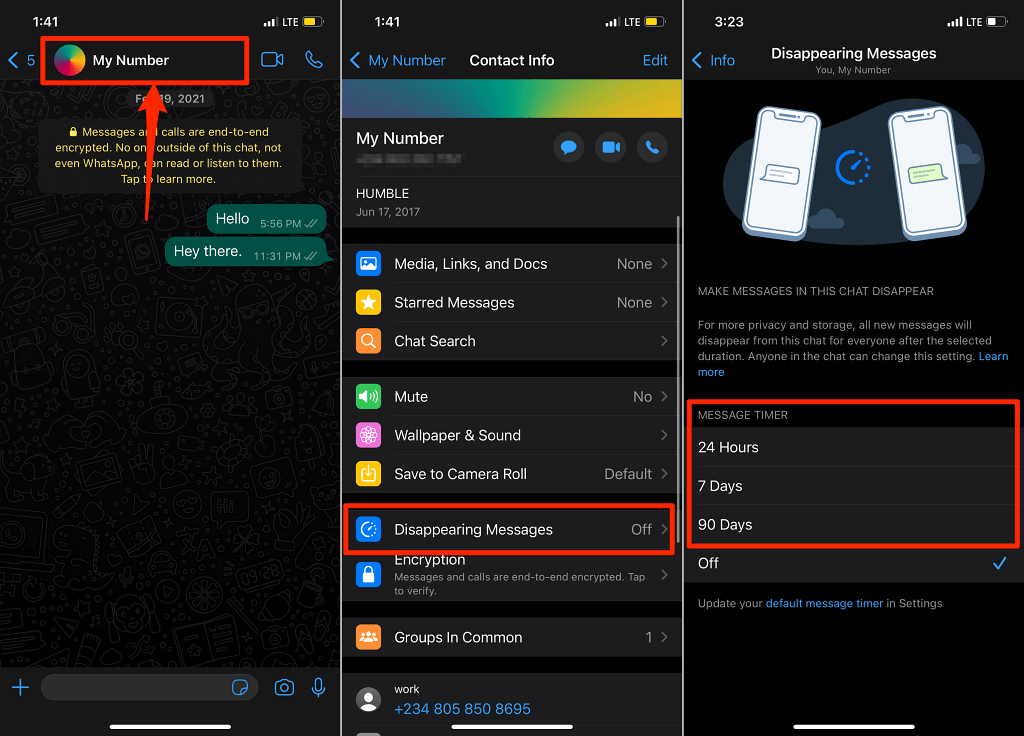
Step 3: Scroll down and tap…