I was tired of the Android Beta for Pixel glitching out, so I left it — without losing all my data
I was tired of the Android Beta for Pixel glitching out, so I left it — without losing all my data
Publish Date: 2026-06-17 14:29:00
Source Domain: www.androidcentral.com
Signing up for the Android Beta for Pixel program can be really exciting. You get to test out new features that aren’t publicly available yet, and Google uses your feedback to make meaningful changes before the public rollout.
The Android Beta has plenty of downsides. You may encounter glitches, errors, or hangs. Some users have even reported data loss in the past. Once you start experiencing such problems, it is reason enough to want to leave the Android Beta program.
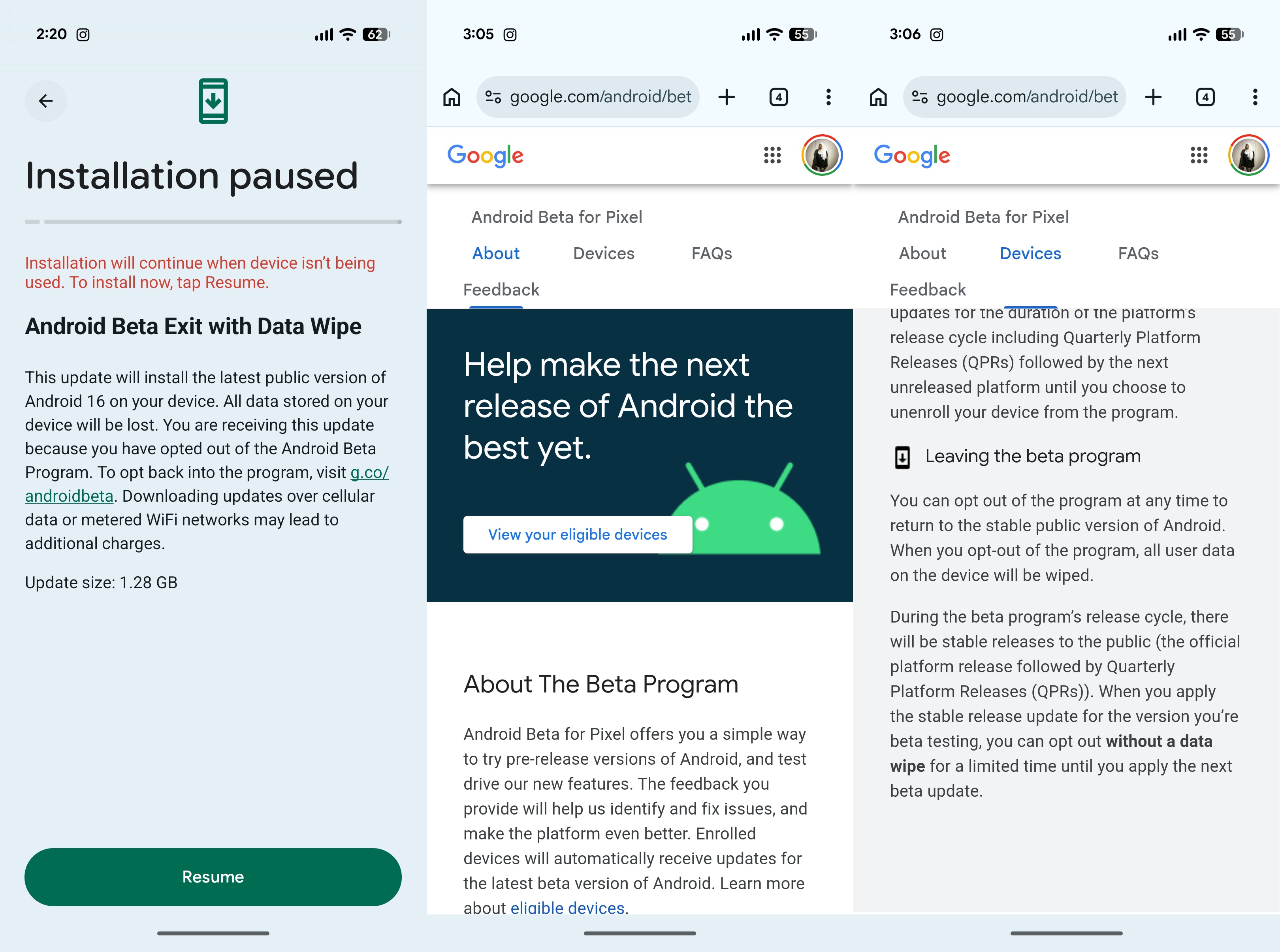
I had signed up for beta testing on my Pixel 10 Pro, and my phone started glitching out like crazy over the last few weeks. Tired of my phone hanging up while switching apps, I decided that I want to leave the Android Beta for Pixel program. Unfortunately, the most direct pathway leads to complete erasure of your device data.
Latest Videos From
Eventually, I found a way to exit it without losing my data. If you want to avoid that as well, here’s how you can exit the Android Beta for Pixel program without losing all your data.
Today’s best Pixel 10 deals
Exiting the Android Beta for Pixel program (with and without data wipe)
Not sure if you’re running the Android Beta program on your Pixel? There’s a really quick way to check. Go www.google.com/android/beta and check which of your Android devices are opted in for the program.
You may like
To exit the program, select the Opt out button for your phone. Normally, these are the steps you would then follow to remove the beta software from your phone, but all your data is erased.
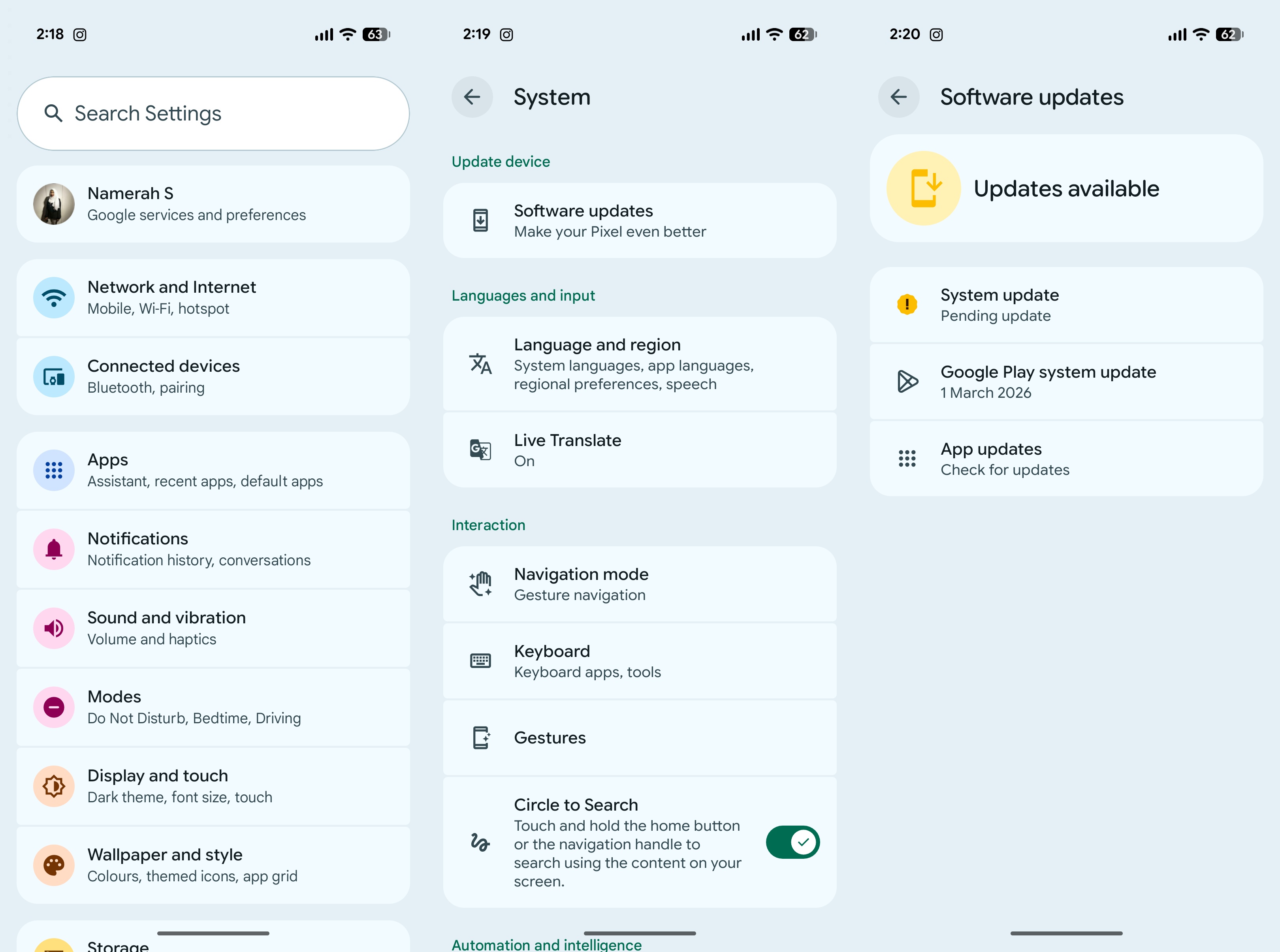
1. First, start by opening the Settings menu on your Google Pixel phone.
2. Navigate to the System option and tap it.
3. Select the Software updates option.
4. Click on the Install button for Android Beta Exit with Data Wipe.
What to read next
Image 1 of 2
 (Image credit: Namerah Saud Fatmi / Android Central)
 (Image…
Source