Android Auto has a hidden setting that lets you create custom shortcuts that you can use while driving — here’s how to set them up
https://www.tomsguide.com/phones/how-to-create-custom-shortcuts-with-android-auto
Publish Date: 2026-06-08 02:33:00
Source Domain: www.tomsguide.com
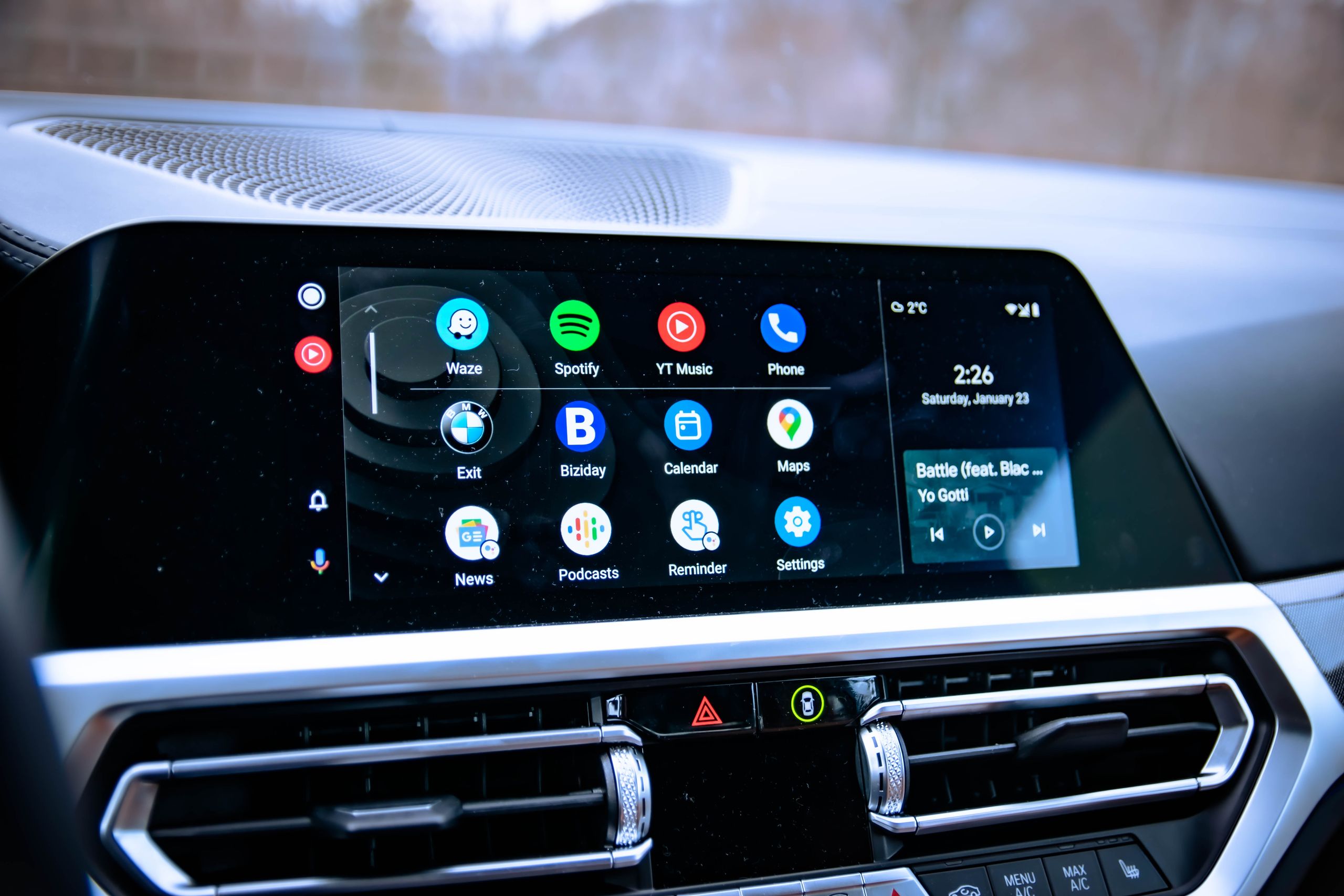
There are a lot of hidden features in the far reaches of Android, and Android Auto is no exception to that. One of my favorite hidden settings lets you utilize side-loaded apps that Google may not fully approve of, but there are a bunch more ways to truly personalize and make Android Auto your own. The best part is they’re pretty easy to set up, too.
There is a way to create your own custom shortcuts for Android Auto, which live on your home screen and look just like a regular app icon. The difference is that it’s a custom command for Google Assistant that initiates as soon as you tap the bubble, and saves you the hassle of actually having to summon the assistant yourself.
Yes, it’s still running as part of Google Assistant rather than Gemini, which does mean there are limits to what it will understand. But you still get all the freedom associated with Google Assistant commands in button form, and without running the risk of the virtual assistant acting like it can’t understand what you’re saying.
Latest Videos From
1. Open Android Auto settings
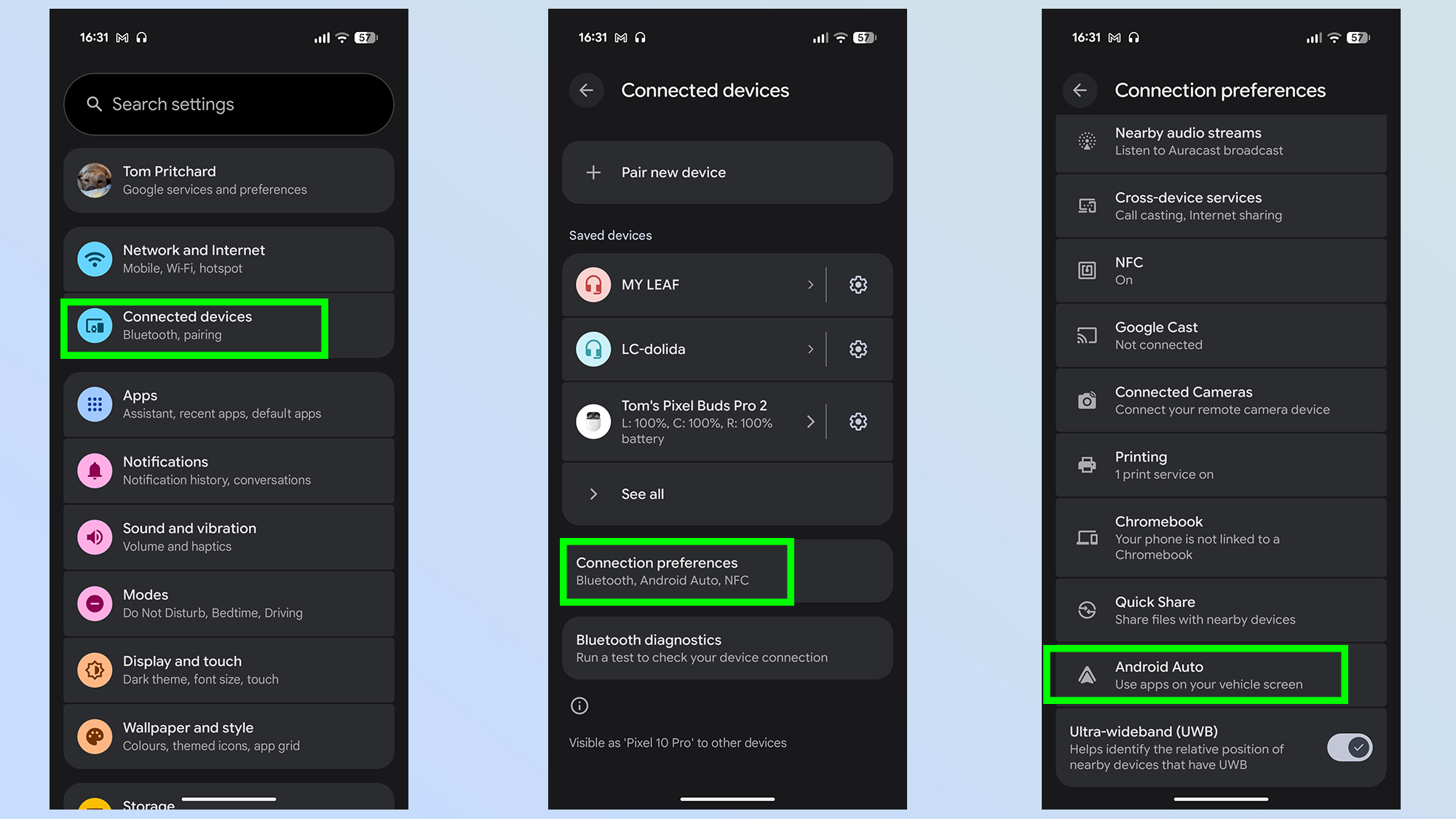
First up, you’ll need to open up the Android Auto settings. Head into Settings Connected Devices Connection Preferences and then select the Android Auto option.
2. Customize your launcher
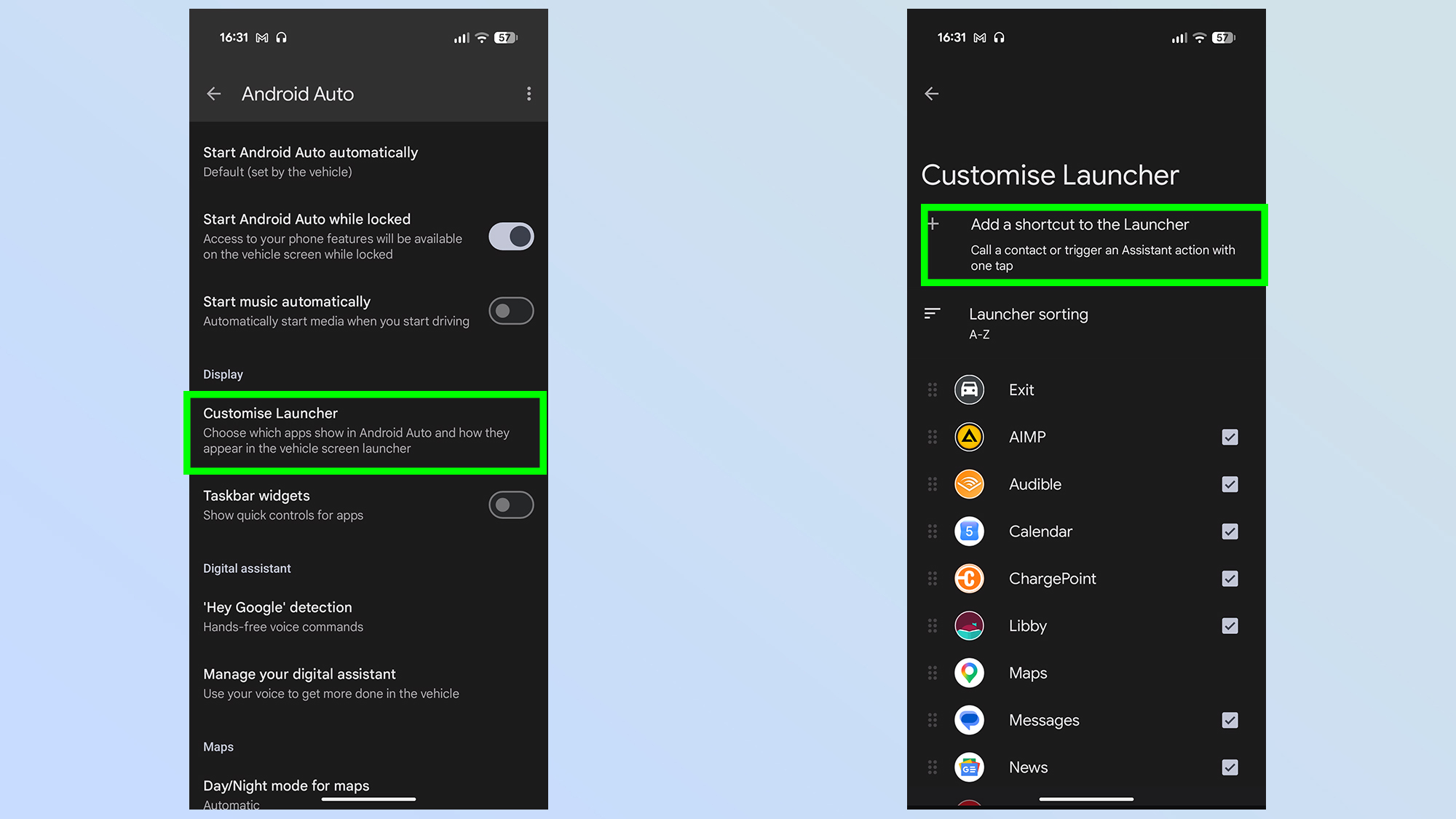
Once you get to the Android Auto menu you’ll need to look for the Customize Launcher option. This is the screen that lets you select which compatible apps and services are available on your car screen.
Once this is open, tap Add a shortcut to the Launcher at the top of the screen
3. Set up your shortcut
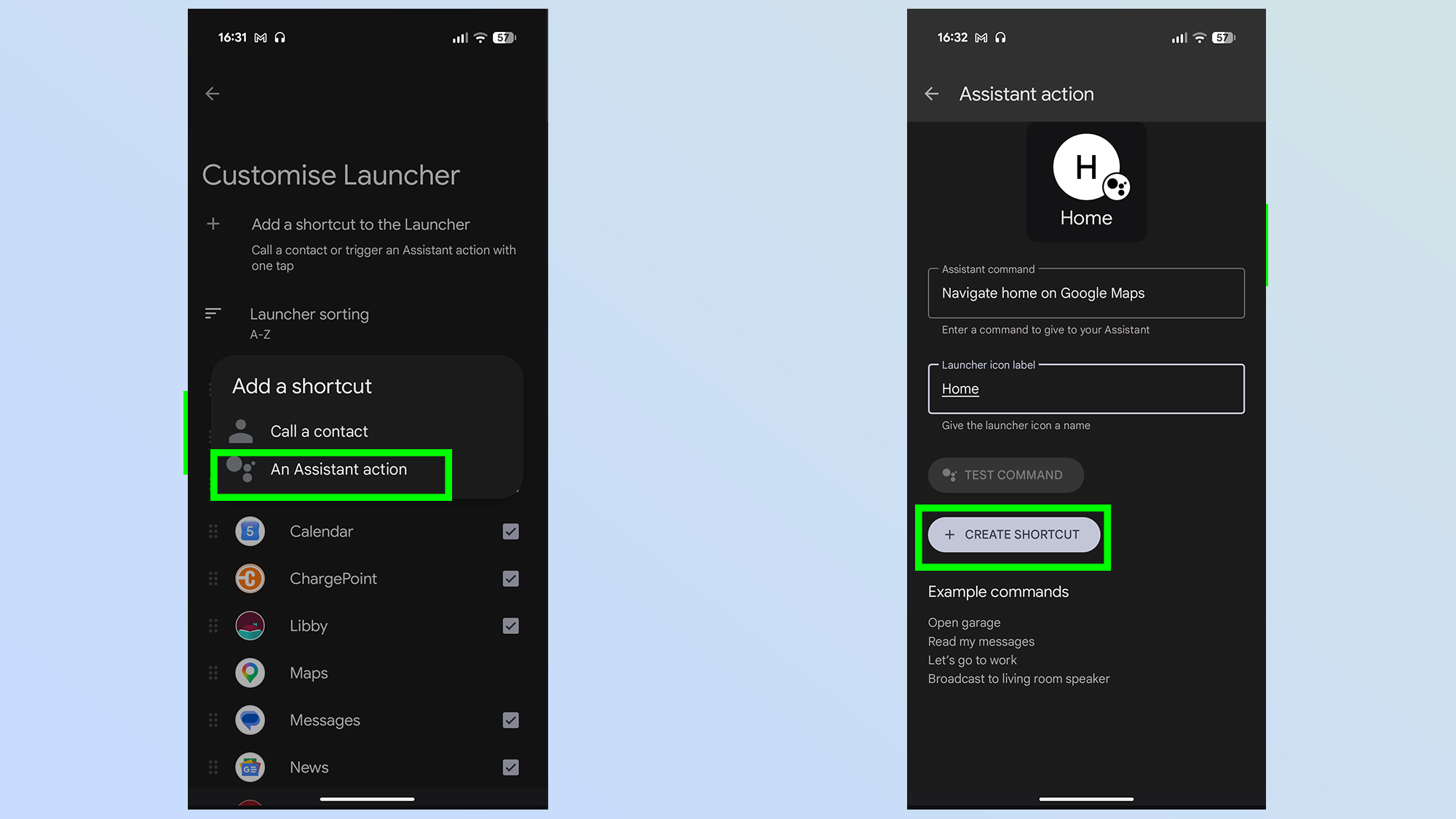
You’ll get a pop-up which will clarify if you want to “Call a contact” or create “An Assistant action”. Choose the latter.
The next screen will let you actually create the shortcut. Assistant command needs to be precise, and the written equivalent of what you would ask Google Assistant if you were using voice commands. I set mine up to navigate home on Google Maps, but it could be for just about anything.
Just make…