Finally.. Apple fixes the “strangest” design flaw in the Mac mini with a clever software touch
Finally.. Apple fixes the “strangest” design flaw in the Mac mini with a clever software touch
Publish Date: 2026-05-15 15:44:00
Source Domain: iphoneislam.com
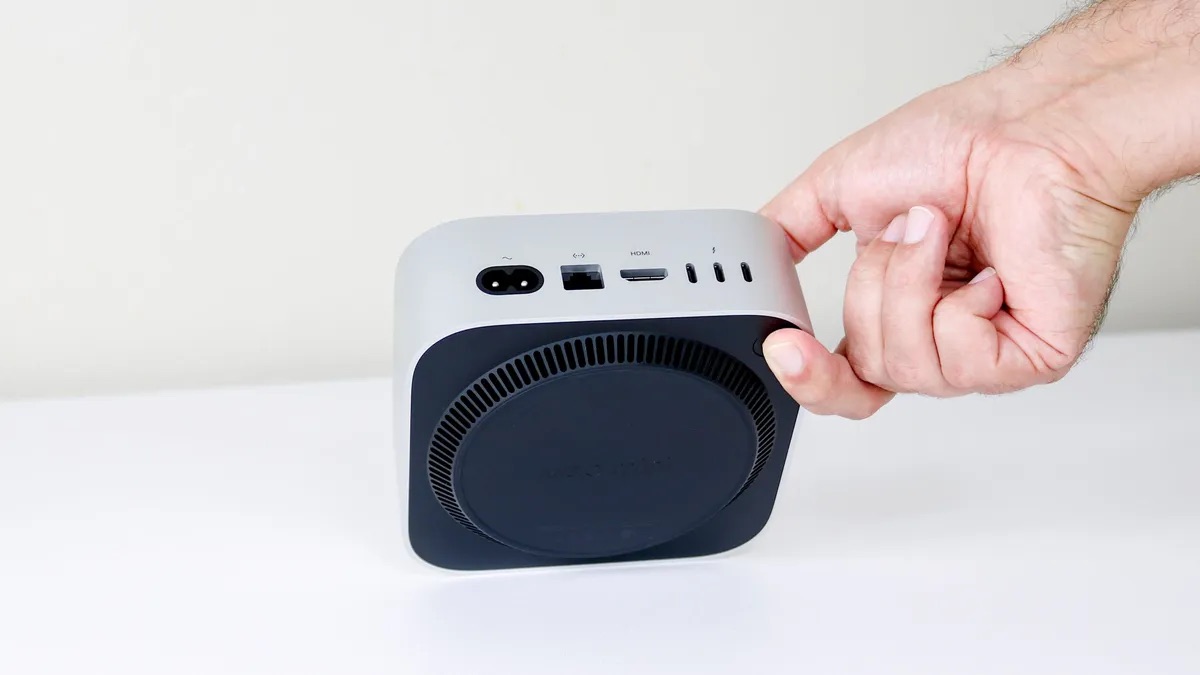
Ever since Apple launched the M4 Mac mini with its stunningly small design, the world hasn’t stopped mocking one thing: the location of the power button. Yes, that button tucked away at the bottom that forces you to “lift” the device as if you were petting a cat just to turn it on. But it seems Apple has finally listened to thousands of sarcastic tweets and decided that the solution isn’t to change the design (because Apple never makes design mistakes, right?), but rather through software magic via the recently released macOS 26.5 Tahoe update, putting an end to the struggle of users of Apple’s smallest desktop computer.
A clever solution to the “bottom button” problem
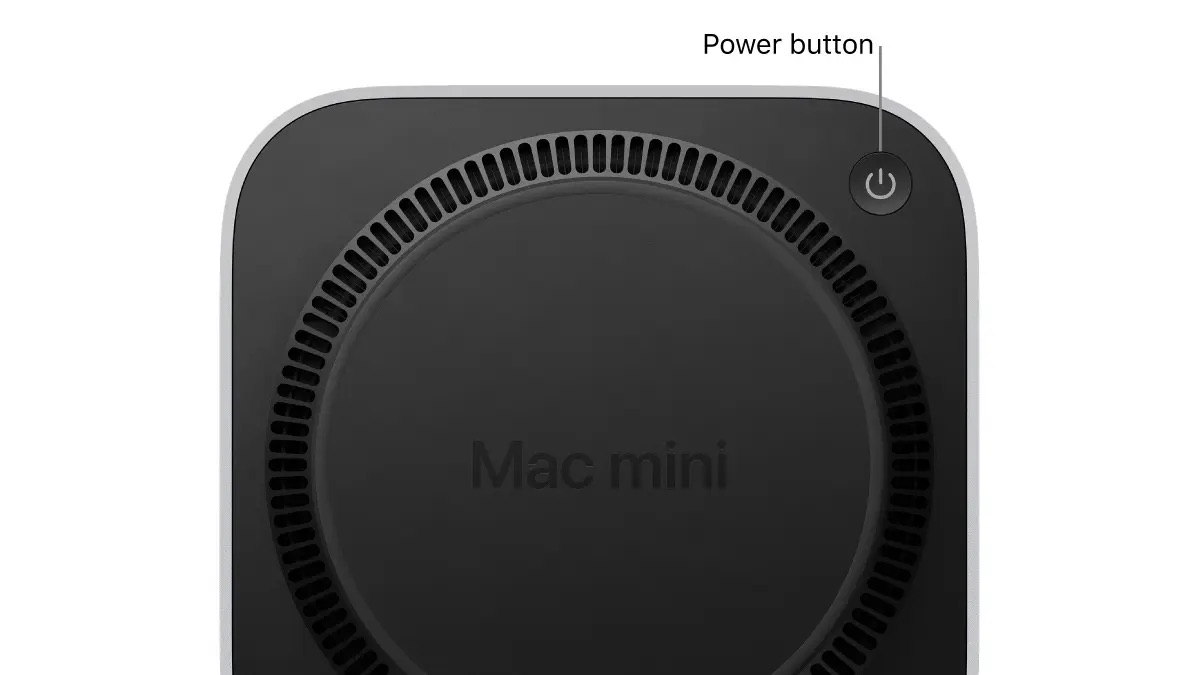
Since the redesign of the M4 Mac mini in 2024, the device has faced widespread criticism due to the placement of the power button in an inconvenient spot at the bottom of the device. This decision led some to buy 3D-printed external accessories or invent home-made “hacks” to press the button without having to move the device from its place. Apple, in its usual style of circumventing design criticisms, has now provided an option in system settings that allows the device to turn on automatically as soon as it is connected to a power source.
This feature means that if you use a smart power strip or completely disconnect the device from power when finished, it will start working as soon as the power returns, completely eliminating the need to touch the infamous button. It is worth noting that this feature is not limited to the Mac mini, but also includes the iMac M4 and the Mac Studio launched in 2025, making it easier to access power for devices that might be placed in tight spaces.
How to enable the new feature
To enable this software “fix” on your Mac, all you need to do is go to System Settings and then navigate to the Energy section. There, you will find a new option called “Startup when power is connected”; set it to “Always”.
Source