How to Automate Privacy Display on Galaxy S26 Ultra using Modes and Routines
How to Automate Privacy Display on Galaxy S26 Ultra using Modes and Routines
https://sammyguru.com/privacy-display-galaxy-s26-ultra-modes-and-routines/
Publish Date: 2026-04-23 09:51:00
Source Domain: sammyguru.com
SammyGuru has affiliate and sponsored partnerships, we may earn a commission.
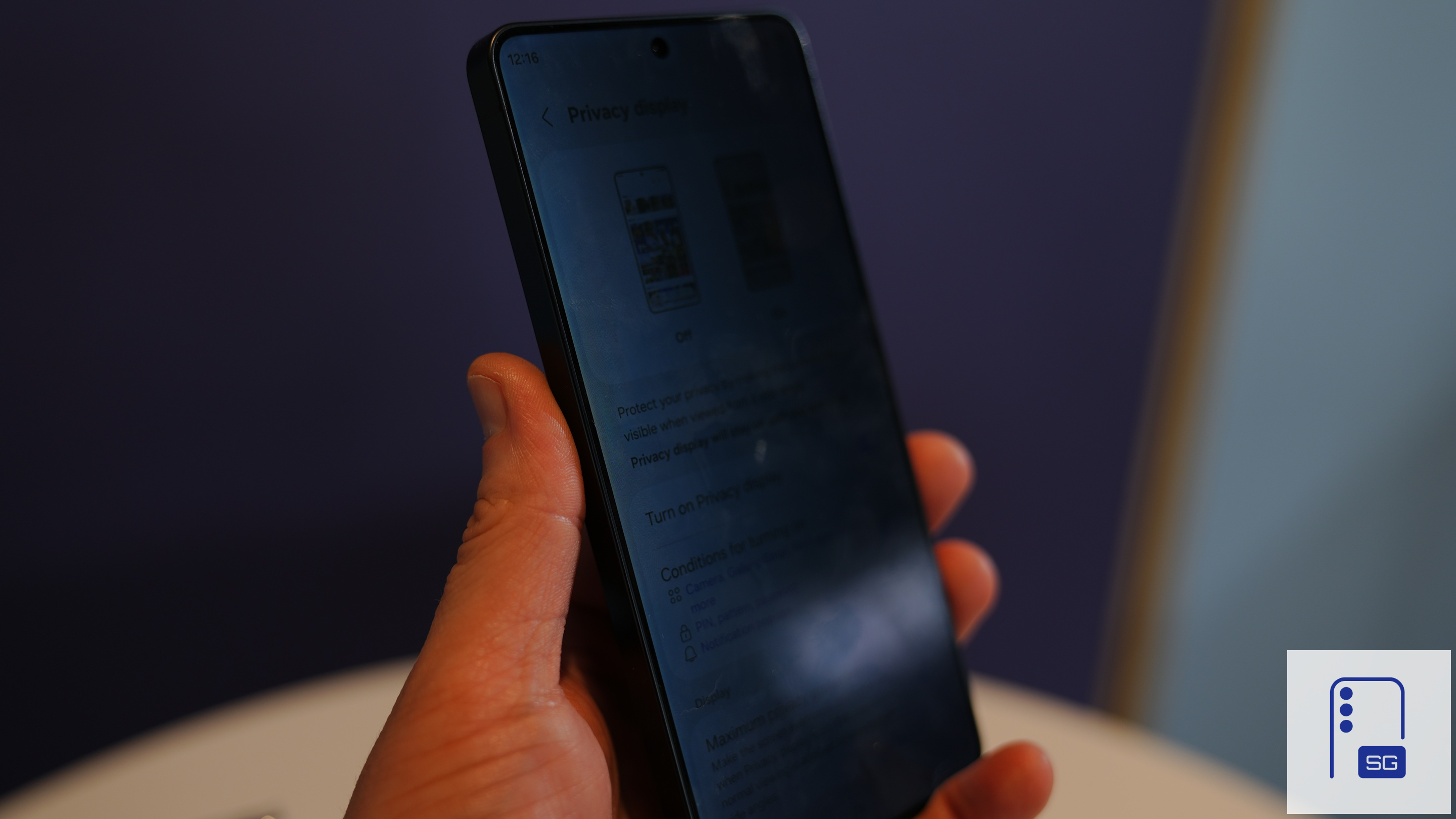
Samsung has been heavily spotlighting Privacy Display in its marketing for the Galaxy S26 Ultra, and for good reason. It tackles a surprisingly common annoyance: people sneaking glances at your screen in public. You do not have to keep the feature enabled all the time or manually turn it on whenever you step outside. Samsung lets you automate Privacy Display using Modes and Routines, so it can turn on and off exactly when you need it. Here’s how to set it up.
This feature has some drawbacks, but it’s no gimmick
Privacy Display is designed to limit viewing angles so that only the person directly in front of the screen can clearly see its contents. Anyone looking from the side sees a dimmed or distorted view, making it far harder for strangers to peek at sensitive information. It’s a perfect solution for using your phone privately in public. Unlike screen protectors that permanently affect display quality, Samsung’s solution is software-driven and can be toggled dynamically.
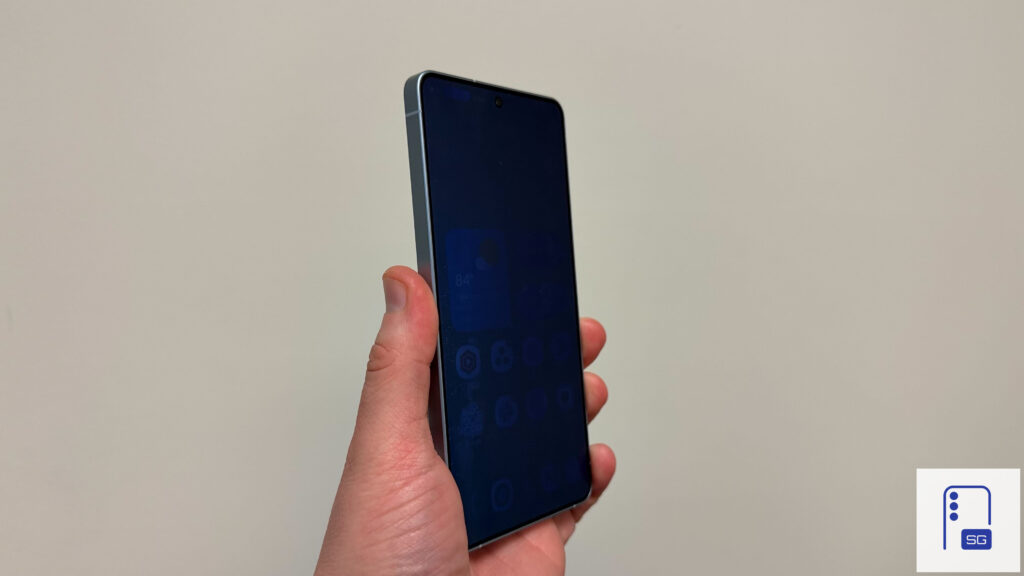
However, there’s a small trade-off. When Privacy Display is enabled on the Galaxy S26 Ultra, the screen can appear slightly dimmer even when viewed head-on. That makes it less ideal to keep switched on all the time, especially when you’re in a private setting. Thankfully, Samsung has already accounted for this and offers some built-in automation options. Privacy Display can turn on automatically in specific scenarios, such as:
- When opening selected apps like banking or messaging
- During notification pop-ups
- While entering a PIN, password, or pattern
Privacy Display keeps your screen private — do it the smart way with Modes and Routines
Wth Modes and Routines, you can go well beyond these built-in options. You can automate Privacy Display based on contextual triggers like location, time, or connectivity. For example, you can create a routine that…