This Linux terminal app turns daily weather reports into an animated ASCII masterpiece
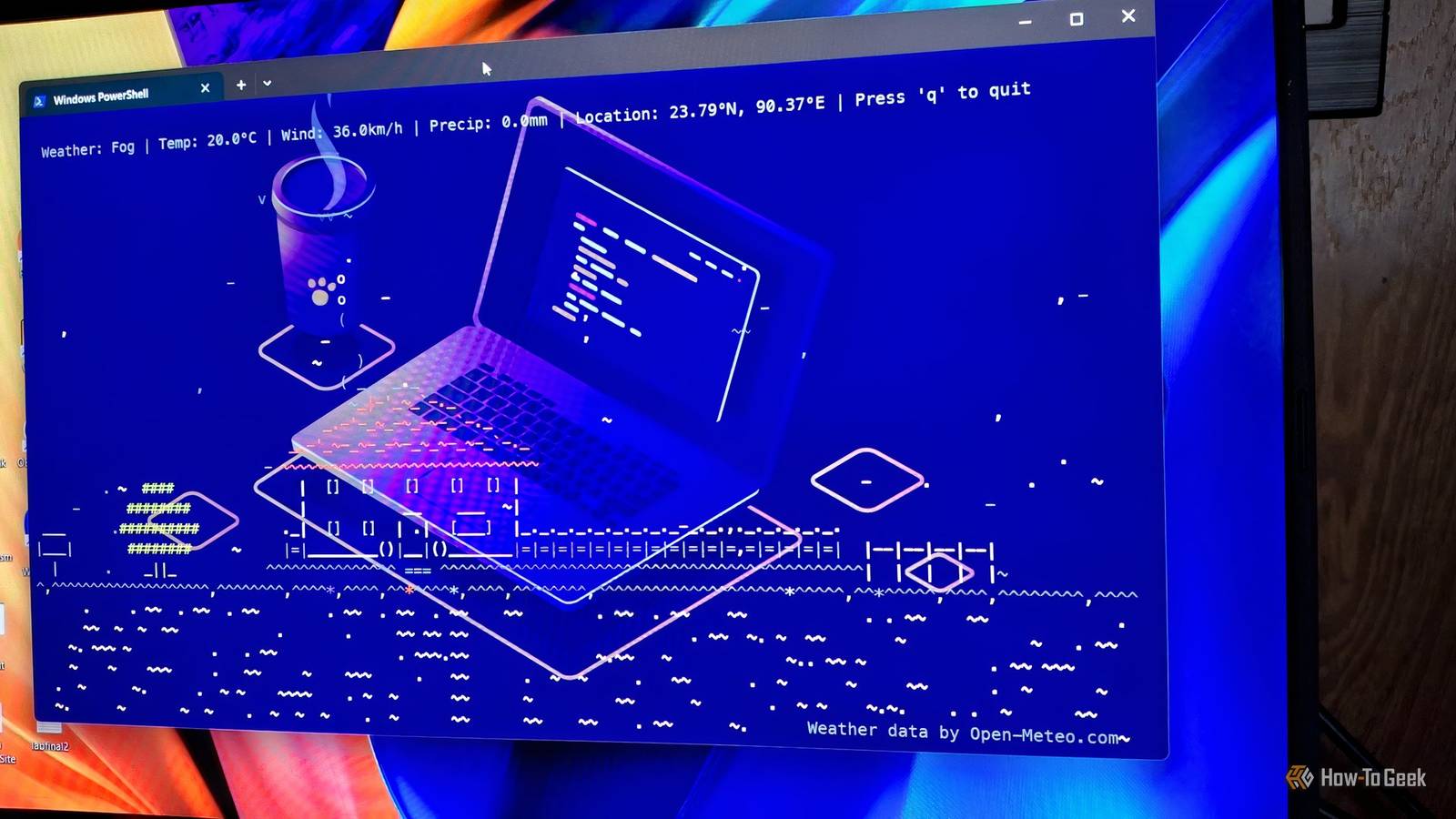
This Linux terminal app turns daily weather reports into an animated ASCII masterpiece
Publish Date: 2026-03-14 06:30:00
Source Domain: www.howtogeek.com
Most days, my terminal is a purely practical space, a place for important commands, logs, and the occasional script. It’s efficient, minimal, and not particularly exciting to look at. But every once in a while, a tool comes along that reminds you that the command line can still surprise you.
That’s exactly what happened when I ran weathr for the first time. Instead of printing a simple forecast, my terminal filled with drifting clouds, falling rain, and a small weather panel quietly reporting the conditions outside.
Installing and configuring weathr
Available for all major platforms
weathr is available for Windows, macOS, and Linux. If you have the Cargo package manager, you can install it via this command:
cargo install weathr
On Windows, use the winget package manager:
winget install -i Veirt.weathr
For macOS, you can use Homebrew:
brew install Veirt/veirt/weathr
If you’re using Arch Linux, then install it from AUR:
yay -S weathr
After installation, you can do some configuration using the config.toml file. Depending on your platform, you can create them in these places:
# Linux
~/.config/weathr/config.toml (or $XDG_CONFIG_HOME/weathr/config.toml)
# macOS
~/Library/Application Support/weathr/config.toml
# Windows
~/AppData/Roaming/weathr/config.toml
From there, you can change most settings, such as what to display, the behavior, your location, what units to use, etc. There’s a display option. You can use it to control the location name, whether you want to show the city name or just the coordinates. Here’s an example configuration you can follow:
hide_hud = false
silent = false
[location]
latitude = 78.2049
longitude = 119.1992
# How to display the location in the HUD: “coordinates” | “city” | “mixed”
display = “city”
[units]
temperature = “celsius”
wind_speed = “kmh”
precipitation = “mm”
You can also tweak your environment variables to adjust the…