You’re not having a stroke, Google simply changed the Chrome for Android Home icon
You’re not having a stroke, Google simply changed the Chrome for Android Home icon
https://www.phonearena.com/news/google-changes-the-home-icon-on-chrome-for-android_id178318
Publish Date: 2026-02-18 22:36:00
Source Domain: www.phonearena.com
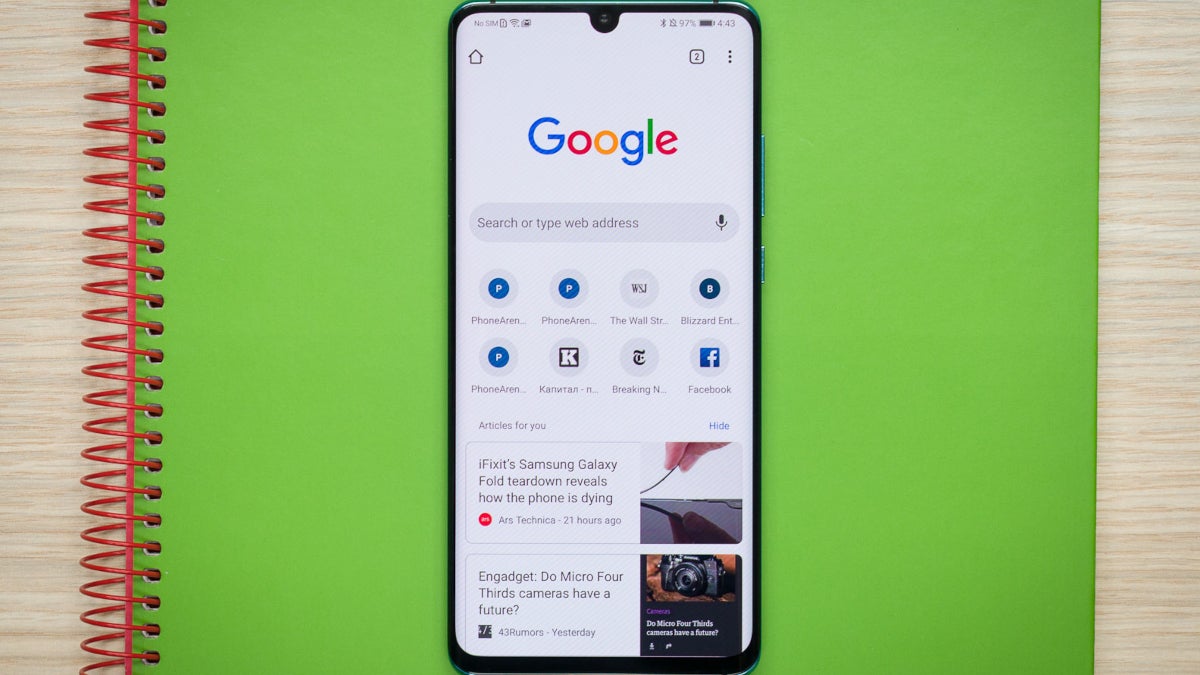
The Chrome for Android app gets a small change that might improve your experience using the app. | Image by PhoneArena
It’s a small change, perhaps the smallest one that Google could think of. In Chrome 145, the Home icon in the browser’s address bar gets a new look. The icon is found to the left of the address bar or, as Google calls it, the Omnibox. Google uses the latter name because you can type a web address in the bar and be directed to that website. You can also type a keyword into the bar and get search results based on the word you typed.
The side of the Home icon now is flush with the roof, as the overhang has disappeared. The new Home icon now includes a cutout door, which is a quick way to determine if your phone is running the latest version of Chrome (more on this later).
And that brings us to this question. Have you ever wondered what that small Home icon does? I’ll tell you right now. Ready? Here goes. Go back to the Homepage screen by opening the Chrome for Android app and going to Settings Homepage. Toggle on the Homepage setting at the top of the page. Doing that allows the Chrome Browser to immediately open the browser’s default page whenever you tap the Home icon regardless of the website you are viewing on Chrome.
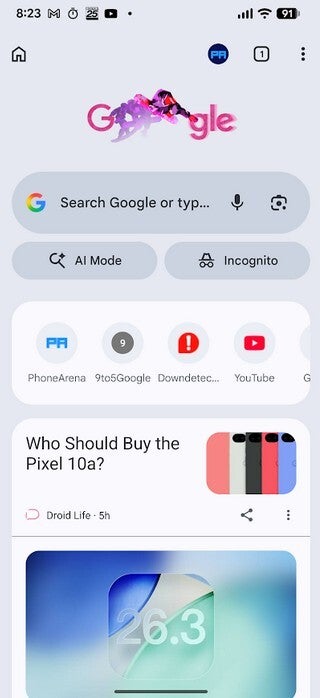
Google changes the Home icon seen in the top left corner of the Chrome for Android app. | Image by PhoneArena
You can customize a shortcut to a single website on Chrome for Android
Or you can set a website that you will be directed to every time you tap on the Home icon. On the Homepage screen, tap the second button that says “Enter custom web address” and type in the URL of the site you want to use. Now, whenever you tap the Home icon to the left of the Omnibox, you will be automatically sent to that website. It’s one of those cool built-in features that Google…