4 Linux commands that will make your terminal look incredible
4 Linux commands that will make your terminal look incredible
https://www.howtogeek.com/how-to-make-your-linux-terminal-look-stunning/
Publish Date: 2026-02-13 06:30:00
Source Domain: www.howtogeek.com
Summary
- Replace Bash with Zsh (sudo apt install zsh; chsh -s $(which zsh)) for autosuggestions and config power.
- Install Oh My Zsh for 150+ themes and 300+ plugins to easily theme and extend Zsh.
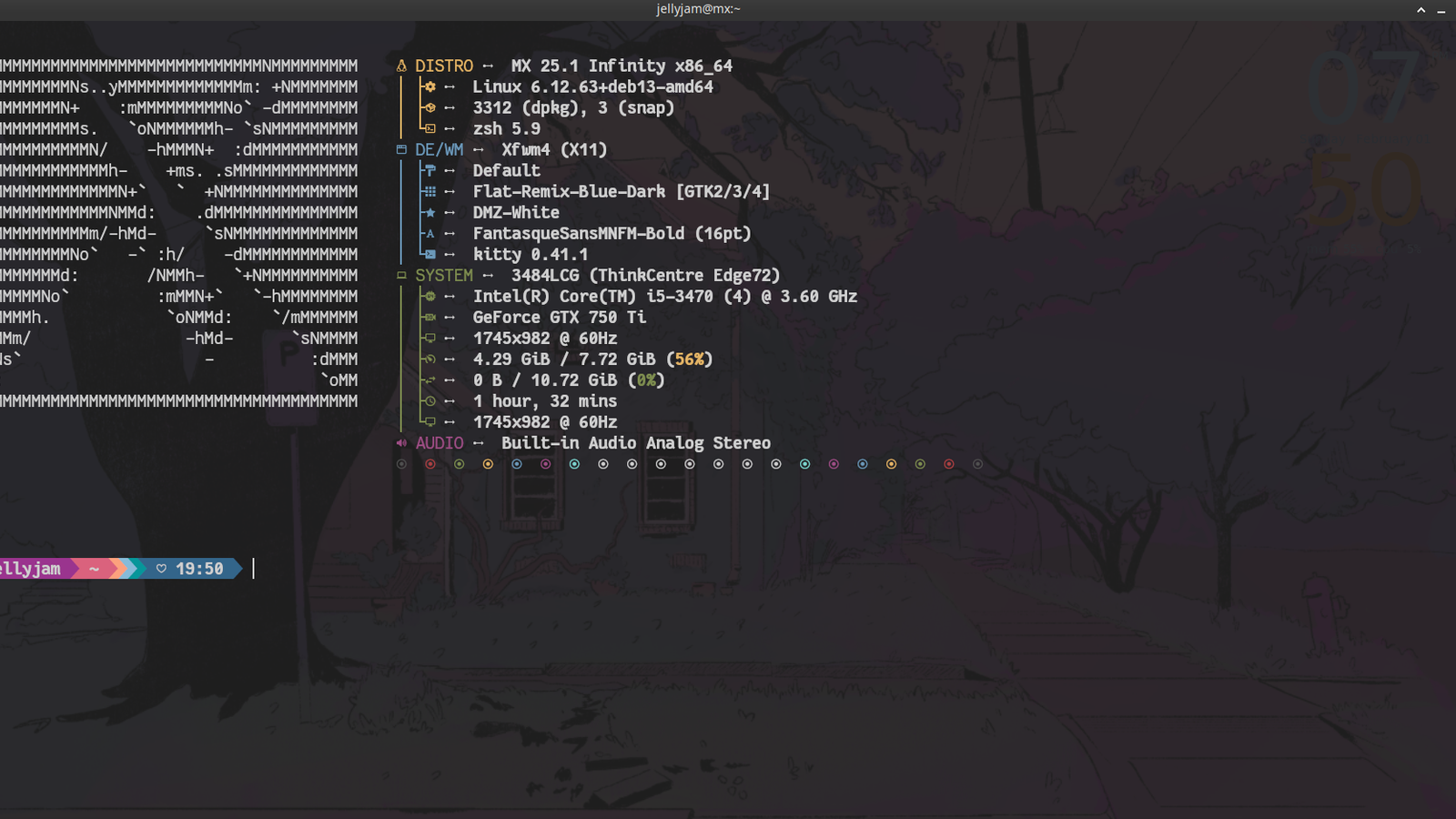
- Use Kitty, fastfetch, and Starship; add fastfetch and eval “$(starship init zsh)” to ~/.zshrc for info + flashy prompt
The default Linux terminal (at least on most distros) looks pretty dull and boring. It’s just a blinking cursor on a solid color background. Not a lot of visual appeal there, so you. However, we’re on Linux where everything is customizable, including the terminal and the shell. Let’s me show you how to do just that.
Replace the default shell
The window you type your commands inside is the terminal or the terminal emulator. However, the terminal has a “brain” that interprets and executes those commands. This “brain” is called the shell. In Linux, like all things, the shell can be customized too.
The default shell (usually Bash) functions just fine, but it’s missing modern features like autocomplete and syntax highlighting. It’s not very customizable either. I usually replace my default shell with Zsh. It’s a modern shell with tons of customization features.
I’m on a Debian machine, so I can use the APT package manager to quickly install the Zsh shell.
sudo apt install zsh
I can quickly switch to this new shell by typing zshand pressing Enter.
To make this switch permanent, run this command.
chsh -s $(which zsh)
…
Source