I just discovered this hidden iPhone feature that blurs faces instantly — it’s a total game-changer
I just discovered this hidden iPhone feature that blurs faces instantly — it’s a total game-changer
Publish Date: 2026-02-11 04:15:00
Source Domain: www.tomsguide.com
Hidden iPhone tips
(Image credit: Future)
Hi, I’m Kaycee. Welcome to Hidden iPhone Tips, a weekly column where I dig into the best iOS features Apple doesn’t tell you about.
I just discovered an iPhone feature that makes blurring faces in photos incredibly easy, and I can’t believe it’s been hiding in plain sight. The feature is buried inside Clean Up— Apple’s tool for removing unwanted objects from photos — which explains why I never found it until now.
1. Open the photo
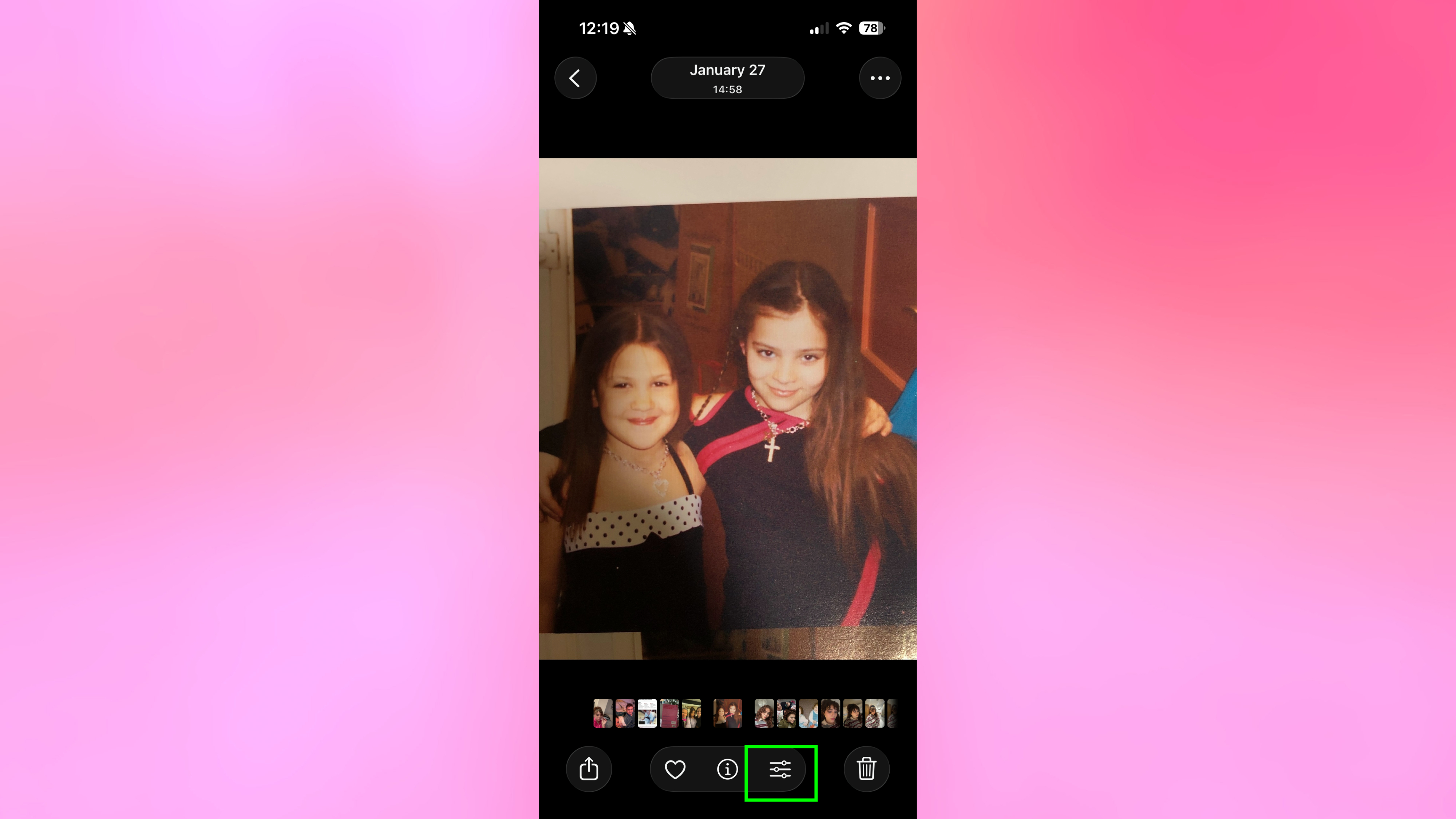
Open the Photos app and select the image containing faces you want to blur. Then tap Edit.
2. Access the Clean Up tool
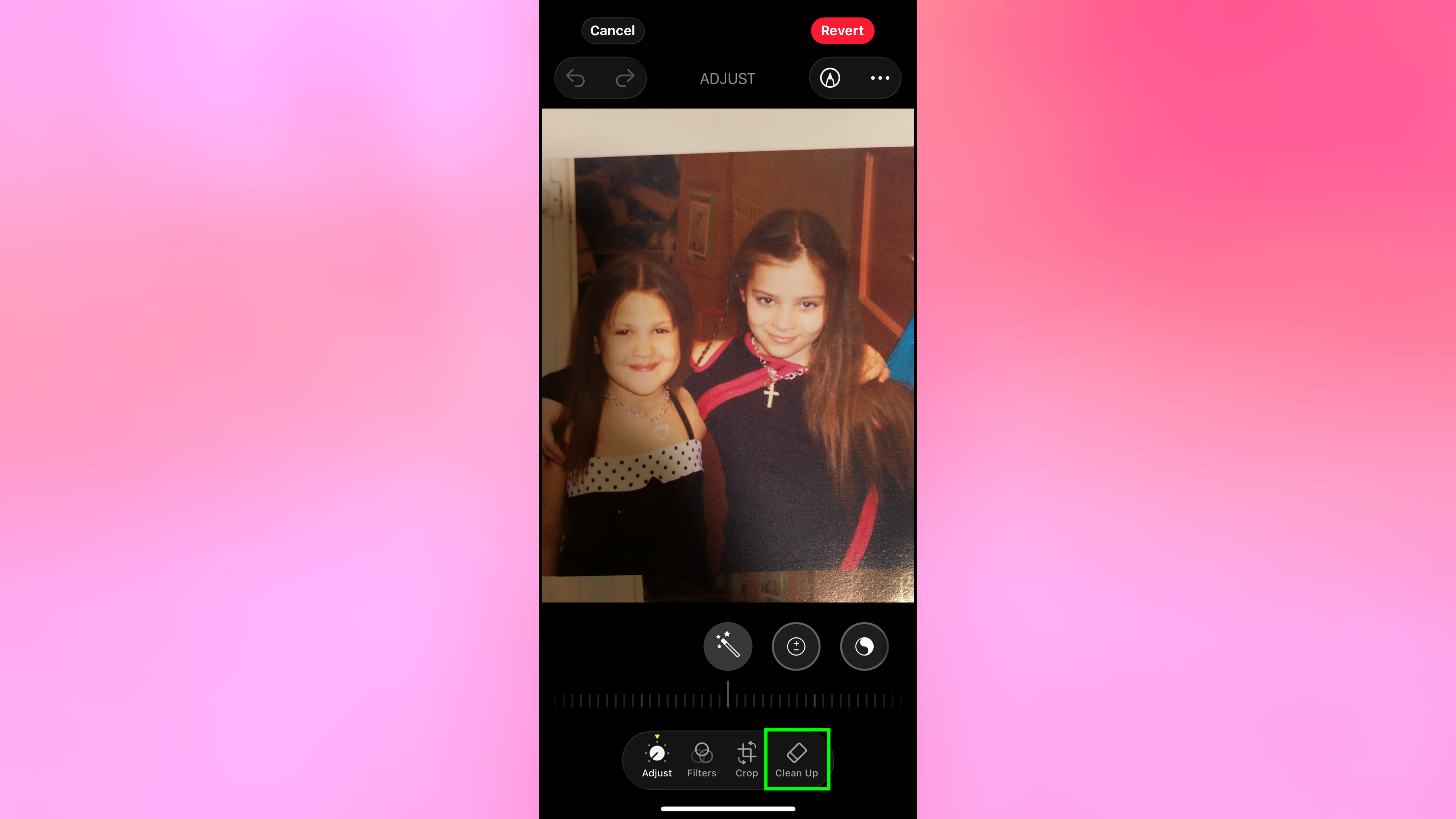
Look for the Clean Up option in the toolbar at the bottom of the screen. This is where Apple buried the face-blurring feature. Tap Clean Up.
3. Brush over the face you want to blur
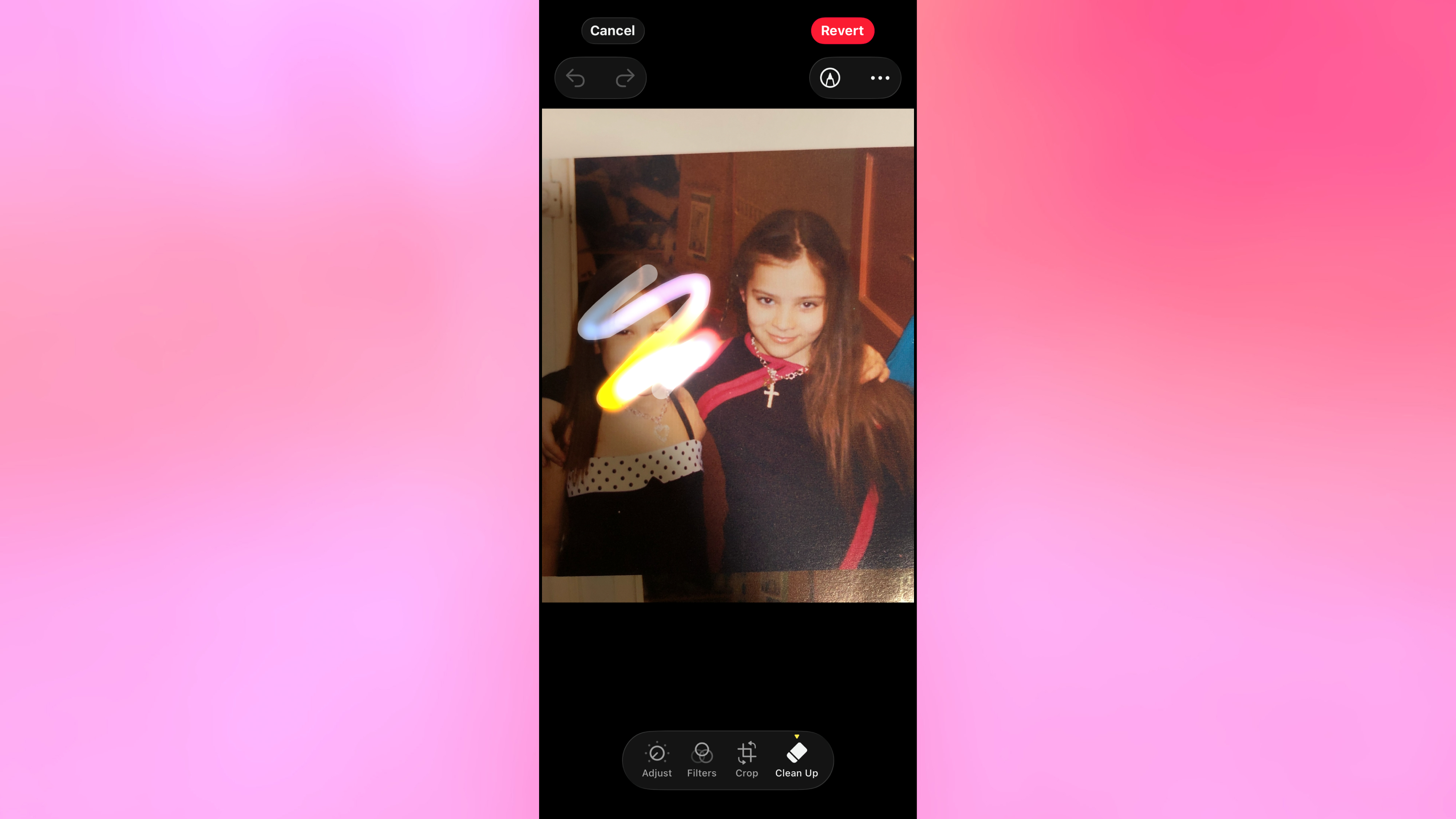
Use your finger to brush over any face you want to blur. You don’t need to be precise, just roughly circle or swipe over the face. The iPhone automatically recognizes the face and applies blur.
4. Save when sufficiently blurred
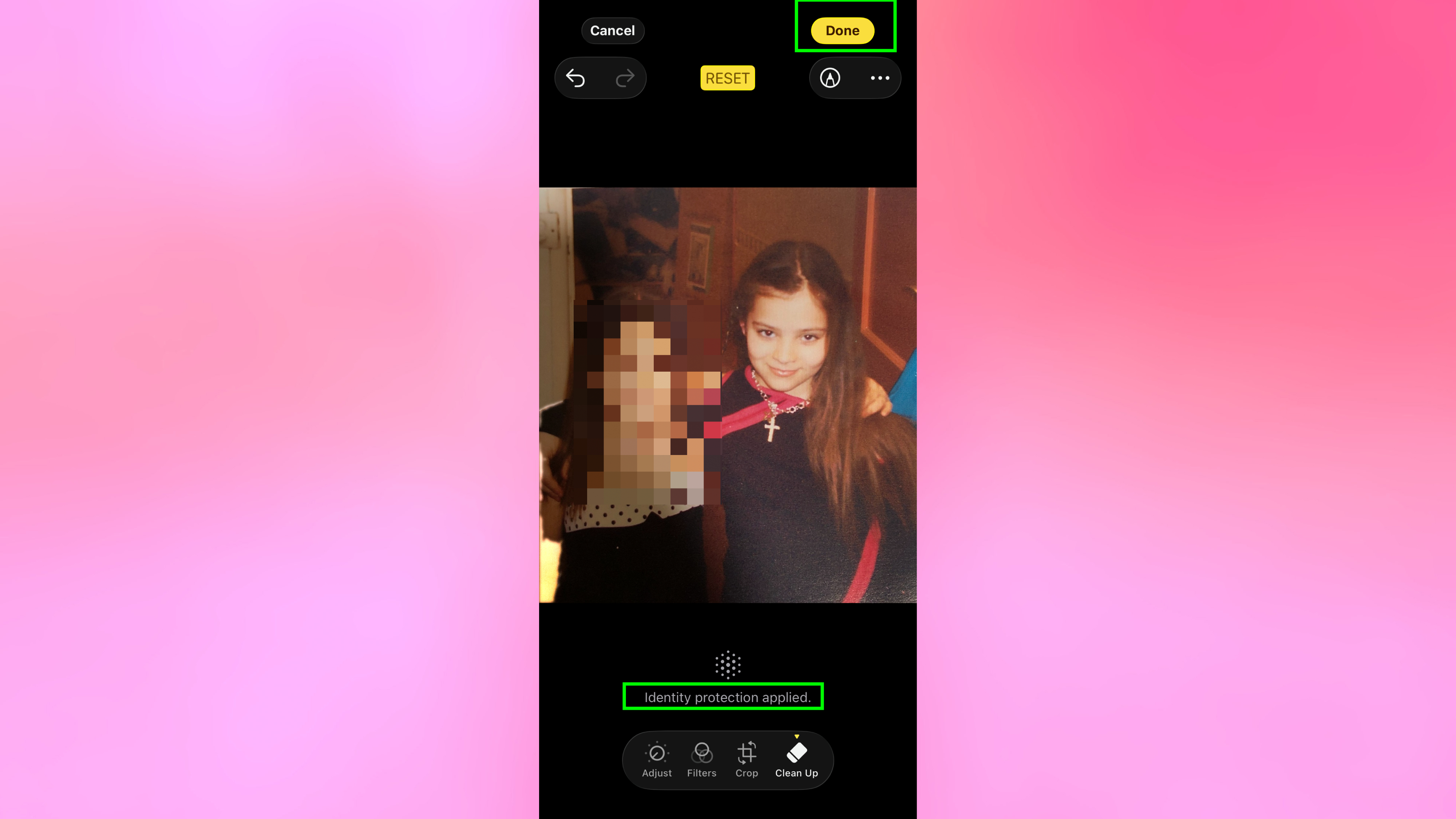
You’ll see a message appear on screen reading “Identity protection applied” to confirm the blur has been added.
Repeat this process for any additional faces in the photo you want to blur. You can blur multiple faces in a single image. Tap Done when you’ve finished.
5. Undoing the blur
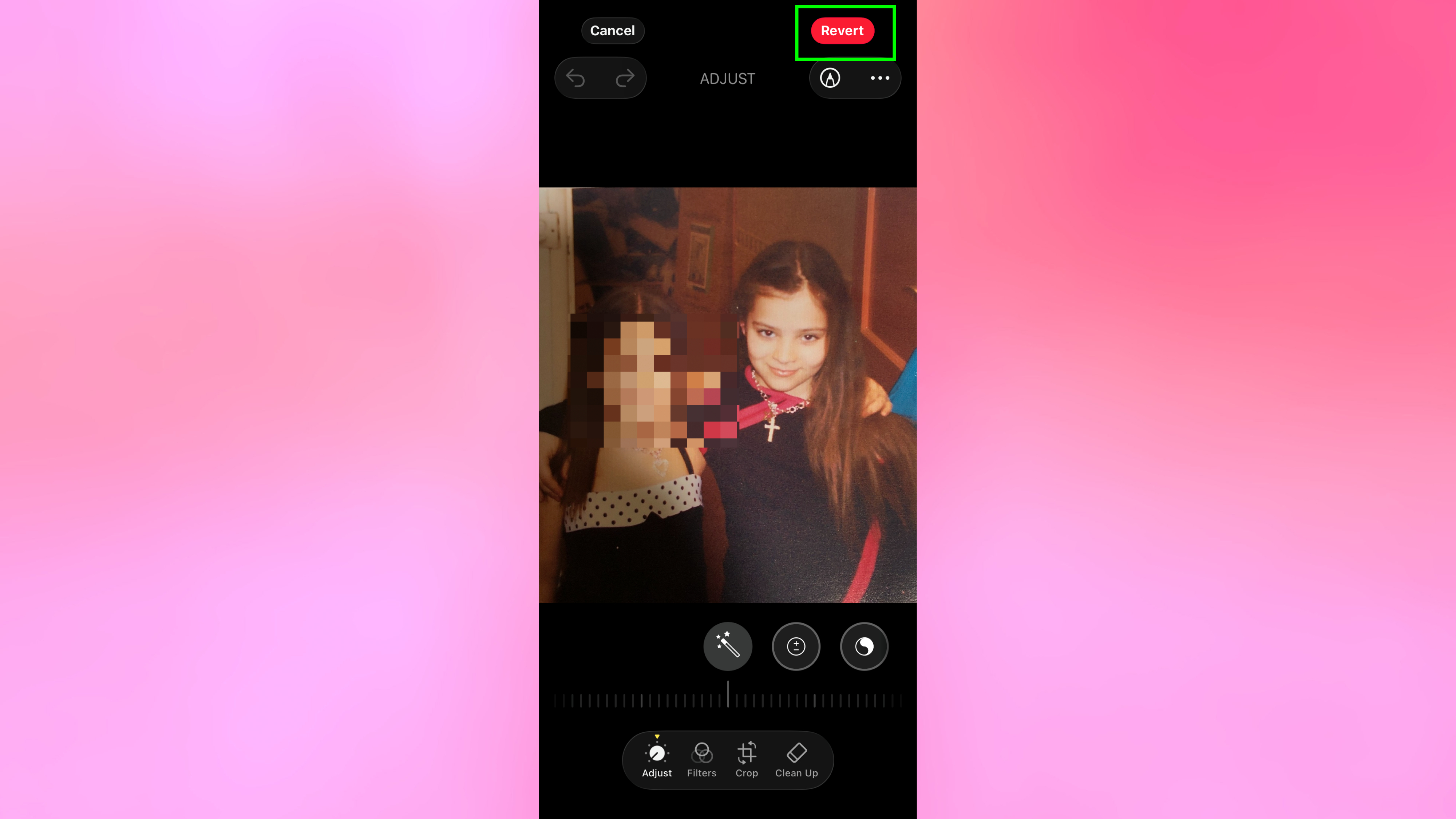
If you want to undo the blur later on your own device, open the photo, tap Edit, and revert the changes.
However, if you’ve already shared the photo with someone else they cannot undo the blur from their device — the protection is permanent for recipients.
Why this feature is so useful
It speaks for itself, but this identity protection feature is extremely useful. It’s…