10 Useful iPhone Tips and Tricks You Might Not Know About
10 Useful iPhone Tips and Tricks You Might Not Know About
https://www.macrumors.com/guide/useful-iphone-tricks-2026/
Publish Date: 2026-05-15 19:08:00
Source Domain: www.macrumors.com
Over the years, the iPhone’s operating system has gotten complicated. Apple adds new features with every version of iOS, and many of them aren’t always obvious, leading to hidden iPhone capabilities you might not be aware of.
The tips below assume that you have iOS 26 or later installed.
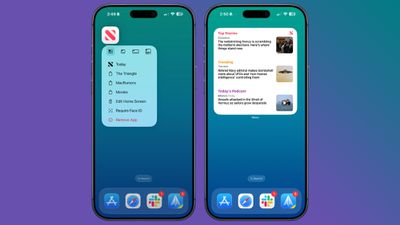
You can turn most app icons into widgets right from the iPhone’s Home Screen. Just long press on an app icon, and select one of the squares from the top to choose a widget size. It works with any Apple or third-party app that has a widget option. Long press again and select the top left icon with four squares to turn it back into a standard app icon.
See Where You’ve Been
In the Maps app, you can look back at your location history to see places that you’ve visited. It’s useful if you’ve been on a weekend trip, found a great restaurant, and want to remember where it was the next time you visit.
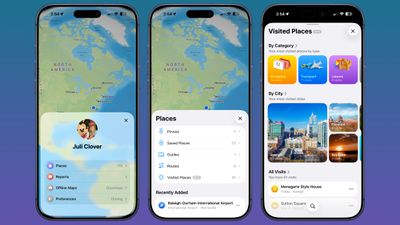
You can get to this feature by opening up the Maps app, tapping on your profile, selecting Places, and then choosing Visited Places. Places are organized by category like leisure or shopping, and by city.
You can clear your history by scrolling down to the bottom of the interface, or select a period of time for visits to be kept. Go to Settings Maps Location Visited Places to turn it off entirely.
Set Custom Vibrations
You probably know you can set custom sounds for people that call or text, but you can also do the same thing for vibration patterns if you keep your iPhone on silent all the time, as civilized people do.
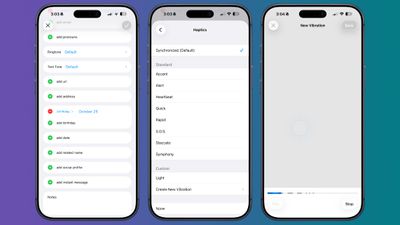
Important people you message can each have a different vibration pattern, so you know who is texting without having to look at your phone.
To set a vibration pattern for someone, open up the Contacts app and select them. Tap Edit in the upper right corner, then tap on Text Tone or Ringtone. Tap on Haptics and then select Create New Vibration. From there, you can use taps and presses to make your own vibration patterns.
Customize Your Lock Screen Buttons
Your Lock Screen…