Ditch the signature apps — your iPhone has a hidden built-in tool to sign any document
Ditch the signature apps — your iPhone has a hidden built-in tool to sign any document
Publish Date: 2026-03-11 04:00:00
Source Domain: www.tomsguide.com
Hidden iPhone tips
(Image credit: Future)
Hi, I’m Kaycee. Welcome to Hidden iPhone Tips, a weekly column where I dig into the best iOS features Apple doesn’t tell you about.
I’m buying my first house, which means I’m drowning in paperwork. For weeks, I downloaded PDFs to my laptop, opened a third-party signature app and signed, re-downloaded and emailed over. It was exhausting.
How to sign documents on iPhone
1. Take a screenshot of the document
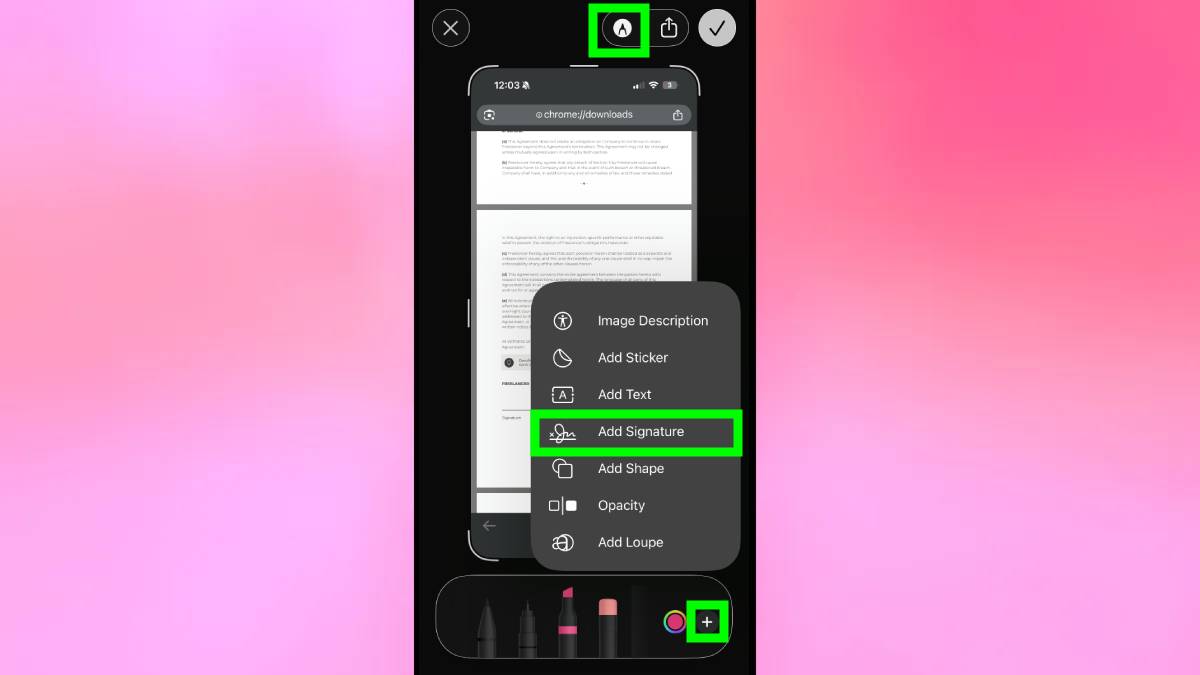
Open the document you need to sign and take a screenshot by pressing the side button and volume up button simultaneously (or home button and side button on older iPhones).
Next, click the Markup icon, the one that looks like a marker inside a circle. When the Markup toolbar appears at the bottom of the screen (with the different pens and pencils), tap the plus (+) button. From the menu that opens, select Signature.
2. Write your signature
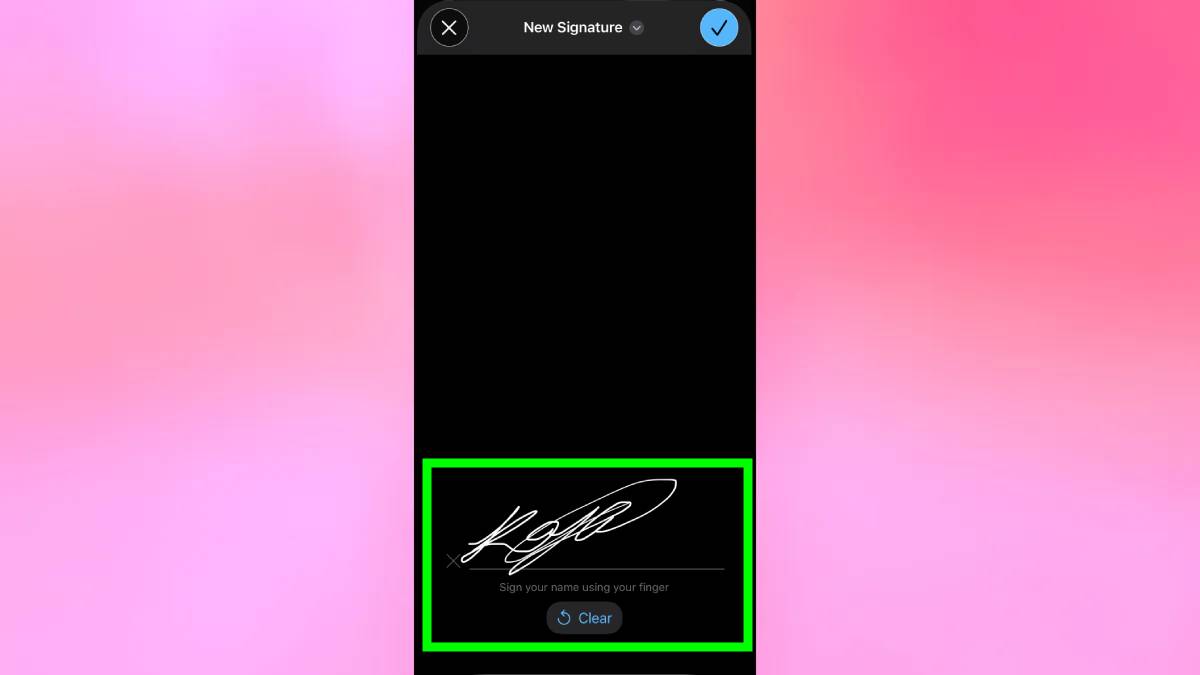
If you’ve never used this feature before, you’ll see a blank screen prompting you to create a signature. Sign directly on your iPhone screen using your finger. Try to keep it smooth and legible. This signature gets saved for future use.
If you’ve used this before, stored signatures appear. You can select a previously saved signature or tap the plus icon to create a new one. Multiple stored signatures are useful if you need different signature styles for different purposes.
3. Add the signature to your document

After selecting or creating your signature, it appears on the screenshot as a draggable element. Use your finger to drag it to the appropriate signature line on the document.
Pinch to resize the signature so it fits…