How to get started with Pixels’ new Desktop Mode
How to get started with Pixels’ new Desktop Mode
https://www.androidauthority.com/android-desktop-mode-getting-started-3646933/
Publish Date: 2026-03-08 05:36:00
Source Domain: www.androidauthority.com
Robert Triggs / Android Authority
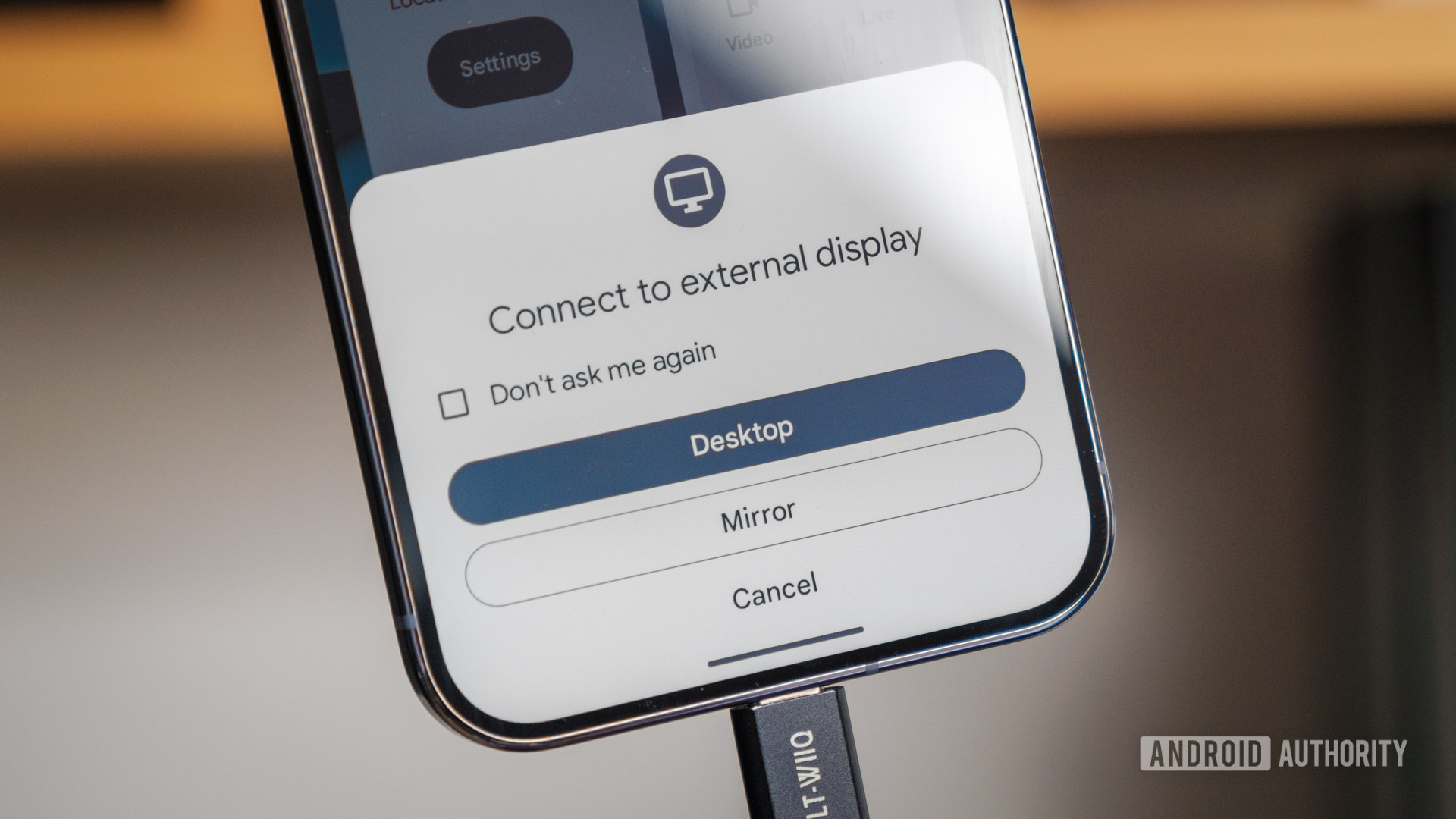
While there are many great new features in the March Pixel Drop, I’ve been most excited about the new desktop interface. It’s super simple to get started with, transforming your Pixel phone into a PC interface with just one cable. Just plug your phone into an external monitor via USB-C or DisplayPort, and you’re good to go.
Android’s desktop interface will feel familiar to anyone who has used a traditional desktop platform. Apps pop up in movable windows, with a traditional dock at the bottom that houses favorite and currently running apps. More unconventional are the back, home, and recents navigation buttons at the bottom right. Though if you’re still using buttons rather than gestures on your Pixel, you’ll feel right at home with these controls.
However, there are some subtleties to Android’s desktop experience that can take some getting used to. Based on my time with the platform, here are eight quick tips to help you master your Pixel’s new Desktop Mode.
Will you use Pixel’s Desktop Mode?
8 votes
Yes, I’m already using it.
13%
I plan to try it soon.
63%
No I’m not interested.
25%
1. Bluetooth all the things
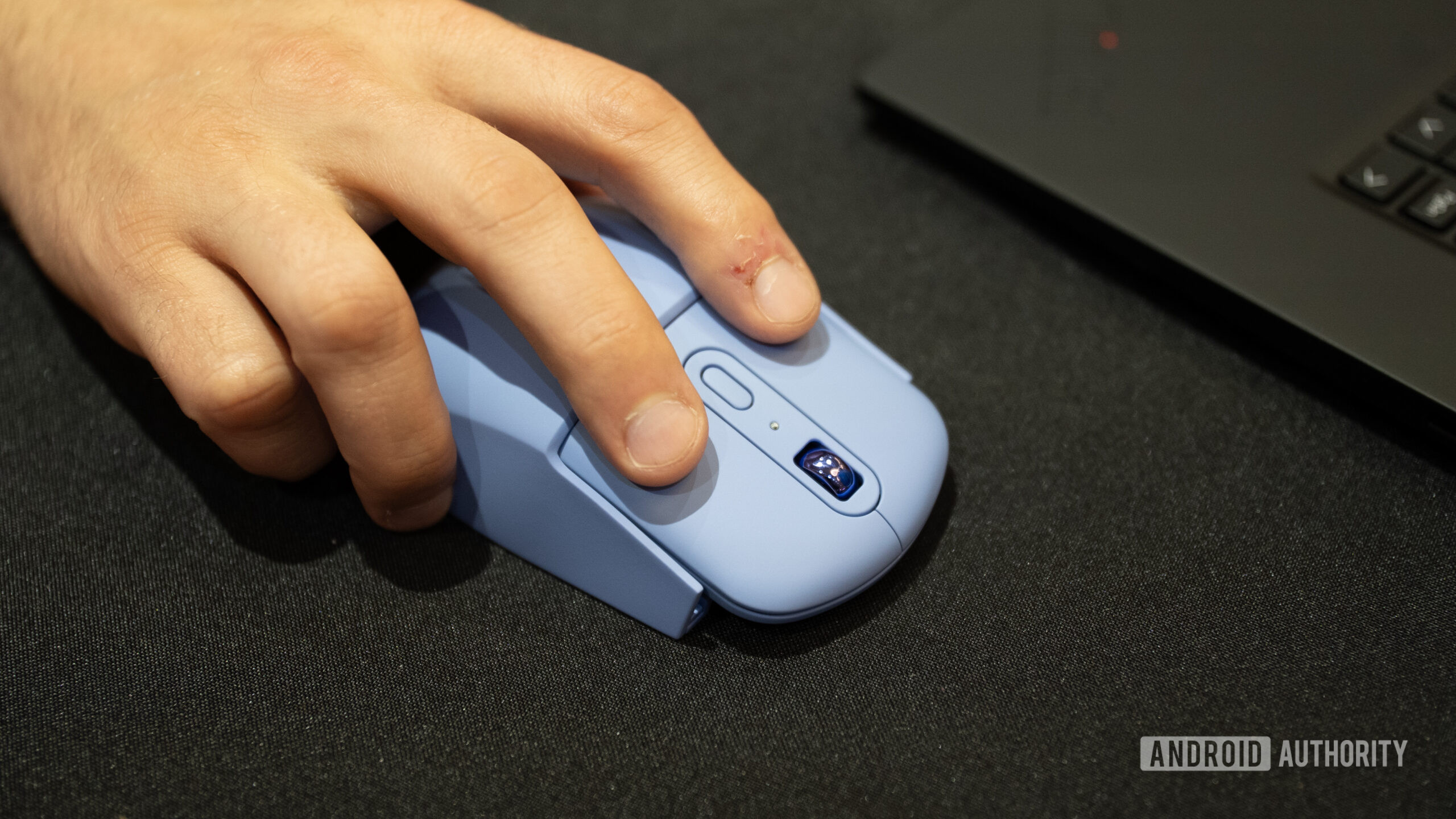
Harley Maranan / Android Authority
To make the most of Android’s Desktop Mode on your Pixel, you’ll want a physical keyboard and mouse rather than relying on cumbersome touchscreen controls. The quickest way to get up and running is to connect your PC peripherals via Bluetooth.
Keyboards and mice can be set up in exactly the same way as pairing a set of earbuds or a game controller. Simply long-press the Bluetooth quick settings button and select Pair New Device. Thankfully, Google’s desktop setup is smart enough that it doesn’t require any extra configuration to support these essential wireless accessories. It’s just plug and play.
You can pair your keyboard, mouse, and other accessories ahead of time, and they’ll remain in your phone’s pair list when you connect to Desktop Mode. This is both a blessing…