Linux IP Forwarding: How to Enable, Disable & Configure It

Linux IP Forwarding: How to Enable, Disable & Configure It
https://www.privateinternetaccess.com/blog/linux-ip-forwarding/
Publish Date: 2026-07-03 07:00:00
Source Domain: www.privateinternetaccess.com
Linux IP forwarding is essential for many advanced networking tasks, but enabling it without the right configuration can create unintended security and connectivity issues. Whether you’re setting up a router, gateway, VPN, or another network service in Linux, it’s important to know when to enable IP forwarding, how to configure it, and when to disable it.
This guide shows you how to check whether Linux IP forwarding is on and how to enable it temporarily or permanently. You’ll also learn how to troubleshoot common issues and turn it off when you’re done.
What Is IP Forwarding in Linux?
Linux IP forwarding is a kernel-level feature1 that lets the system forward IP packets between network interfaces, essentially turning your Linux machine into a router. It’s turned off by default, so a Linux machine only handles packets meant for its own IP address and drops any packets addressed to a different interface. When you enable it, the system checks the destination IP against its routing table and forwards each packet to the right network interface.
How to Enable IP Forwarding on Linux
The steps below show how to check whether you’ve enabled IP forwarding and how to turn it on. You have two ways to do this. A temporary change applies right away but resets after a reboot, while a permanent change survives restarts.
Check If IP Forwarding Is Enabled
First, check whether IP forwarding is already on:
- Open the Terminal (press Ctrl+Alt+T).
- To check whether IPv4 forwarding is set up, run echo 1 | sudo tee /proc/sys/net/ipv4/ip_forward and press Enter.
- For IPv6, type echo 1 | sudo tee /proc/sys/net/ipv6/conf/all/forwarding and press Enter.
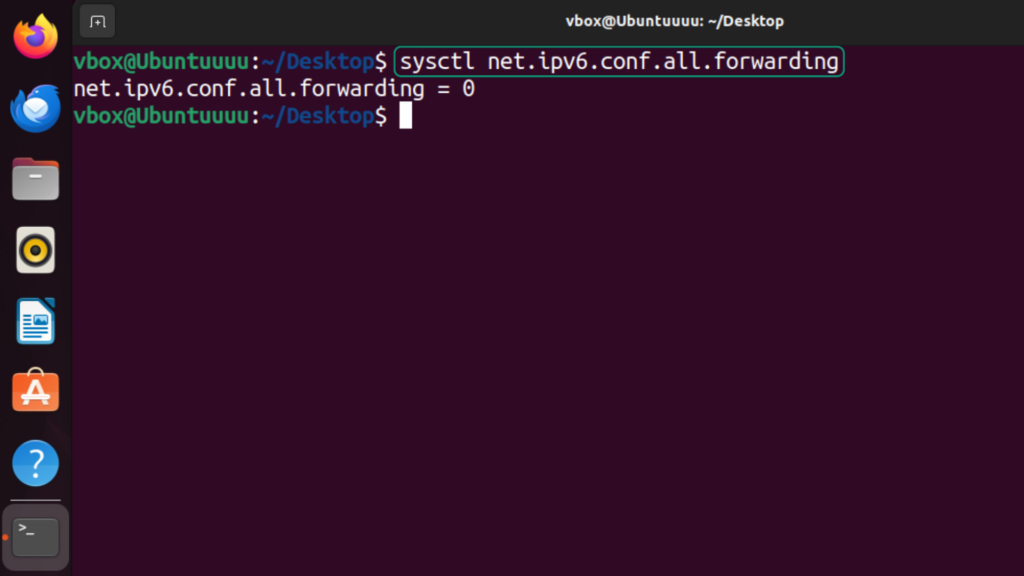
In both cases, a value of 1 in the command output means that IP forwarding is on, and 0 means it’s disabled.
Enable IP Forwarding Temporarily
- Open the Terminal.
- For IPv4, type sudo sysctl -w net.ipv4.ip_forward=1, press Enter, and enter your password…