Resizable iPhone apps show what the folding iPhone will be like
Resizable iPhone apps show what the folding iPhone will be like
https://www.cultofmac.com/news/resizable-iphone-mirroring-apps
Publish Date: 2026-06-19 09:15:00
Source Domain: www.cultofmac.com
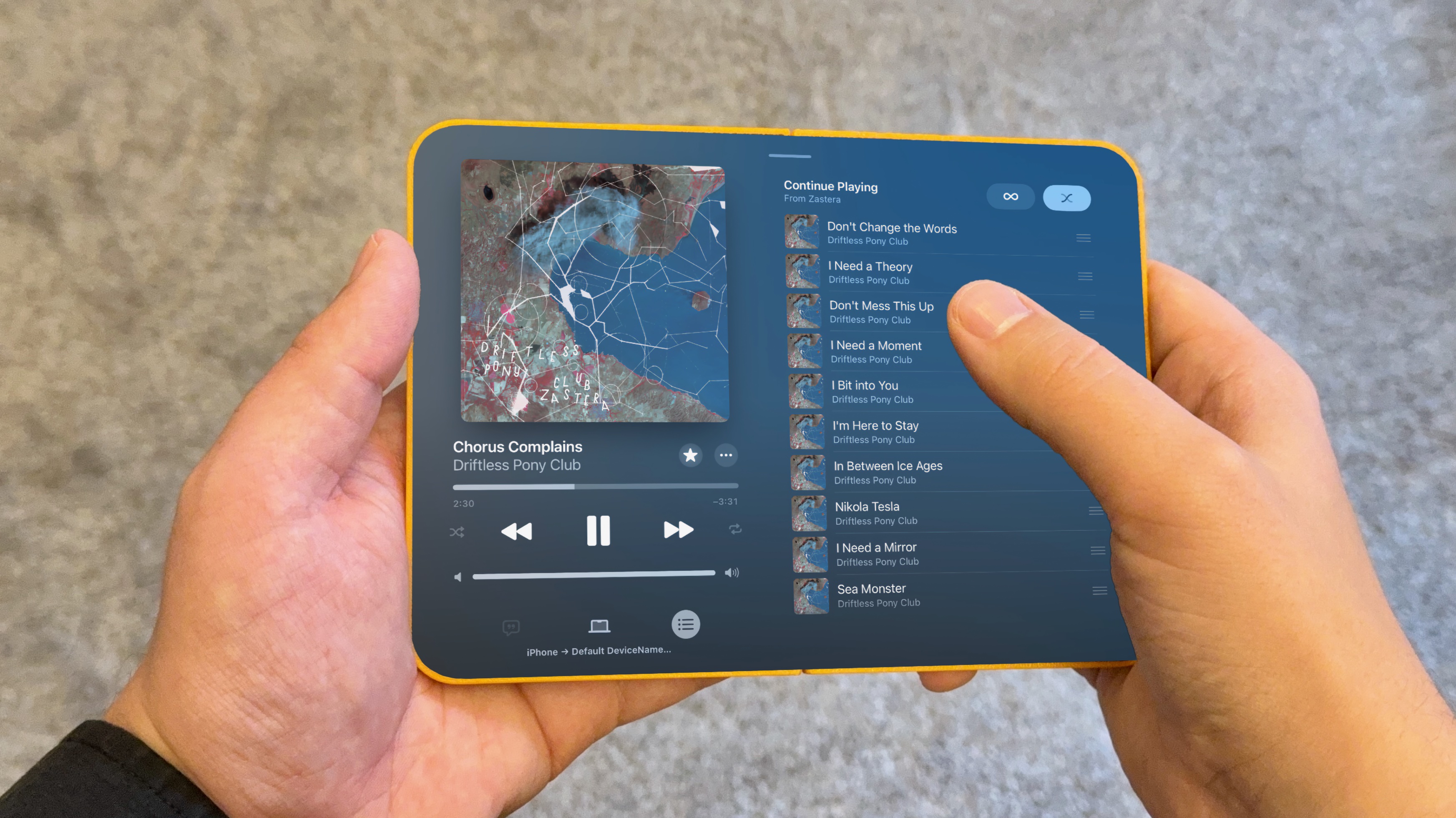
iPhone Mirroring in macOS Golden Gate gives us a clue about what the first folding iPhone will be like. For the first time, you can resize the window to any arbitrary size. That means you can stretch the screen to the rumored dimensions of Apple’s upcoming foldable and see how your favorite apps will look and work.
After all, it’s going to be an unusual iPhone. The unfolded inner screen will be roughly iPad mini-size, with an outer screen that’s much shorter and wider than any iPhone made in the last 15 years.
I took some screenshots of various Apple apps to demonstrate what the folding iPhone’s user interface will look like.
Resizable iPhone apps show what the folding iPhone will be like
A 3D-printed mock-up.
Photo: D. Griffin Jones/Cult of Mac
The folding iPhone reportedly will have the shortest and widest aspect ratio of any model since the iPhone 4s in 2011. The iPhone 5 moved to a taller 16:9 size, and from the all-screen iPhone X onward, the iPhone has been roughly 2:1. Rumor has it the inner, unfolded screen will be 4:3, meaning the outer screen will be 2:3.
If you want to see how it looks for yourself, my process is simple:
- Install the macOS Golden Gate and iOS 27 betas.
- Launch iPhone Mirroring and open an app (Apple’s built-in apps work best).
- Resize the window until it’s about 3.3 × 4.7 inches for the outer display, or 6.5 × 4.5 inches for the unfolded display. If you have a 3D-printed mockup, you can just hold it against the screen and size it to match.
If you don’t want to risk putting the betas on your own devices — probably a smart move — you can check out the gallery below instead.
Notes and Mail
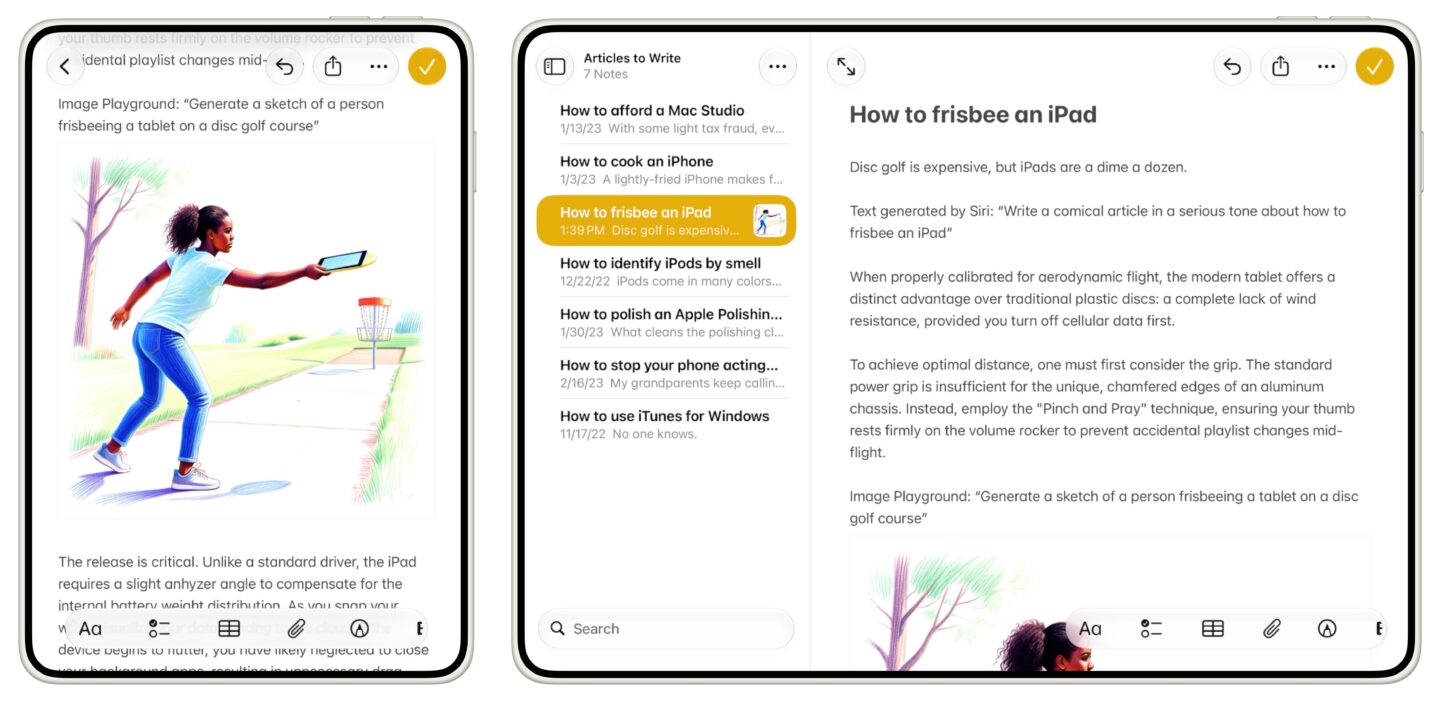 See your list of notes while you write more notes.
Screenshot: D. Griffin Jones/Cult of Mac
Apps like Mail and Notes will likely look something like this. You’ll have your list of items on the left and the contents on the right. This’ll be super-handy for triaging email or flipping through a bunch of school notes.
The…