Your old Android is a Roku or Fire TV stick alternative
Your old Android is a Roku or Fire TV stick alternative
Publish Date: 2026-06-06 05:30:00
Source Domain: www.tomsguide.com
Your old Android phone sits in a drawer doing nothing. Instead of letting it collect dust, turn it into a streaming device that replaces Roku, Fire Stick, or Chromecast.
This works with any Android phone running Android 14 or later. You don’t need special hardware or cables as wireless casting works just fine. Keep the phone plugged in near your TV, and it becomes a dedicated streaming remote and hub for all your apps.
Here’s how to get it up and running.
Latest Videos From
First, check your old phone has what it takes
Before you start, make sure your old phone is up to the task. You need an Android phone running Android 14 or later with at least 4GB RAM and 32GB storage. If your phone was made in the last 3-4 years, it probably meets these requirements.
On the TV side, most modern smart TVs support casting natively. If your TV was made after 2020 and has Google TV or Android TV built in, you’re golden. Samsung TVs using Tizen OS work too, though casting can be slower. A stable Wi-Fi connection is essential — both your phone and TV need to be on the same network.
You may like
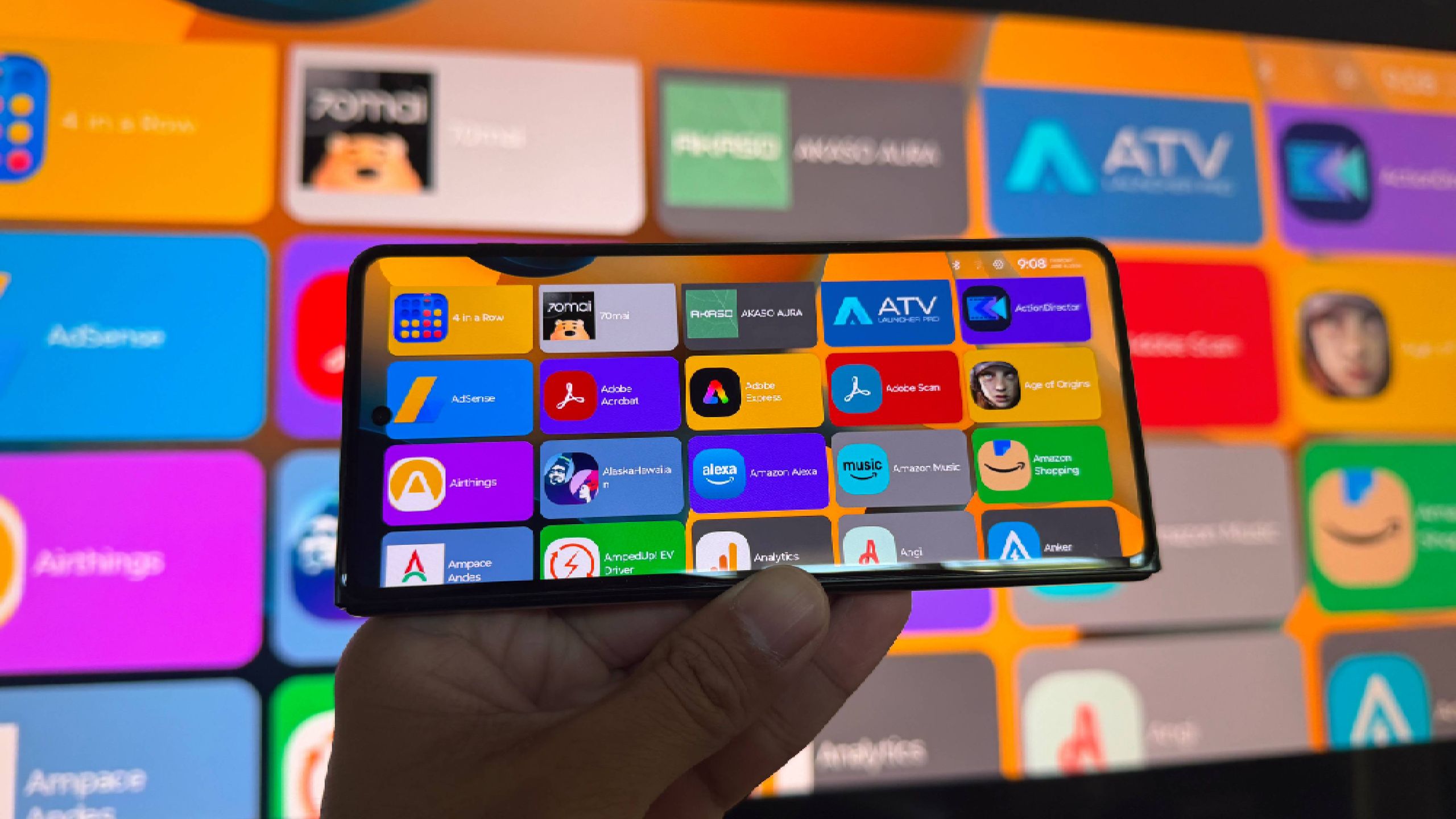
Download ATV Launcher and set it as your default
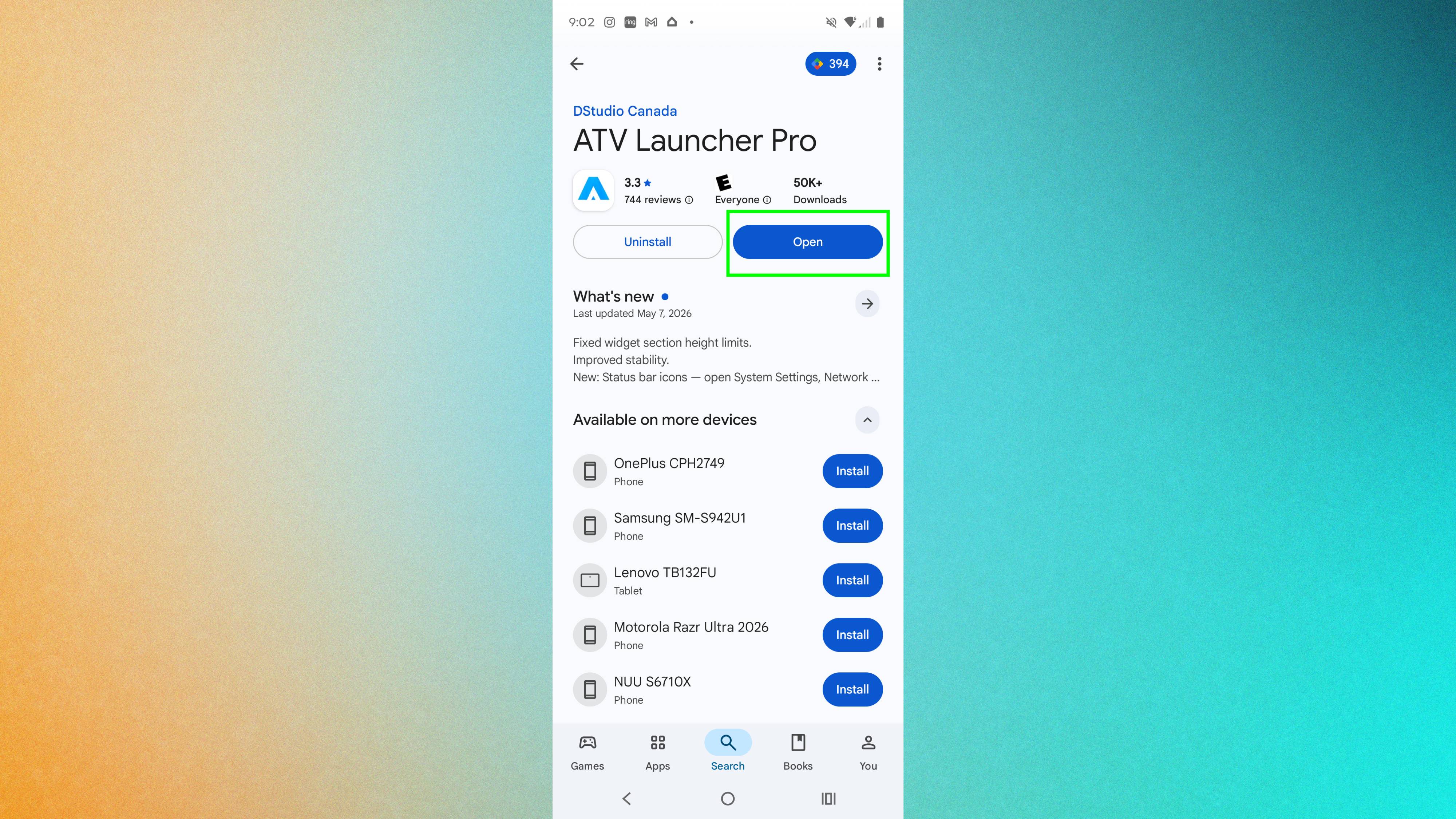
Open the Google Play Store, search for “ATV Launcher,” and install it. Once installed, you’ll be prompted to set it as your default launcher — do this so your phone’s home screen is replaced with the large icons and simple navigation designed for TV screens.
After that, install whatever streaming apps you actually use: Netflix, YouTube, Hulu, Plex, Tubi, or anything else you’re subscribed to. Organize them into folders on the home screen so you can quickly navigate to what you want to watch.
Connect your phone to your TV
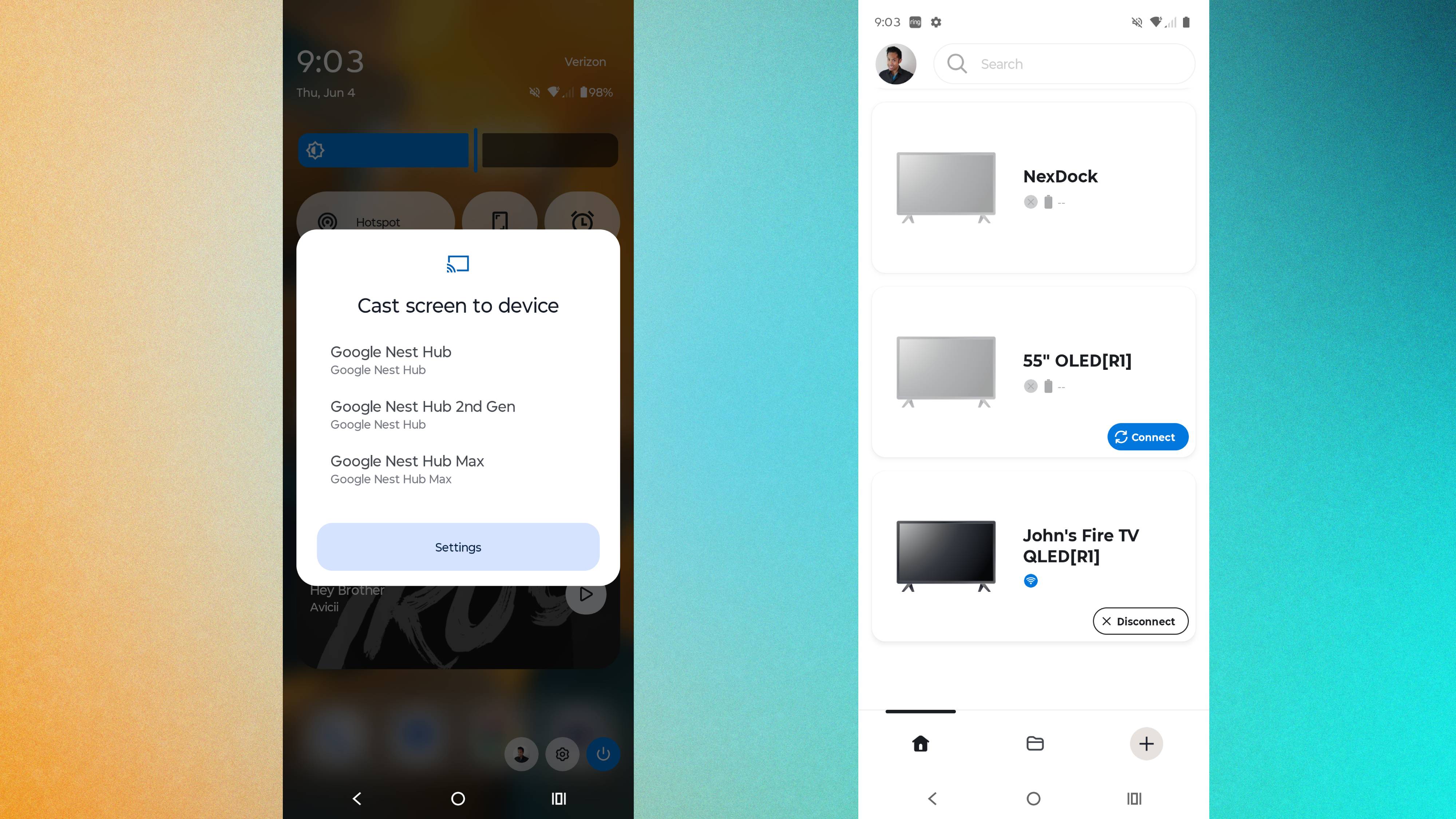
Before casting from your phone, you’ll need to make sure your TV’s casting mode is enabled. On most smart TVs this is found in the settings menu — look for “Screen Mirroring,” “Cast,” or “SmartView” depending on your brand.
Once your TV is ready, go to your phone…