She handed a repair tech her iPhone and then the worst happened — here’s how to protect your data and yourself
Publish Date: 2026-05-25 13:00:00
Source Domain: www.techradar.com
One of the things I often tell people is that with their smartphones, they are now carrying their lives in their pockets. These are semi-precious objects offering access to every aspect of our personal lives and information. Despite this, many people don’t treat them that way, and sometimes that cavalier attitude can lead to disaster.
Recently, I came across a disturbing story about a Best Buy employee who, while repairing her iPhone, allegedly accessed the customer’s personal photos and then AirDropped a few to his personal phone.
Yes, these were intimate photos, and no, the woman didn’t discover the alleged act until after she left the store. When I checked with Best Buy for comment, they sent me this:
Latest Videos From
You may like

“These allegations are deeply disturbing. Nothing is more important to us than the safety and data privacy of our customers. This person is no longer an employee, and we are working with law enforcement as they continue their investigation.”
While the case is ongoing, there are many lessons here.
I have no thoughts about the kinds of pictures people take and store on their smartphones, but I have many on the multiple mistakes the woman may have made before this alleged image hijacking.
I’m not blaming her — the guy allegedly stole her personal photos, but my next thought was: “Has she never heard of hidden folders?”
A private space
(Image credit: Future)
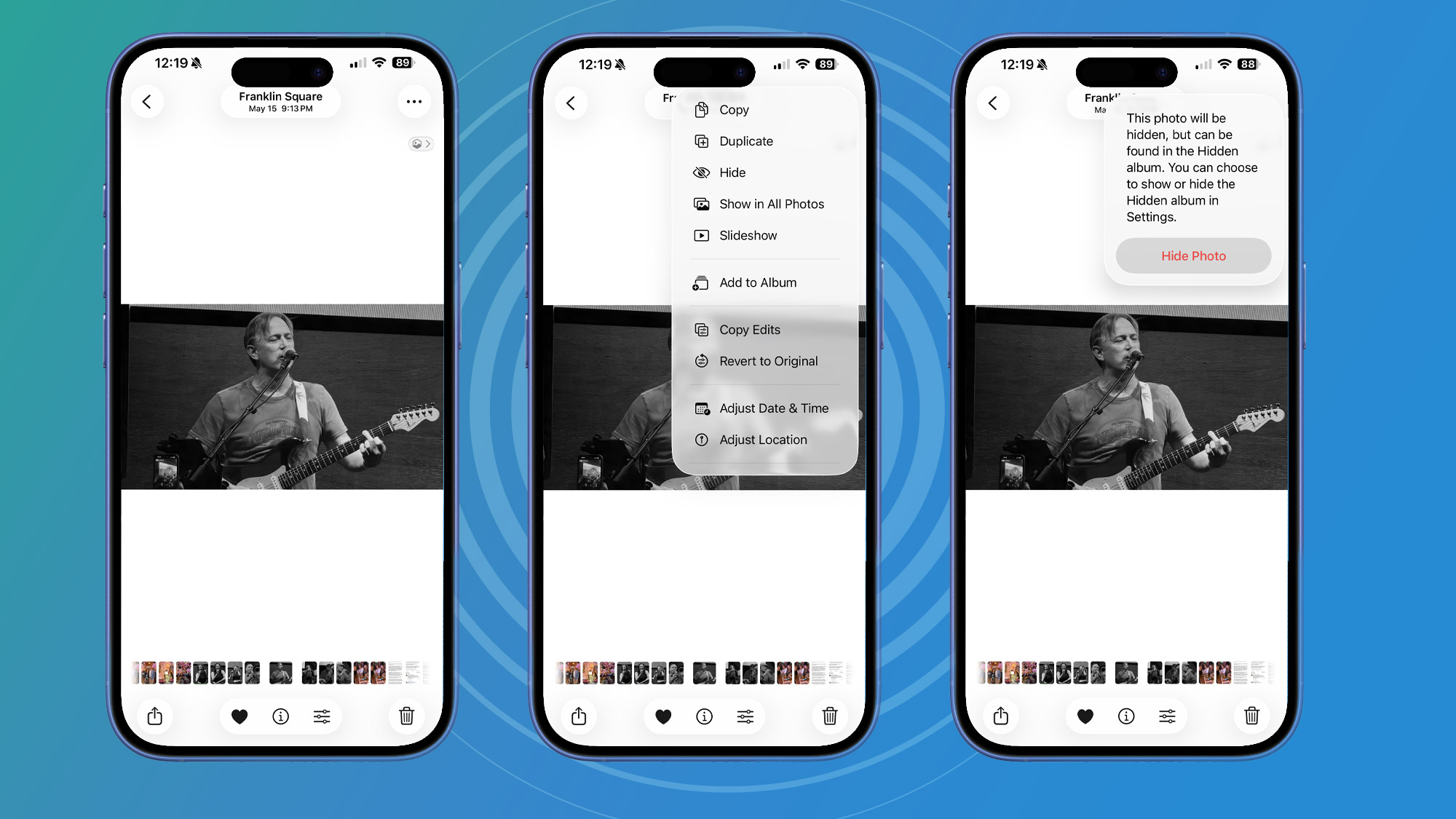
If there are photos on your phone that, say, you wouldn’t want your parents to see, then you can choose to hide them in a hidden folder that will only open with your PIN or biometric security.
On the iPhone, you open the image and select the three-dot menu, then select “Hide”. After that, the image will no longer appear in your photo gallery. There will instead be a hidden folder that you can open, for instance, with Face ID.
On, say, a Samsung Galaxy Android Phone, you…