How to free up space on your phone and avoid the dreaded ‘storage full’ messages
How to free up space on your phone and avoid the dreaded ‘storage full’ messages
https://www.popsci.com/diy/how-to-free-up-space-on-your-phone/
Publish Date: 2026-05-10 15:03:00
Source Domain: www.popsci.com
Get the Popular Science daily newsletter💡
Breakthroughs, discoveries, and DIY tips sent six days a week.
You never want to see a ‘storage full’ message pop up on your phone. It means you’re not going to be able to install new apps, or capture new photos, videos, or audio messages, because there’s nowhere to put them. You won’t be able to sync music or podcasts, if the storage is all filled up.
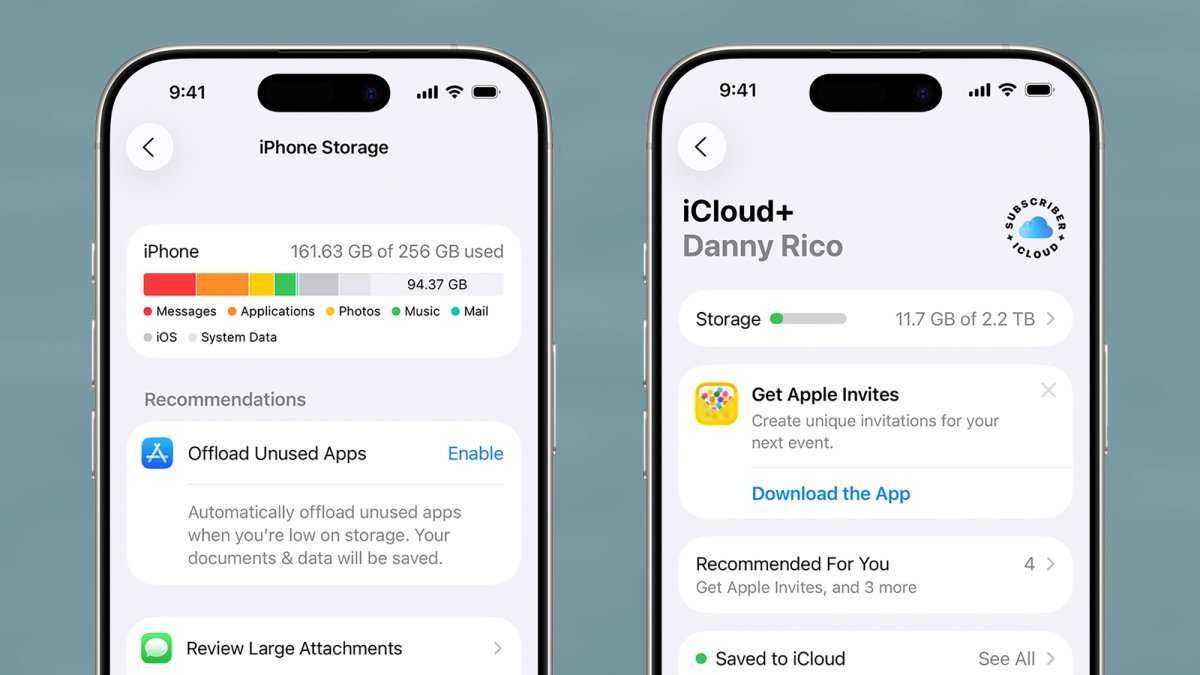
The good news is, you can preemptively prevent this from happening by doing a little bit of regular digital housekeeping. Android and iOS now come with features to make it easier for you to manage local storage, whether it’s deleting files completely or sending them off to the cloud for safe keeping.
These are your options for keeping a sizable chunk of space available on your phone for when you need it.
How to free up space on Android
Android comes with a Google app called FIles, and if you load this up you can begin diving in and deleting files manually. The Downloads folder is a good starting point: It’s likely there are quite a few files here that you’ve downloaded from the web and forgotten about, and that you don’t need any more.
Tap the three dots to the right of a file then Move to trash to delete it (it will stay in the Trash folder for 30 days before being completely wiped). To delete several files at once, tap one of the check boxes on the right to start selecting, then tap the trashcan icon at the top to confirm your choice.
The Android Files app shows you how much room you’ve got left. Screenshot: Android
The Files app comes with a dedicated tool for freeing up storage. From the front screen, tap the menu icon (three horizontal lines, top left), then select Clean. You’ll be shown a breakdown of how much room is left on your phone, together with ways to increase it. These might include deleting duplicate files and screenshots, but the options you see will…