How to Find and Erase a Lost iPhone Using Find My: A Step-By-Step Guide
How to Find and Erase a Lost iPhone Using Find My: A Step-By-Step Guide
Publish Date: 2026-05-03 03:30:00
Source Domain: www.gadgets360.com
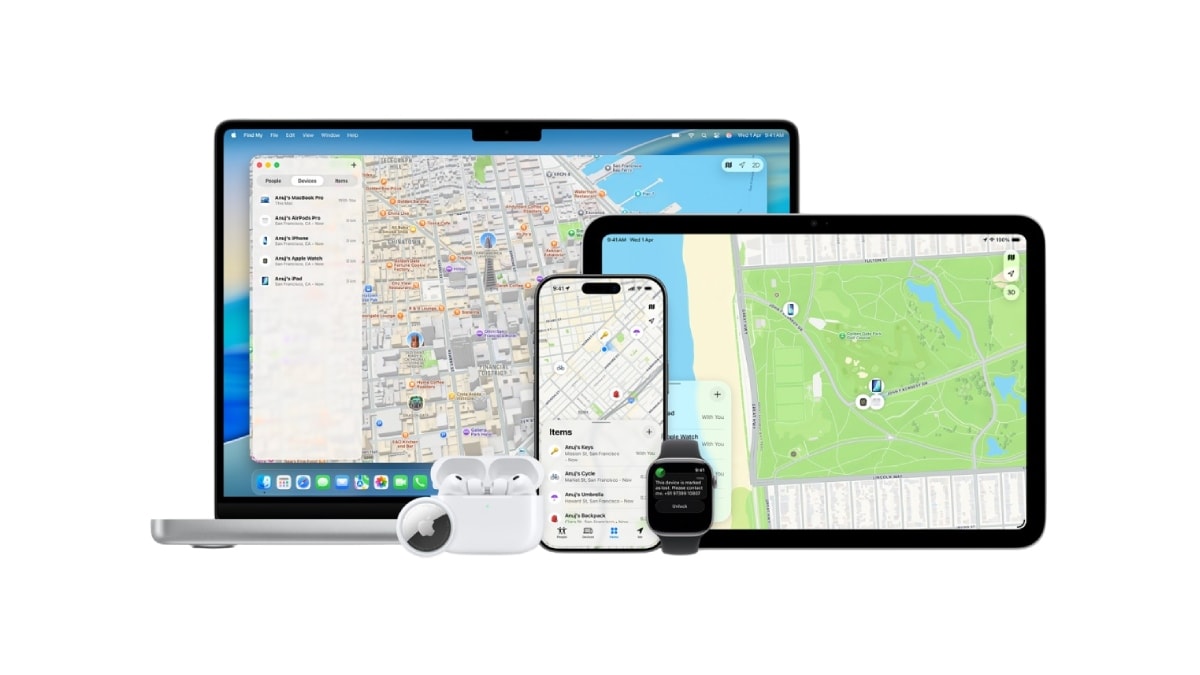
Your iPhone holds a lot of personal information, which makes losing it more than just an inconvenience. Apple provides a built-in feature called Find My, which is designed to assist users in these situations. It allows you to track your device, secure it to prevent unauthorised access, or erase its data if needed. You can access it through iCloud or another Apple device, making it possible to take action remotely, as long as the feature was enabled beforehand. This ensures you have control over your data even if your phone is lost or misplaced.
For Find My to work properly, with real-time tracking, the iPhone needs to be turned on and connected to the internet. It should also have an Apple ID signed in, with the Find My feature enabled beforehand. Additionally, location services must be turned on, so the device can share its position accurately.
It’s worth keeping in mind that even if your iPhone is offline, Apple’s Find My network can show its last known location or help locate it using nearby Apple devices, as long as the feature was enabled earlier.
How to Find and Erase a Lost iPhone Using Find My
You can access Find My through iCloud on a browser or the Find My app on another Apple device. Keep in mind that you will need your Apple ID and password to log in to your iCloud account on another device.
How to Find Your iPhone Using Find My
- Open iCloud.com/find in a browser, or use the Find My app on another Apple device.
- Sign in with the Apple ID linked to your iPhone.
- Go to the Devices section and select your iPhone.
- View its location on the map, if available.
- Use the Play Sound option to help locate it if it is nearby.
- You can also get directions to its location if it is farther away.
How to Lock Your Lost iPhone Remotely
- Open Find My and select your iPhone.
- Enable Lost Mode to secure the device.
- Set or confirm a passcode for protection.
- Add a phone number and message for the lock screen.
- Once enabled, the device is locked, and payments are…