The Pixel 10 Pro finally solved my biggest privacy concern with this one feature
The Pixel 10 Pro finally solved my biggest privacy concern with this one feature
Publish Date: 2026-03-14 12:57:00
Source Domain: www.androidcentral.com
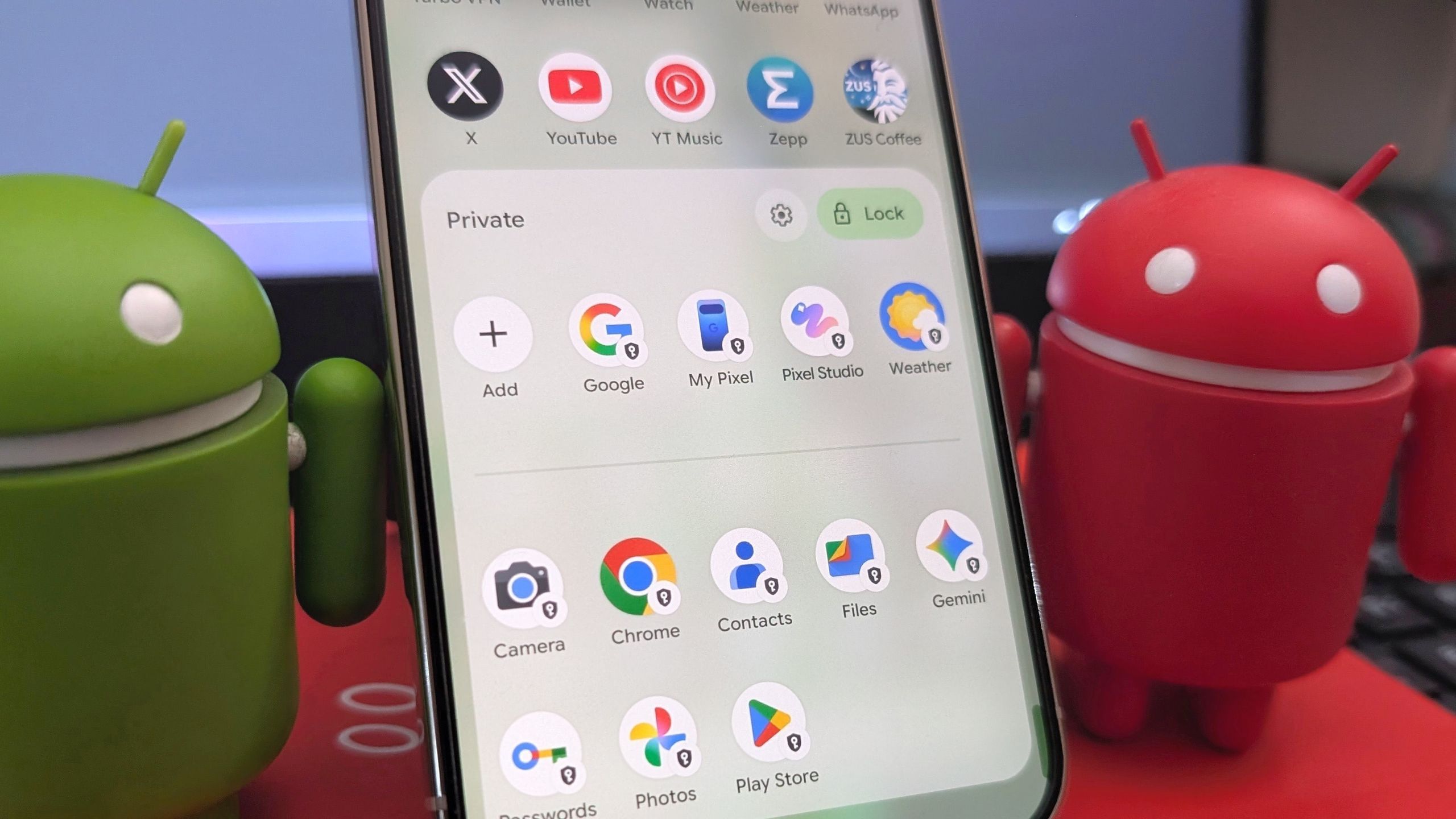
We all have that one embarrassing app we’d like to hide, personal pictures we want to keep to ourselves, or important documents that should not be easily accessible to anyone who uses our phones. I use a neat little feature to store anything I don’t want visible in a secret space on my Pixel 10 Pro, including apps, documents, and other files. Hidden items don’t even show up in the phone’s search results!
Why would you want to do that, you ask? A password protects your phone, but there are instances when friends, family, or others may access your device. In some countries, airport security officials can check your phone — yes, even personal apps like your social media and gallery.
Article continues below
You may like
Private Space hides secret apps on your phone
The feature is officially called Private Space and has been around since Android 15 first launched. Despite a slightly glitchy start, Google has since ironed out the kinks, and it seems to be working smoothly now. As long as you have a phone that runs Android 15 or higher, you should be able to use this feature. Some non-Pixel phones may not have the feature.
Private Space lets you create a separate space on your Pixel device where you can install apps with another Google account. This lets you keep things like internet browsing history and app history completely separate. Here’s how you can set up a Private Space on your Pixel.
How to create a Private Space on your Pixel
1. Open the Settings app on your Pixel phone.
2. Select Security and privacy.
3. Select Private space under the Privacy section.
(Image credit: Namerah Saud Fatmi / Android Central)
4. Tap the SET UP button.
5. Create or sign in…