7 privacy tips for your Android device to avoid prying eyes online and in person
7 privacy tips for your Android device to avoid prying eyes online and in person
Publish Date: 2026-02-04 13:11:00
Source Domain: www.techradar.com
Android phones and tablets are capable devices – and many of those capabilities both open you up to privacy issues, and give you ways to increase your privacy.
Apps might ask for your location, websites might capture data about your browsing habits, and people might look over your shoulder, but all of these things can be countered by tools available to you.
So below, we’ve detailed seven ways to help keep your Android device private, whether your concerns are online trackers and threats, over-shoulder snoopers, or people who have physical access to your device.
You may like
1. Communicate with Signal
(Image credit: Signal Foundation)
Signal’s whole deal is keeping your messages private, so if you’re worried about people or companies intercepting and reading your communications, then this is a top messaging choice.
This app uses end-to-end encryption, ensuring that even Signal itself can’t read your messages, and it promises that there are no back doors and there’s no data collection. It relies on the Signal Protocol for its encryption, which is open source and auditable, so third parties can and have verified the company’s claims.
And it’s a nonprofit organization, so it’s not subject to the whims of advertisers and investors. In short, this is about as private as messaging on Android gets.
But Signal is also a slick, full-featured messaging app, so it doesn’t feel like you’re compromising on other things to get that privacy.
2. Check and limit app permissions
(Image credit: Samsung / TechRadar)
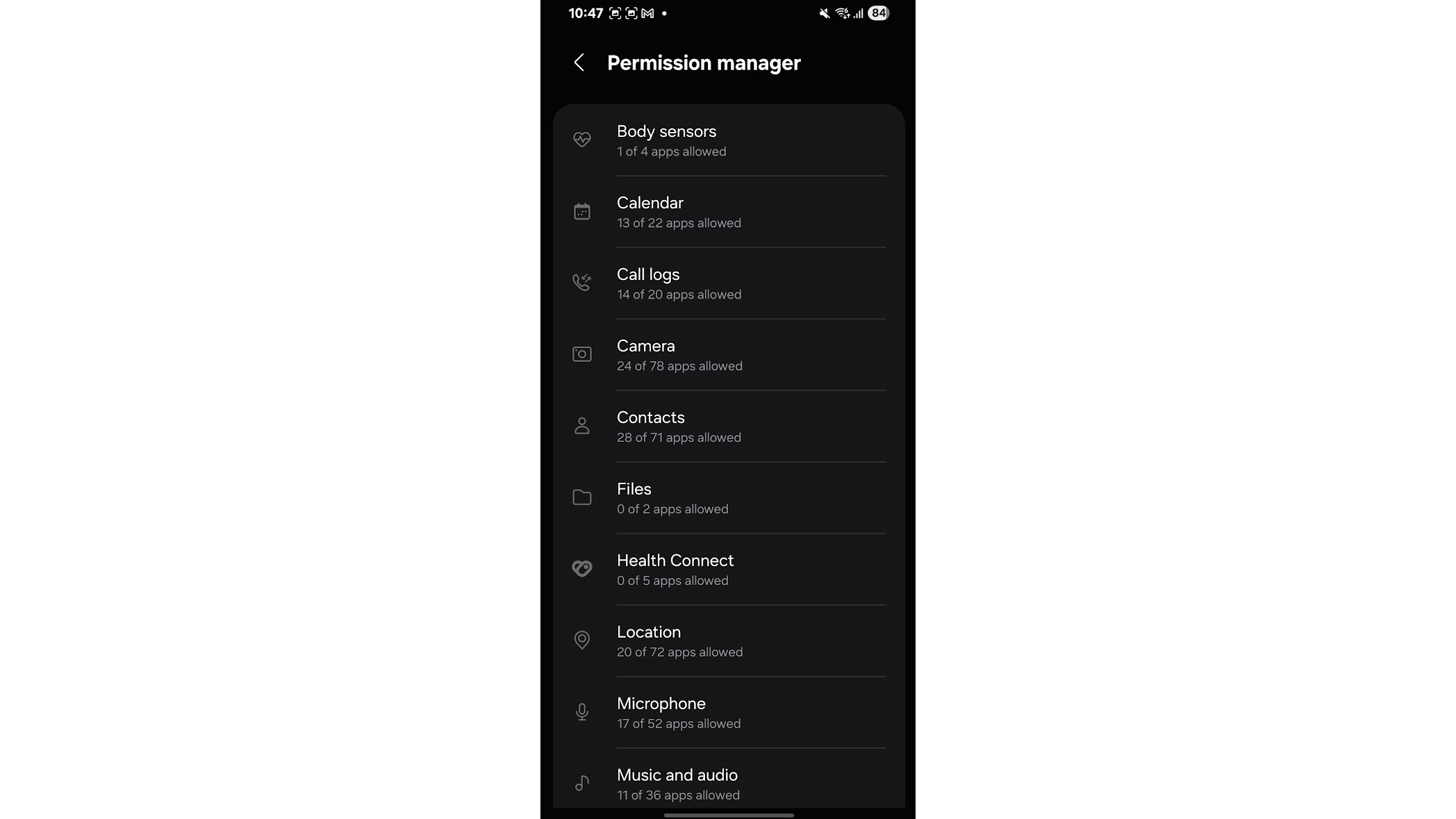
Apps have a nasty habit of asking for all sorts of permissions, some of which it can be questionable how much they need. So it’s worth being aware of what permissions your apps have access to, and revoking any permissions you don’t want them to have.
The easiest way to do this is to head to Settings Security and Privacy Privacy Permission manager, where you’ll be able…